


M3U Playlist Explained: What Your IPTV Link Holds and How to Use It
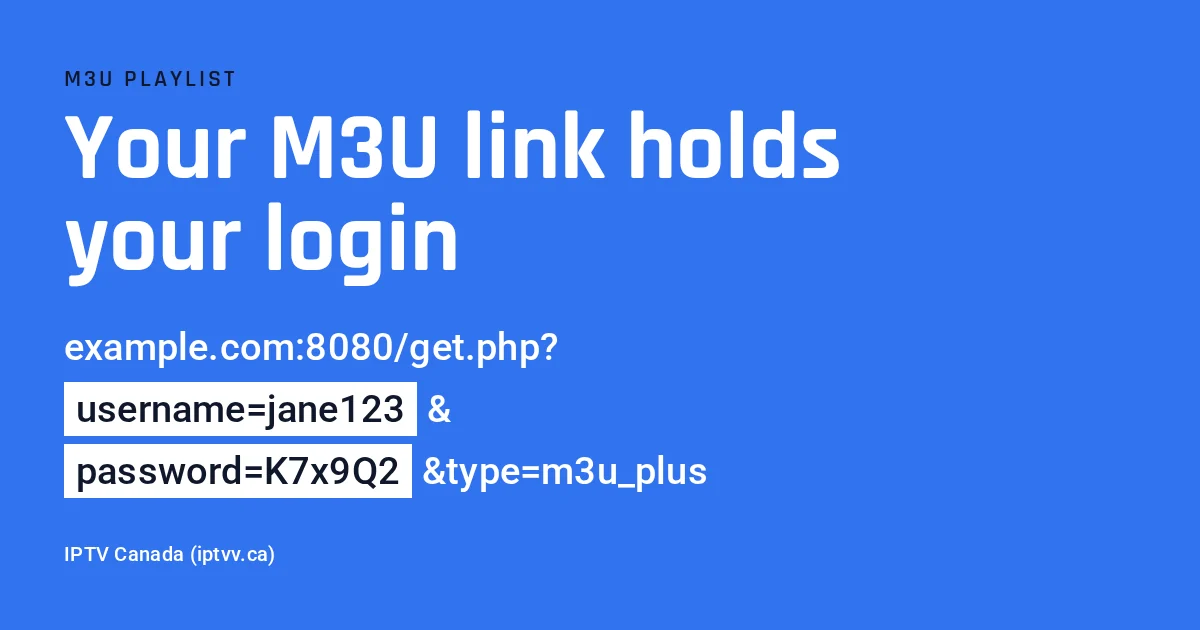
An M3U playlist is a plain text file, or a web link to one, that lists the address of every channel your IPTV service streams. It holds no video. Your player reads the list line by line, then shows the channel names, logos and categories. With a paid service, that link also contains your username and password, so treat it like a key to your account.
We run IPTV Canada (iptvv.ca), and our support team handles playlist links, logins and error codes every day. Below, you get an annotated sample file, the four ways to sign in compared in one table, simple setup steps, and a table of the errors people actually hit, with the fix for each.
What Is an M3U Playlist?
An M3U playlist is an index, not a library: a short text file where each channel gets a name line and an address line. The player opens each address only when you pick that channel, so the file stays small while the channels stay on the service’s servers.
The format started with music players, which used it to list song files. Later, IPTV services adopted it because almost every player can read it. That is why “M3U” and “IPTV playlist” now mean nearly the same thing to most viewers.
In practice, you meet it in two forms. First, a playlist link: a long web address that your player downloads and refreshes on its own. Second, a downloaded file ending in .m3u, which is a frozen copy of that list. If IPTV itself is new to you, our plain-English guide to IPTV covers the basics first.
What Does an M3U Playlist Look Like Inside?
Inside, an M3U playlist starts with the line #EXTM3U, then repeats a two-line pattern for every channel: an #EXTINF line with the name, logo, guide ID and category, then the stream address. Here is a fake sample with placeholder addresses.
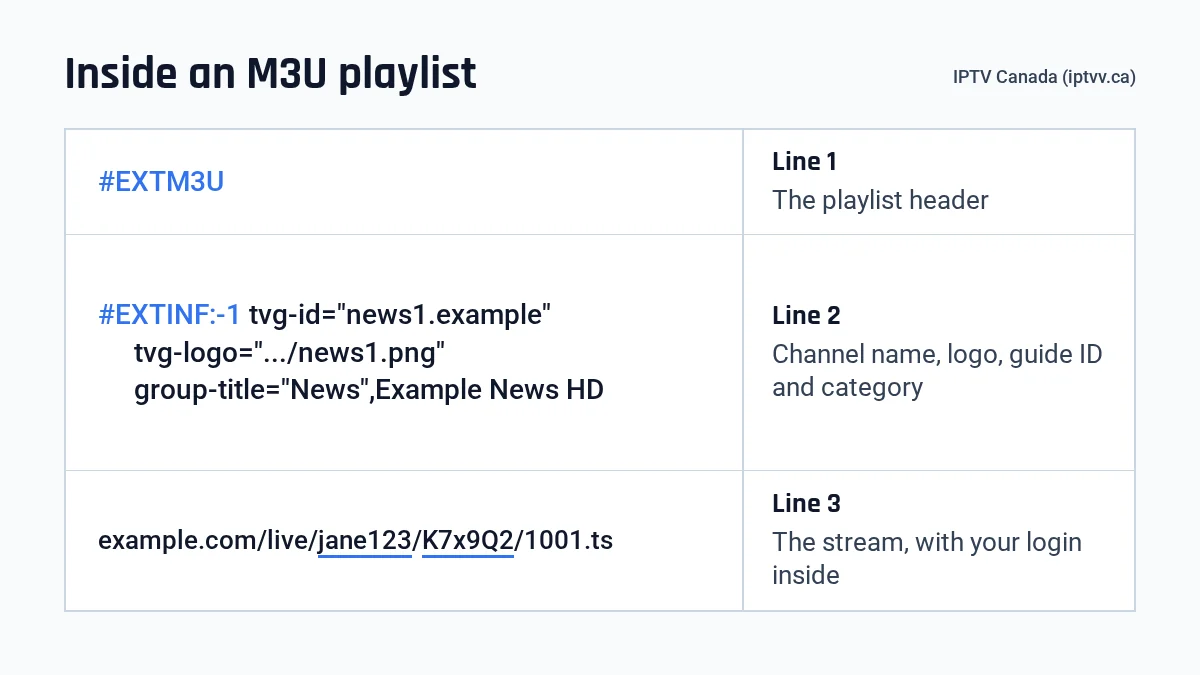
So each part has one job. This table reads the sample from top to bottom, plus the optional url-tvg guide tag that some playlists add to the first line:
| Part of the file | Sample value | What it tells the player |
|---|---|---|
| #EXTM3U | First line | This is an extended M3U playlist, so read the tags that follow |
| url-tvg | https://example.com/guide.xml | Optional: where to download the TV guide |
| #EXTINF:-1 | Start of a channel entry | A new channel begins, and -1 means live, with no fixed length |
| tvg-id | news1.example | The ID that matches this channel to its TV guide listings |
| tvg-logo | https://example.com/logos/news1.png | The logo to show beside the name |
| group-title | News | The category folder the channel sits in |
| Text after the comma | Example News HD | The name you see in the channel list |
| Next line | https://example.com/live/jane123/K7x9Q2/1001.ts | The stream itself, and note the username and password inside it |
A full list with 25,000+ live channels simply repeats that pattern thousands of times. Want to see a real one load on your own TV? Our 24-hour free trial needs an email only, no credit card.
M3U vs M3U8: What Is the Difference?
An M3U8 file is an M3U file saved as UTF-8 text, so accents and non-Latin names display correctly. For an IPTV channel list, the two work the same way, and most players accept either one.
The HTTP Live Streaming specification (RFC 8216) builds on the M3U format. It requires UTF-8 and makes #EXTM3U the mandatory first line. HLS also uses .m3u8 files to deliver video in short chunks, so “.m3u8” shows up as a stream type, not just a list type.
So you may see two kinds of stream addresses in a playlist:
- Ending in .ts: one continuous stream of video. Many players start these quickly.
- Ending in .m3u8 (often labelled HLS): the stream arrives in short chunks. Some players and smart TVs handle it better.
If one channel stutters in your player while others play fine, check the player’s settings. Some players let you switch between the two stream types, and the other one sometimes plays more smoothly.
M3U Link, Login or Portal URL: Which Should You Use?
Use the server address with your username and password whenever your player offers it. It loads channels, movies, series and the TV guide in tidy sections. Keep the M3U link for players that accept nothing else.
| Login type | What you enter | Best for | Watch out for |
|---|---|---|---|
| Server, username and password | Three short fields from your welcome email | Most players; guide and movies load on their own | Capital letters and stray spaces |
| M3U playlist link | One long web address | Players that only accept a playlist link | Big lists load slowly, and the guide may need a separate address |
| Downloaded .m3u file | A file saved on your device | Rare cases with no internet link option | It never updates, and it breaks when your password changes |
| Portal with device code (MAC) | A portal address; the service registers your device’s MAC address | Some older set-top boxes | Works only if your service supports that device |
Also, the word “portal” confuses many people. In many players, the field called “Portal URL” or “Host” simply means the server address from your email, entered next to your username and password. Only the device-code type is a different system.
With us, the welcome email gives you a username, a password and setup details. On streaming sticks and supported TV boxes, our own free player needs just the username and password, with no server address at all. If your player accepts only a playlist link, ask our support team for your M3U link.
How Do You Add an M3U Playlist to an IPTV Player?
Open your player, choose “Add playlist”, pick the M3U or playlist URL option, paste the full link, then save and wait for the list to load. On most devices the first load takes a minute or two.
- Install a player from your device’s official app store, or our own free player from our website. Avoid files from chats, forums or comment links.
- Open it and look for “Add playlist”, “Add user” or a plus sign.
- Choose “M3U URL” or “Playlist link”. If the player offers username and password login instead, prefer that.
- Give the playlist any name, such as “Home TV”.
- Paste the complete link. Typing it with a remote invites mistakes, so copy it whenever possible.
- Save, then wait. Once the channels appear, open the guide and check that tonight’s listings match what is playing.
Field names and screens differ from one player to the next, though. Our installation guide shows the exact steps for each type of device, so this page does not repeat them.
How Do You Get the TV Guide With an M3U Playlist?
The TV guide comes from a second file in XMLTV format. Each channel’s tvg-id must match an ID in that file. With a username and password login, the guide loads by itself. With an M3U link, some players need the guide address entered separately.
Some playlists save you that step, because they carry the guide address in the url-tvg tag of the first line. Many players read that tag and fetch the listings automatically.
When a few channels still show “No information”, their tvg-id does not match the guide file. Most players let you map them by hand. Our IPTV EPG guide explains how the listings work and how to fix gaps. Then, if your player asks for a guide address you do not have, ask our support team rather than trying addresses found online.
Why Should You Keep Your M3U Playlist Link Private?
Your M3U playlist link contains your username and password in plain text, usually right after “username=” and “password=”. Anyone who has the link can watch on your account, use up your screens and lock you out at the worst moment.
A typical paid link looks like this placeholder: http://example.com:8080/get.php?username=jane123&password=K7x9Q2&type=m3u_plus. In fact, every channel address inside the file repeats the same two values. So a screenshot of your list can leak your login too.
- Never post it in a forum, a group chat, a review or a help request. If someone asks for a screenshot, blur the address bar first.
- Never paste it into “playlist checker” websites. Your login then sits on a stranger’s server.
- Use a password you use nowhere else. The Government of Canada’s Get Cyber Safe advice is simple: never share passwords and keep each one unique.
If your link has leaked, contact our team and ask for a new password. As soon as it changes, the old link stops working everywhere. Then you enter the new details on your own devices, and nobody else can watch on your account.
What Do M3U Playlist Errors Mean, and How Do You Fix Them?
Most M3U playlist errors come down to three causes: a typo in the link, an expired subscription, or more screens playing than your plan allows. The table below maps the messages players show to the usual fix.
| What you see | What it usually means | What to do |
|---|---|---|
| 401 (unauthorized) or “invalid login” | The username or password in the link is wrong | Check the username and password, including capital letters and spaces |
| 403 (forbidden) | The server refuses your login, often because your plan expired | Check your end date, then renew or contact our team |
| 404 (not found) | Part of the address is missing, or the link is out of date | Re-enter the details from your welcome email, or ask our support team |
| Account expired, or the list empties overnight | The plan or the 24-hour trial ended | Renew; nothing renews by itself, so access stops until you do |
| “Too many connections”, or a stream stops when another screen starts | More devices are playing at once than your plan covers | Stop one stream, or move to a plan with more screens |
| The list loads, but channels stay black or buffer | The link works; the stream or your network is struggling | Restart the router and player, then see our troubleshooting guide |
| Channels play, but the guide is empty | The player has no guide address yet | Use username and password login, or add the guide address |
Too many connections while you watch alone? Close the player on your other devices first. If it still happens, your link may have leaked, so contact our team. Our plans cover 1 to 4 screens, from $19 for one screen to $49 for four on the monthly plan, before tax. The multiple devices guide helps you size yours, and the pricing page lists every plan.
Why Do Free M3U Playlists Stop Working So Fast?
Free M3U playlists usually die within days because nobody pays for the servers behind them. Once a list spreads, thousands of viewers overload it, rights holders file complaints, and the streams disappear, often in the middle of a big live event.
They also carry risks a paid subscription does not. Sites that offer “daily updated” lists are often heavy with pop-ups and fake download buttons. Some push a “player” file that is really malware. Meanwhile, you get no support, and nobody answers when the list goes dark.
That is why we never link to public lists, on this page or anywhere else. Our free IPTV in Canada guide covers the free options that do exist. For the legal side, see our guide Is IPTV legal in Canada?, which sets out the rules in plain terms.
M3U Playlist: FAQ
Can I use the same M3U playlist on several devices?
Yes, you can add the same link to several devices. However, only as many devices as your plan has screens can play at the same time. With IPTV Canada (iptvv.ca), plans cover 1 to 4 screens, so choose as many screens as people who watch at once.
Do M3U links expire?
The link stops working when your plan or trial ends, or when your password changes. Since renewal is manual and nothing is charged automatically, access simply stops on the end date until you renew.
Is using an M3U playlist legal in Canada?
The M3U format is just a text file, and music players used it long before IPTV services adopted it. Legal questions concern IPTV services, not the file format, and we do not give legal advice. Our guide on IPTV and Canadian law sets out the rules in plain language.
Is it better to download the M3U file or use the link?
Use the link. Your player then refreshes the list on its own when channels are added or moved. A downloaded file is a frozen copy: it misses every update, and it stops working completely as soon as your password changes.
Can I open an M3U playlist on a phone or a computer?
Yes. Phones and tablets have many players in their official app stores, and most free media players on a computer can open a playlist link. Still, a dedicated IPTV player gives you a proper guide, favourites and quicker channel changes.
Why does a big playlist take so long to load?
A full list can hold more than 25,000 live channels, and some lists add movies and series too, so the first download takes time on slower devices. If it times out, switch to username and password login, which loads live channels, movies and series in separate, lighter sections.
Where can Canadians get a reliable M3U playlist?
From a paid service that answers support requests and gives you your own private login. You can test ours for 24 hours with an email only, no credit card, before you choose a plan. Then compare the picture and the guide on your own TV.