


IPTV Setup Tutorials
Select your device below to open a clear, step-by-step installation guide.
Fire TV Stick Setup Guide
Choose your player
The player is the app you watch with. Your IPTVV subscription works in any player that supports Xtream Codes. These 3 are the ones we recommend, with full steps below.
Not sure? Choose OTT Navigator. It's free, and you can switch later in 2 minutes.
What's the difference between OTT Navigator, TiviMate and iMPlayer?
| OTT Navigator | TiviMate | iMPlayer | |
|---|---|---|---|
| Price | Free | Free + paid Premium | Free + optional Premium |
| Live TV and TV guide | Yes | Yes | Yes |
| Movies and series (in your subscription) | Unlocked | Locked until you buy Premium | Unlocked |
| Catch-up | Yes, free | Premium only | Premium only |
| Several channels at once | Premium only | Premium only | Premium only |
| Ads | No ads | No ads | No ads |
| How to install | Downloader code 982469 | Downloader code 272483 | Downloader code 82375 |
 OTT Navigator
- Price
- Free
- Live TV and TV guide
- Yes
- Movies and series (in your subscription)
- Unlocked
- Catch-up
- Yes, free
- Several channels at once
- Premium only
- Ads
- No ads
- How to install
- Downloader code 982469
 TiviMate
- Price
- Free + paid Premium
- Live TV and TV guide
- Yes
- Movies and series (in your subscription)
- Locked until you buy Premium
- Catch-up
- Premium only
- Several channels at once
- Premium only
- Ads
- No ads
- How to install
- Downloader code 272483
 iMPlayer
- Price
- Free + optional Premium
- Live TV and TV guide
- Yes
- Movies and series (in your subscription)
- Unlocked
- Catch-up
- Premium only
- Several channels at once
- Premium only
- Ads
- No ads
- How to install
- Downloader code 82375
Don't want to pay anything extra? Use the free player instead.

Do you have the Downloader app?
It's the orange app with a white D. We use it to install .
Install the Downloader app
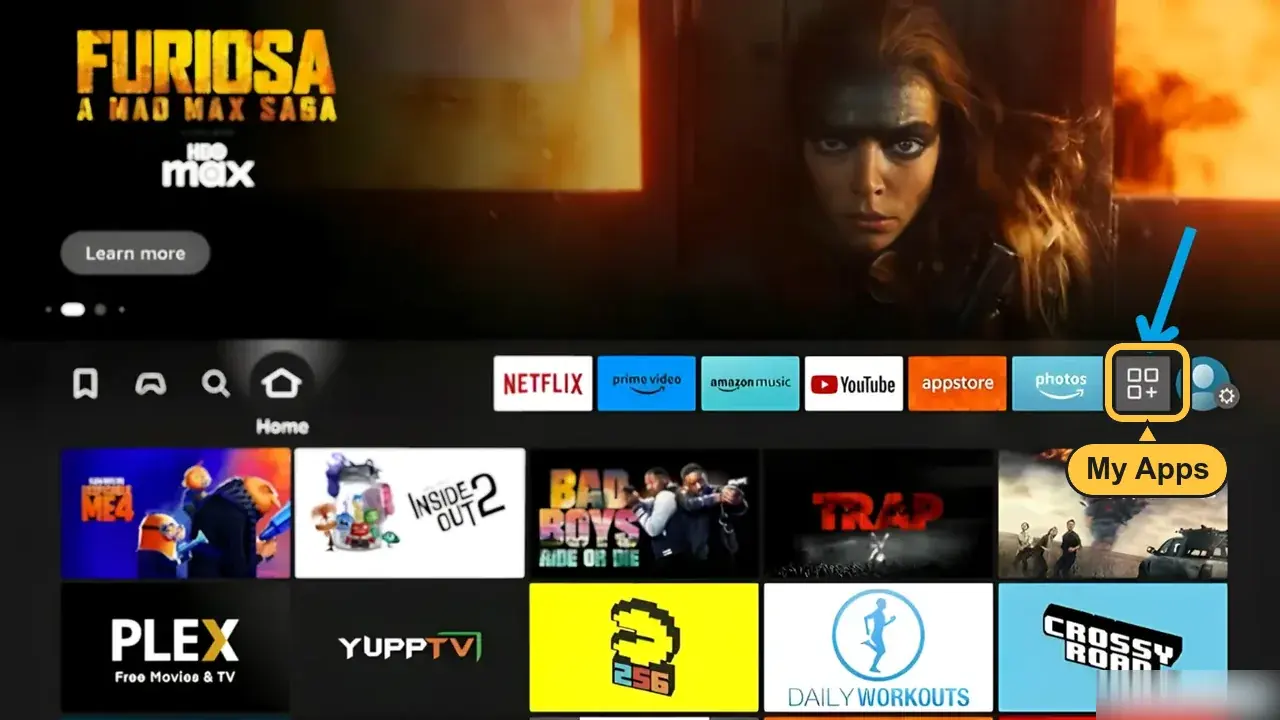
- Go to My Apps, then Get more apps
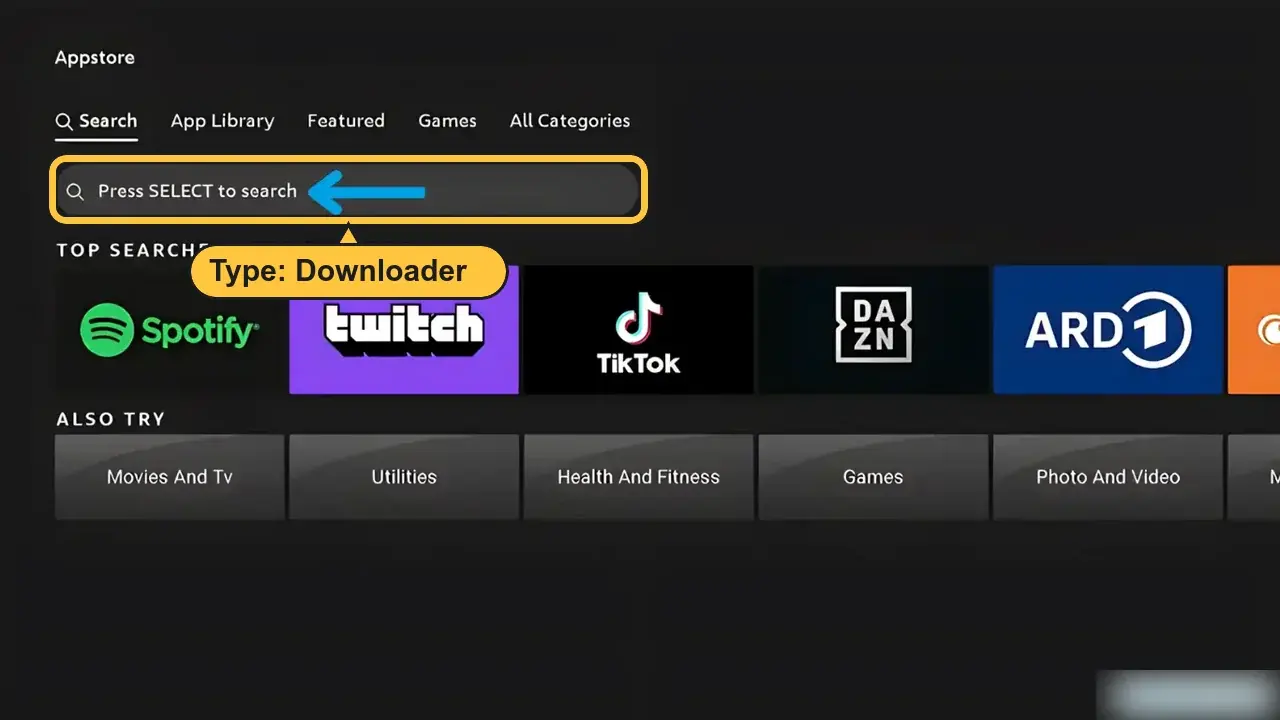
- Choose Search. Type Downloader and pick it
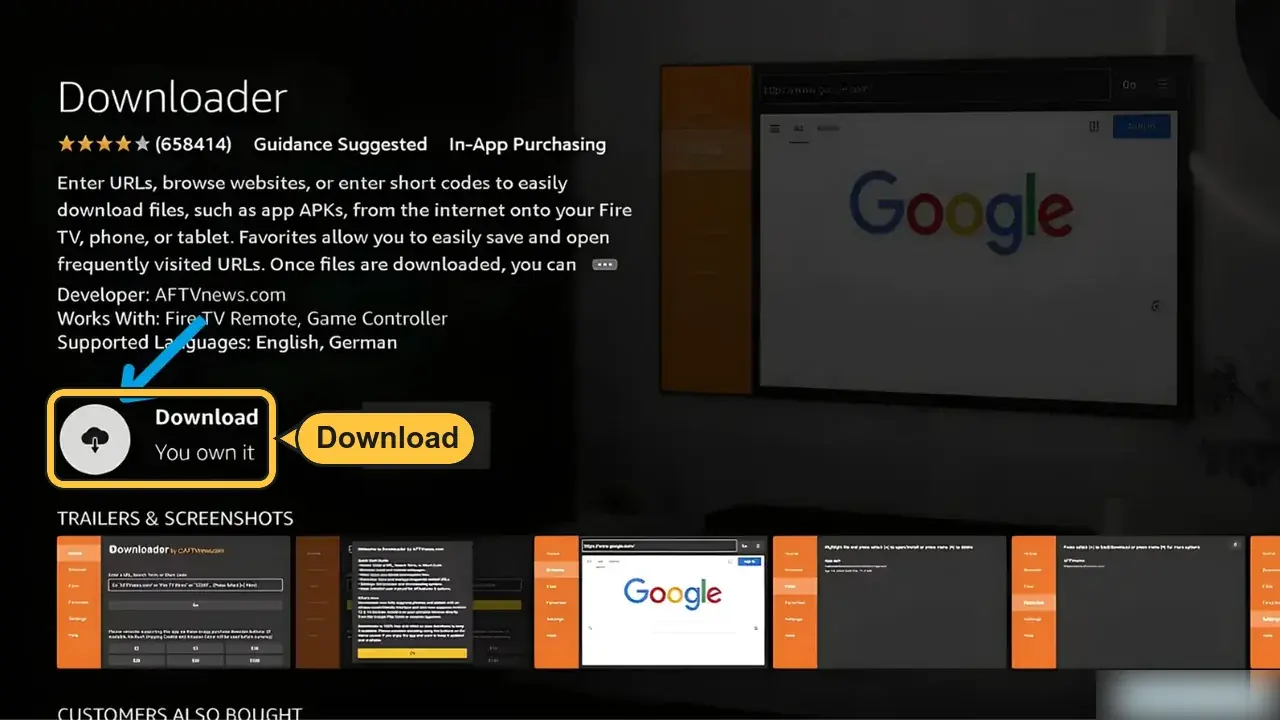
- Press Download (or Get)
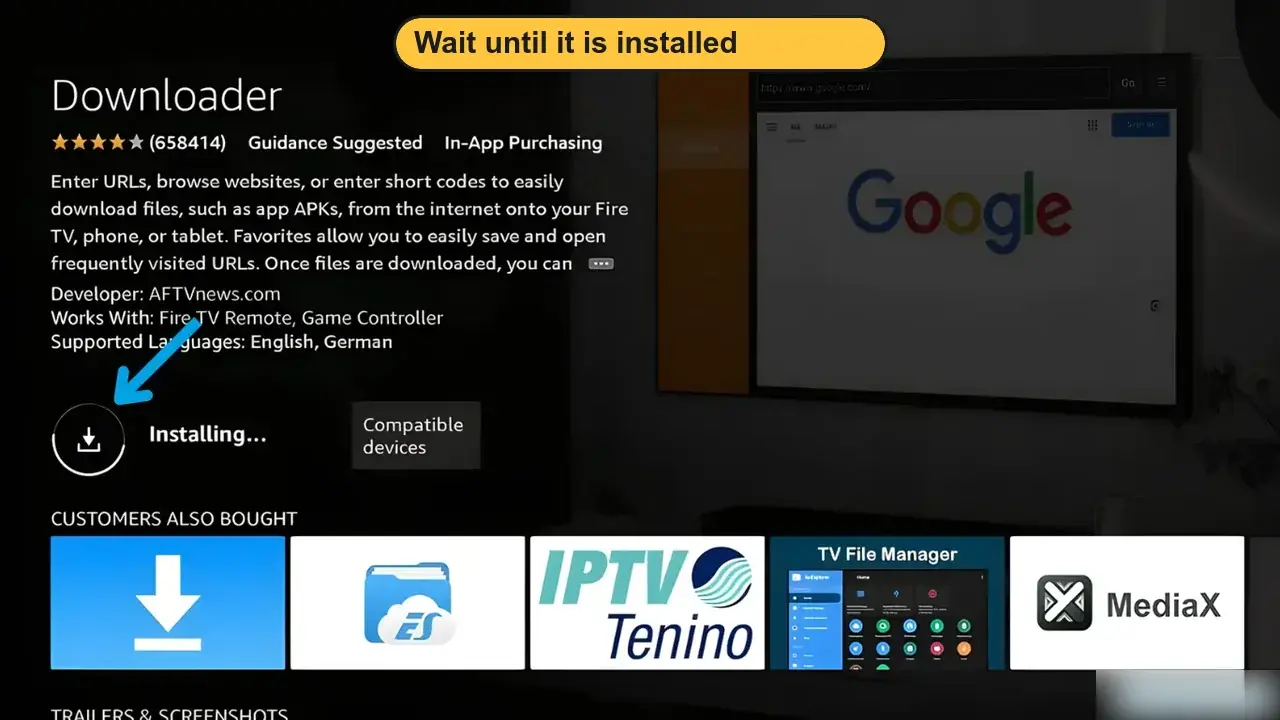
- Wait until it is installed. Then press Home
Allow Downloader to install apps
- Go to Settings, then My Fire TV
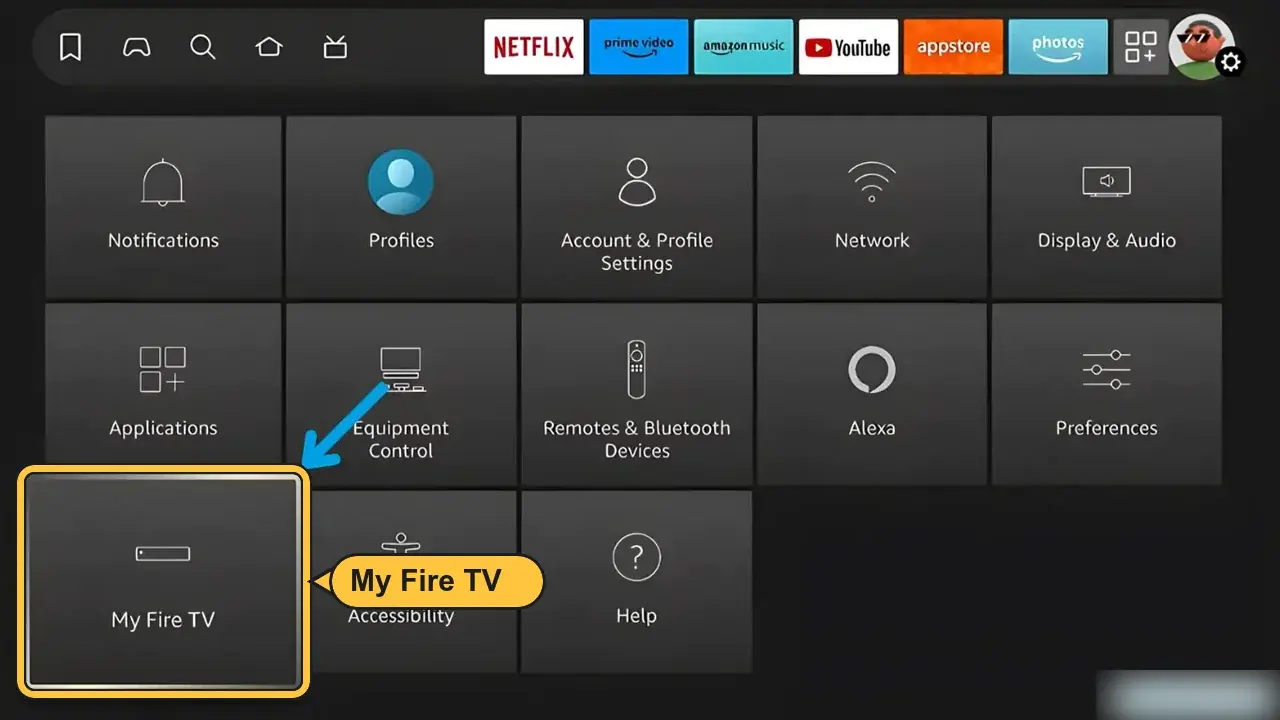
- Open About. Click Fire TV Stick 7 times
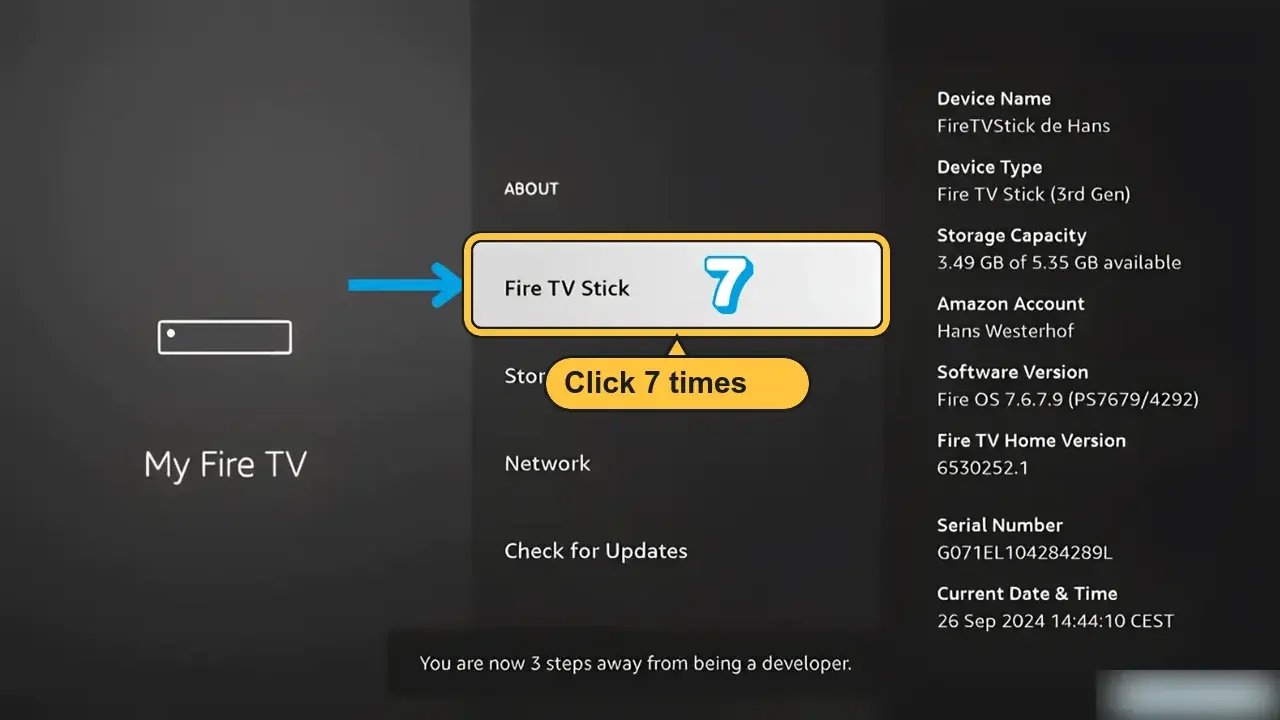
- Go back. Open Developer Options, then Install Unknown Apps
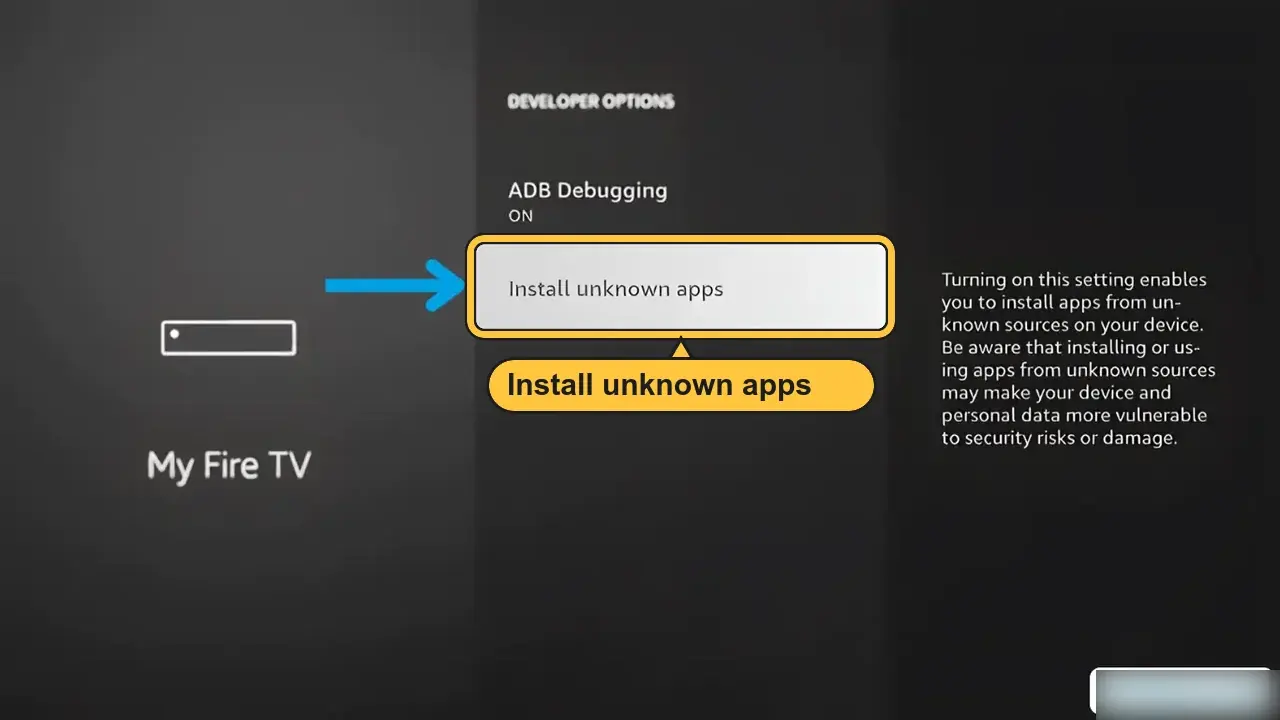
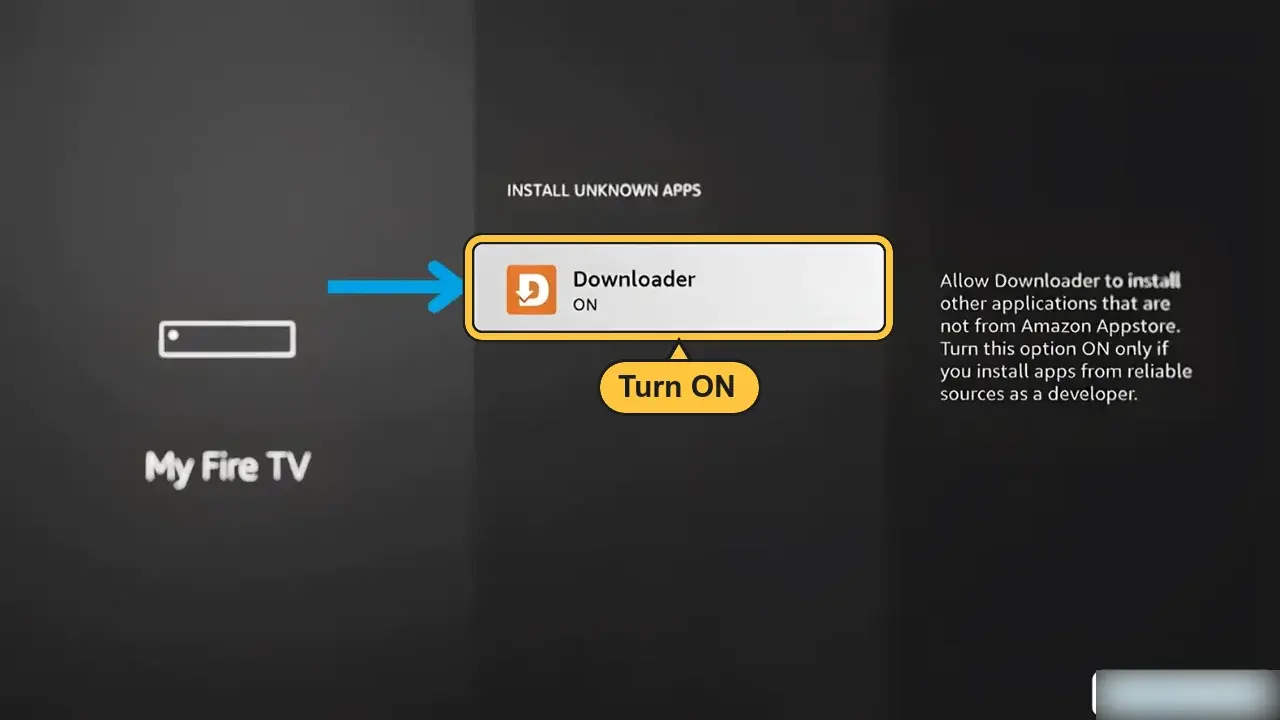
- Turn Downloader to On
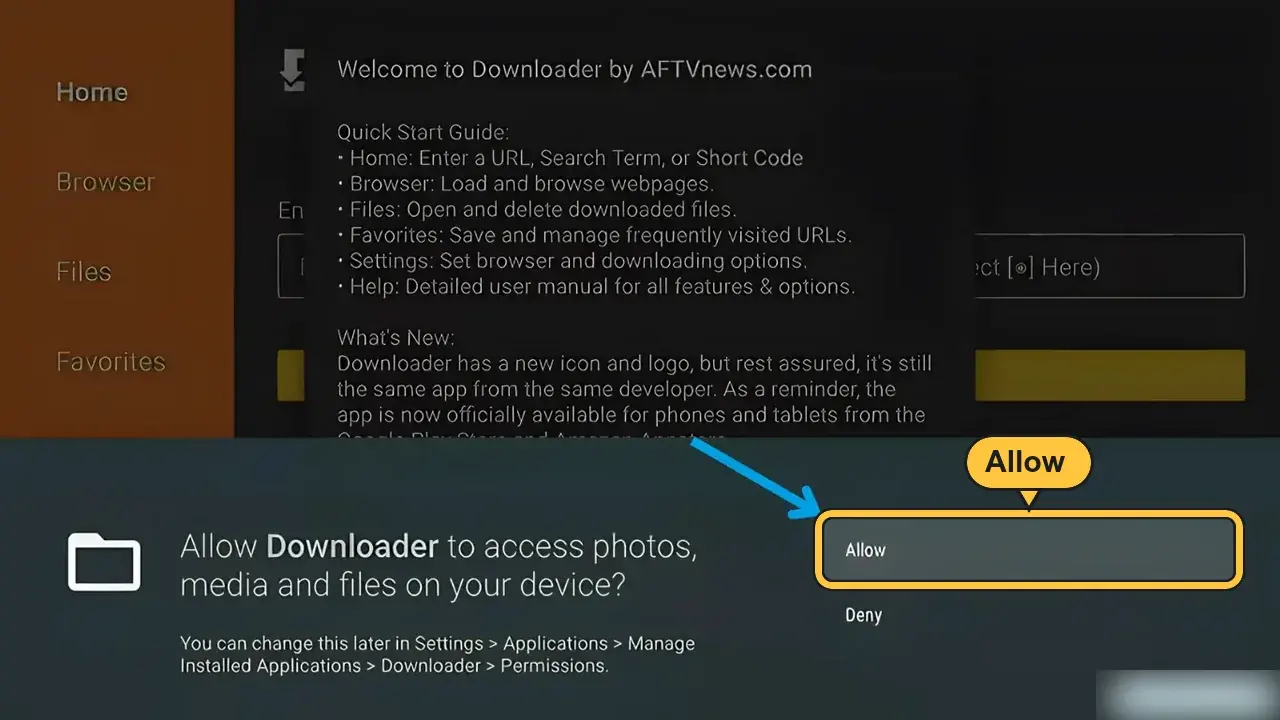
- Open Downloader. Press Allow, then OK
Install OTT Navigator
- Open the Downloader app
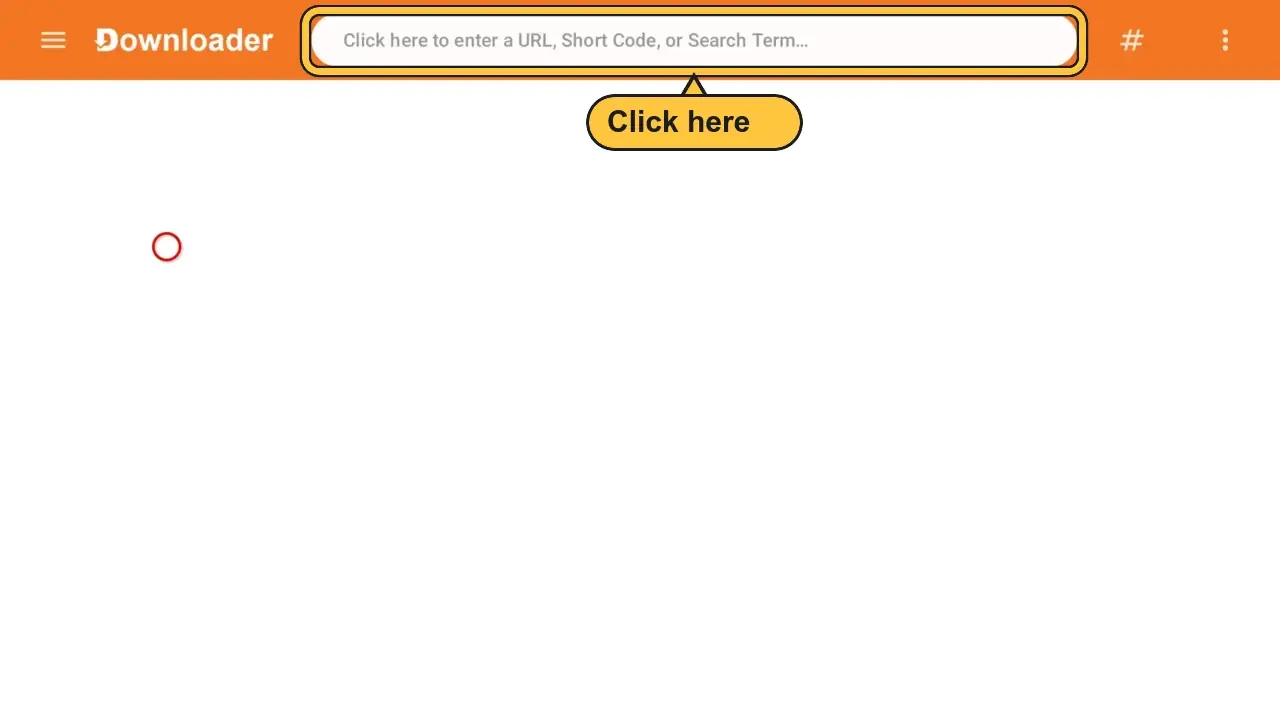
- Click the box at the top. Type:
982469
Then press Load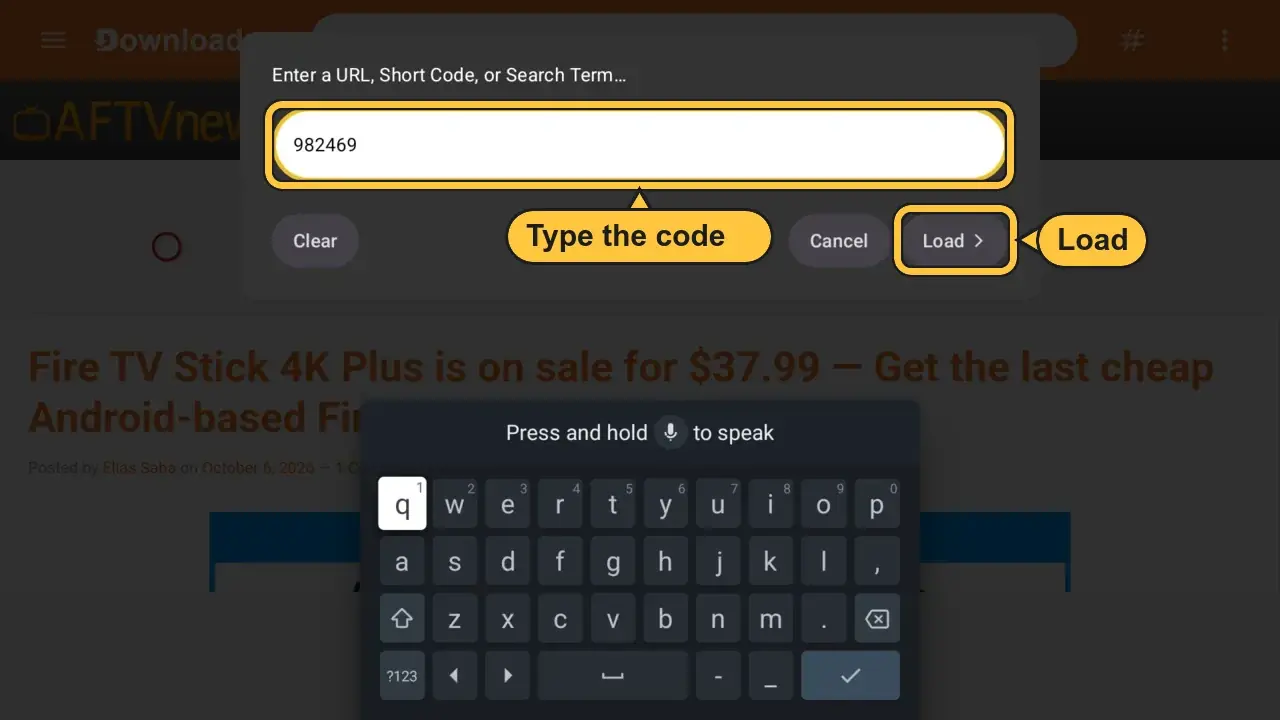
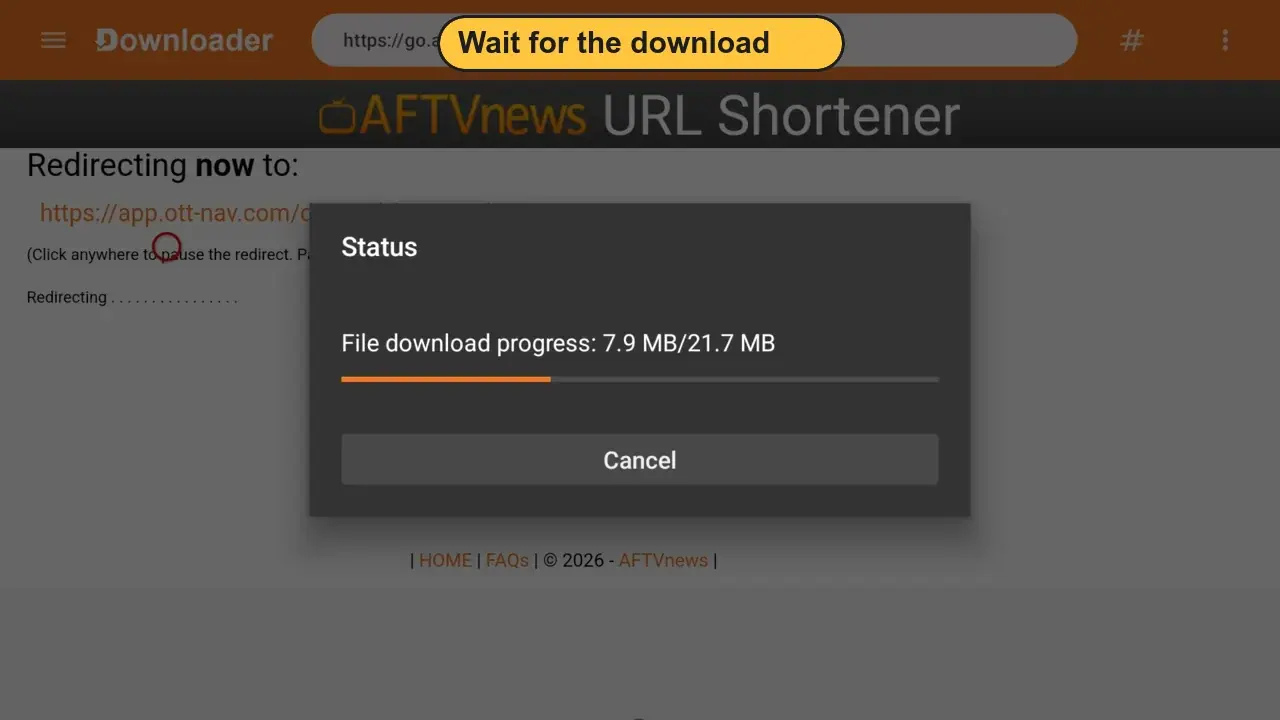
- Wait for the download
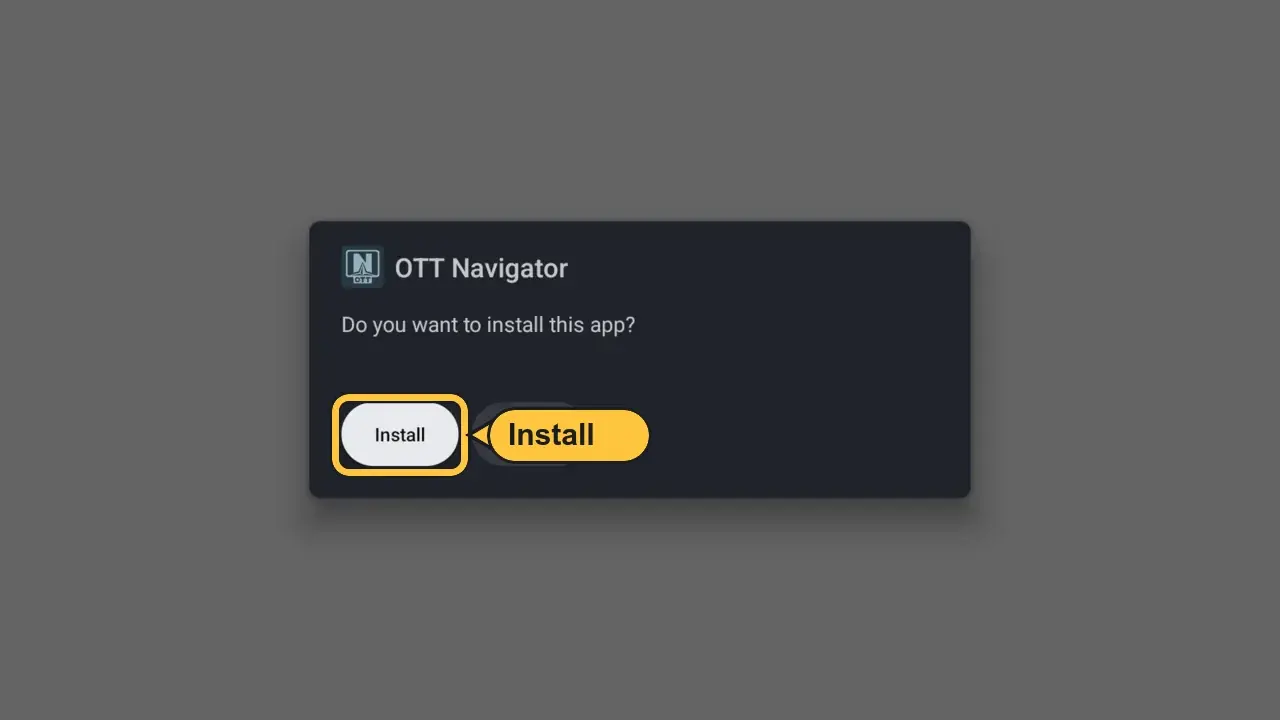
- Press Install
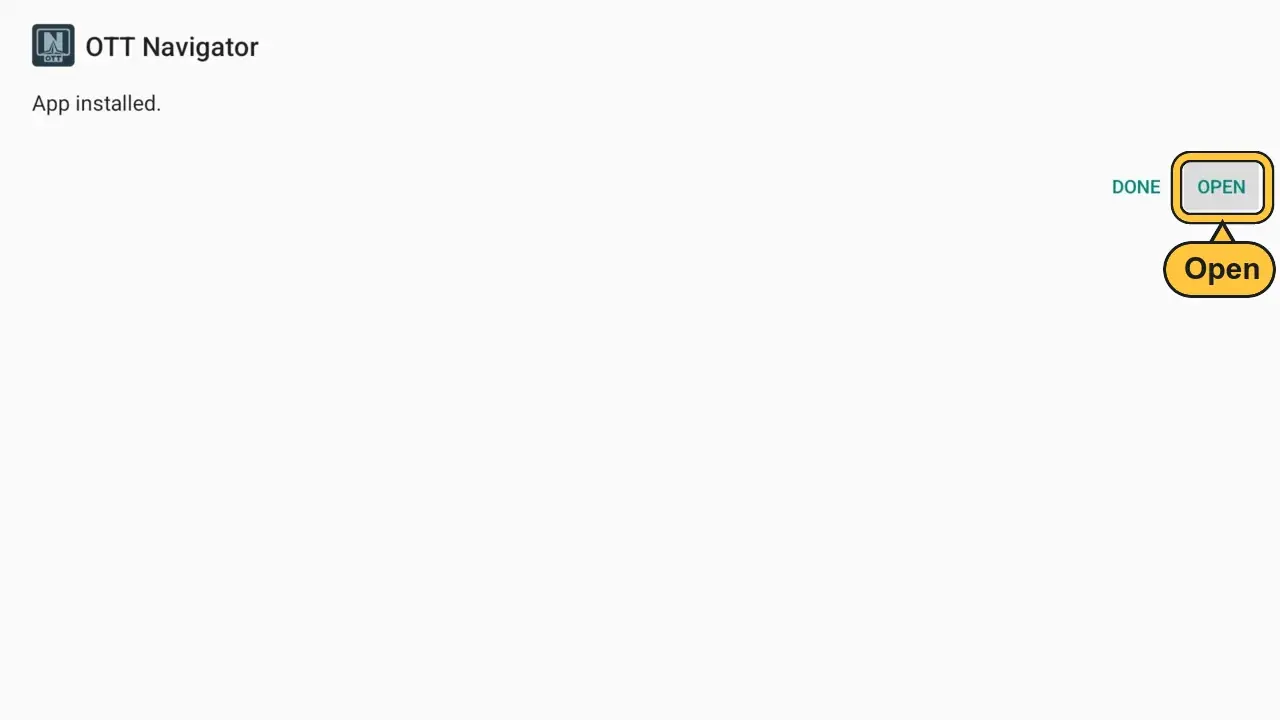
- Press Open
Log in to OTT Navigator
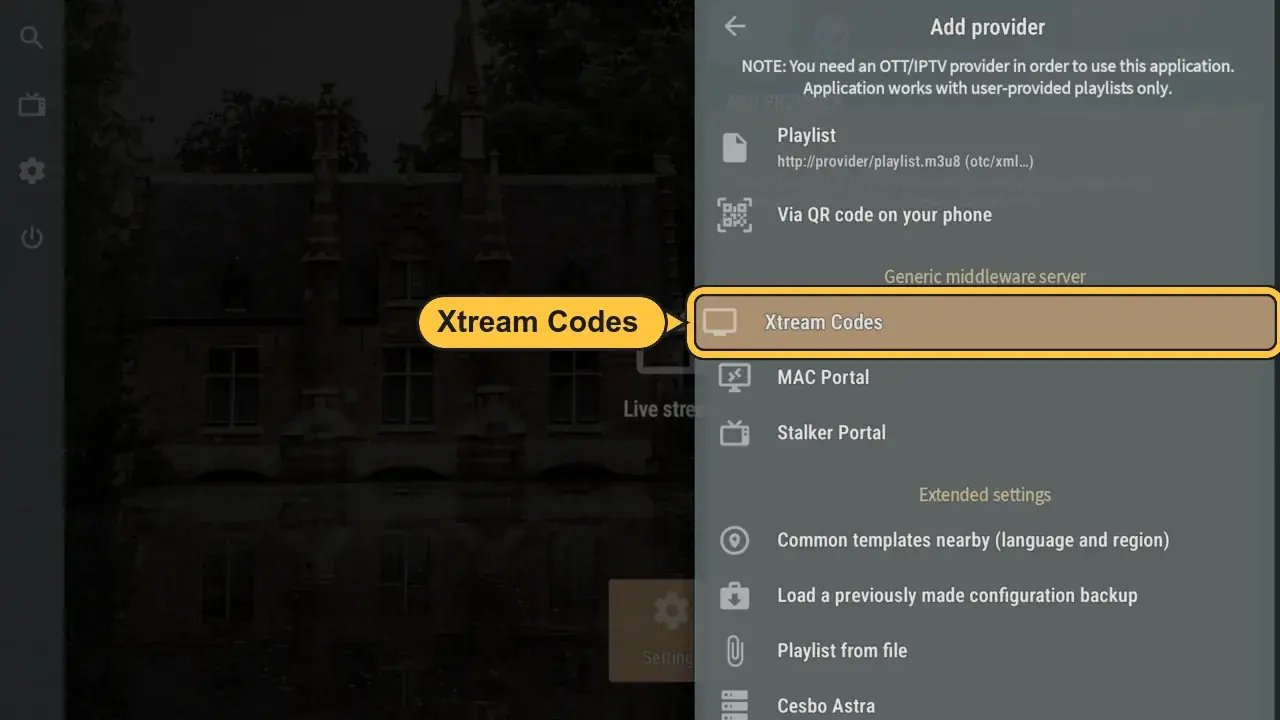
- Open OTT Navigator. Choose Xtream Codes (not Playlist)
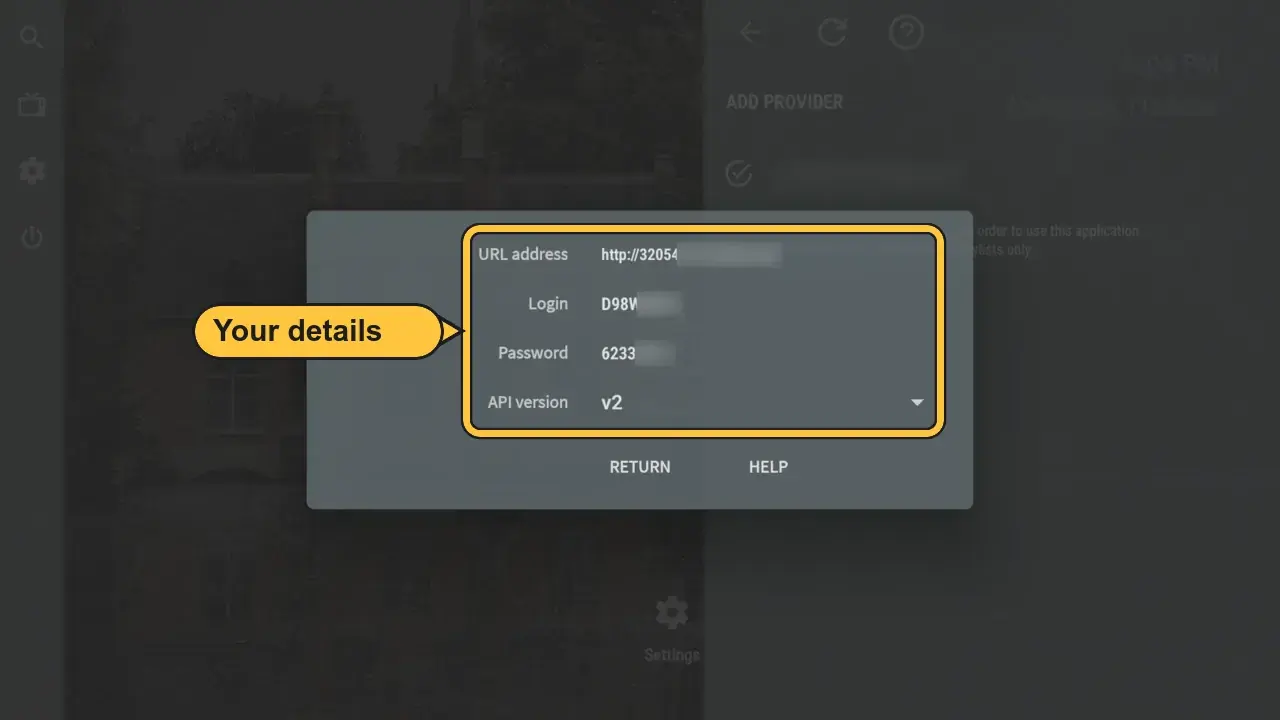
- Type your details from your email or your account at help.iptvv.ca/account:
- URL addressServer URL (starts with http://)
- UsernameCapitals count
- PasswordFrom your email
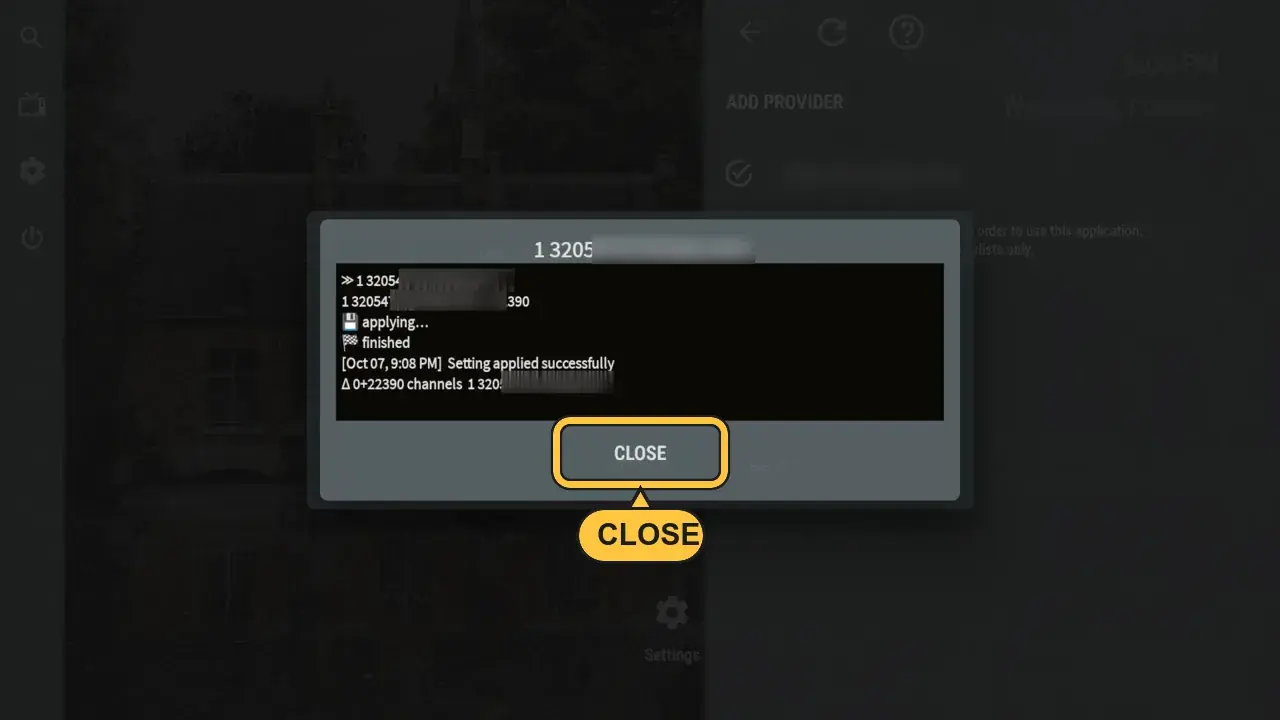
- Press APPLY. When you see Setting applied successfully, press CLOSE
Keep our channel order
- Press Back to the home screen. Open Settings, then Lists settings, then Select sort order
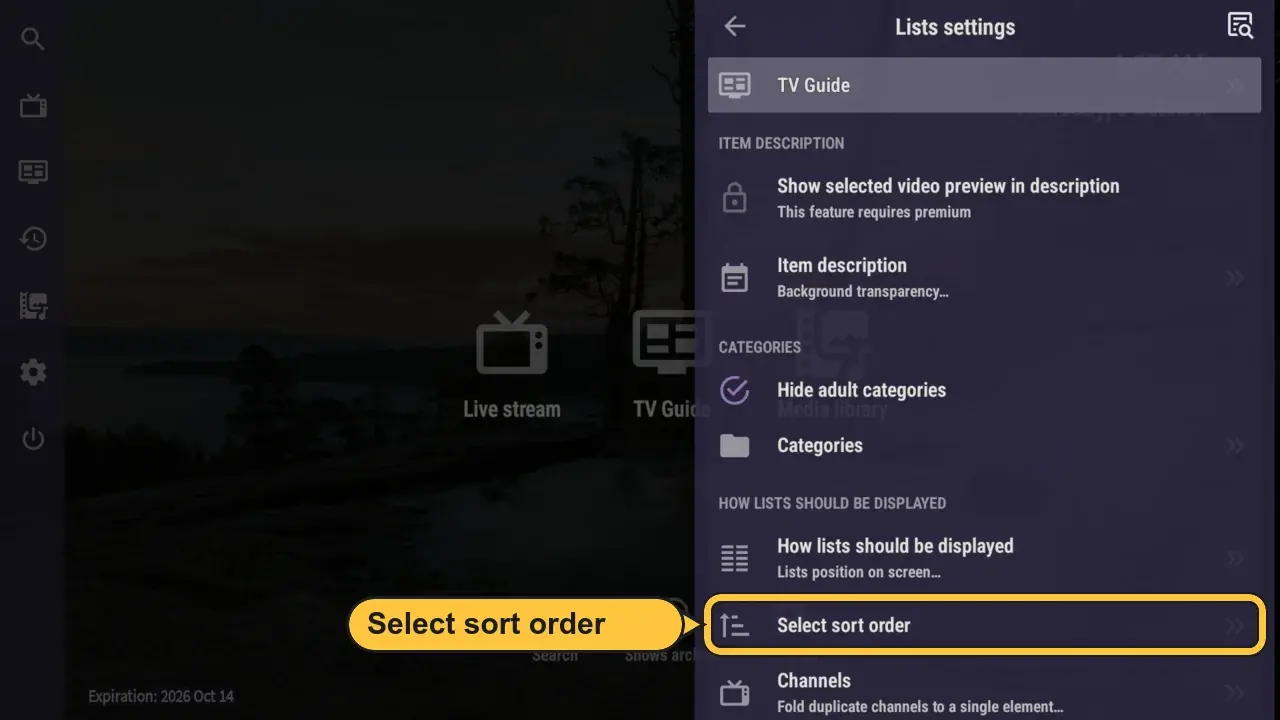
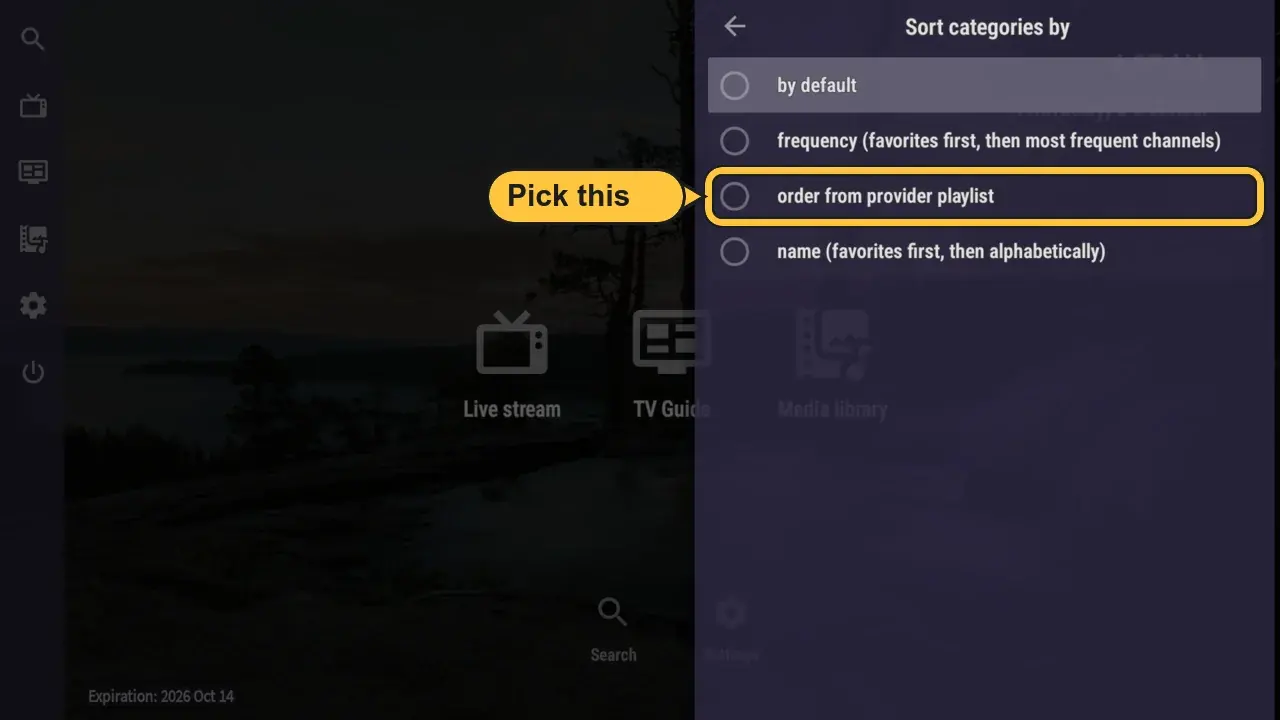
- Open Sort categories by and choose order from provider playlist
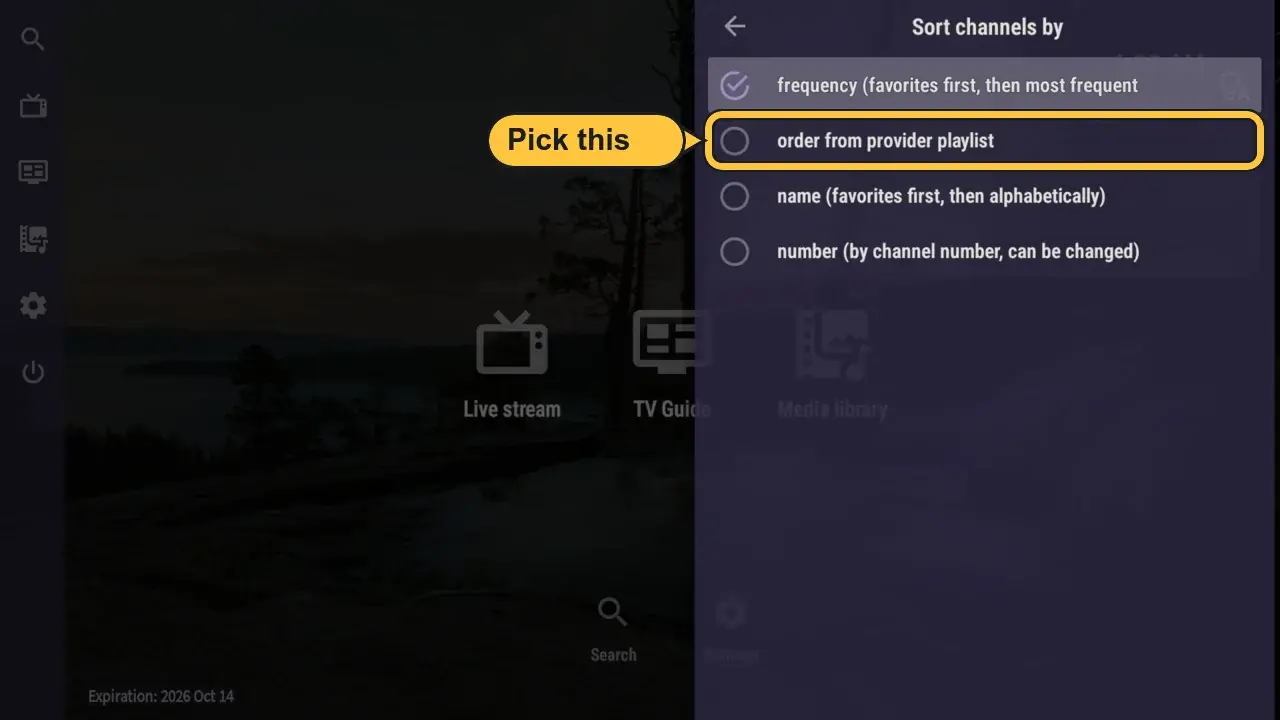
- Open Sort channels by and choose order from provider playlist. Your groups now show in our order, with VIP, Canada and US at the top
Start watching
- Press Back to see the home screen: Live stream, TV Guide, Movies and TV series
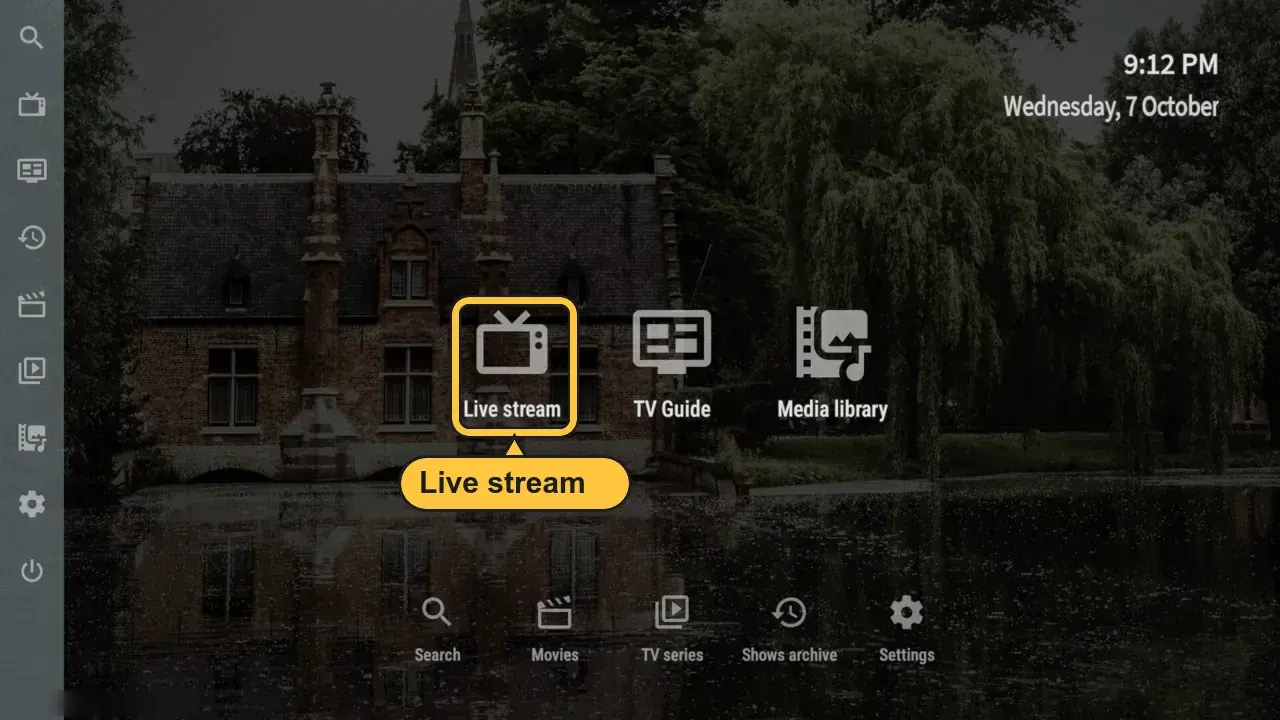
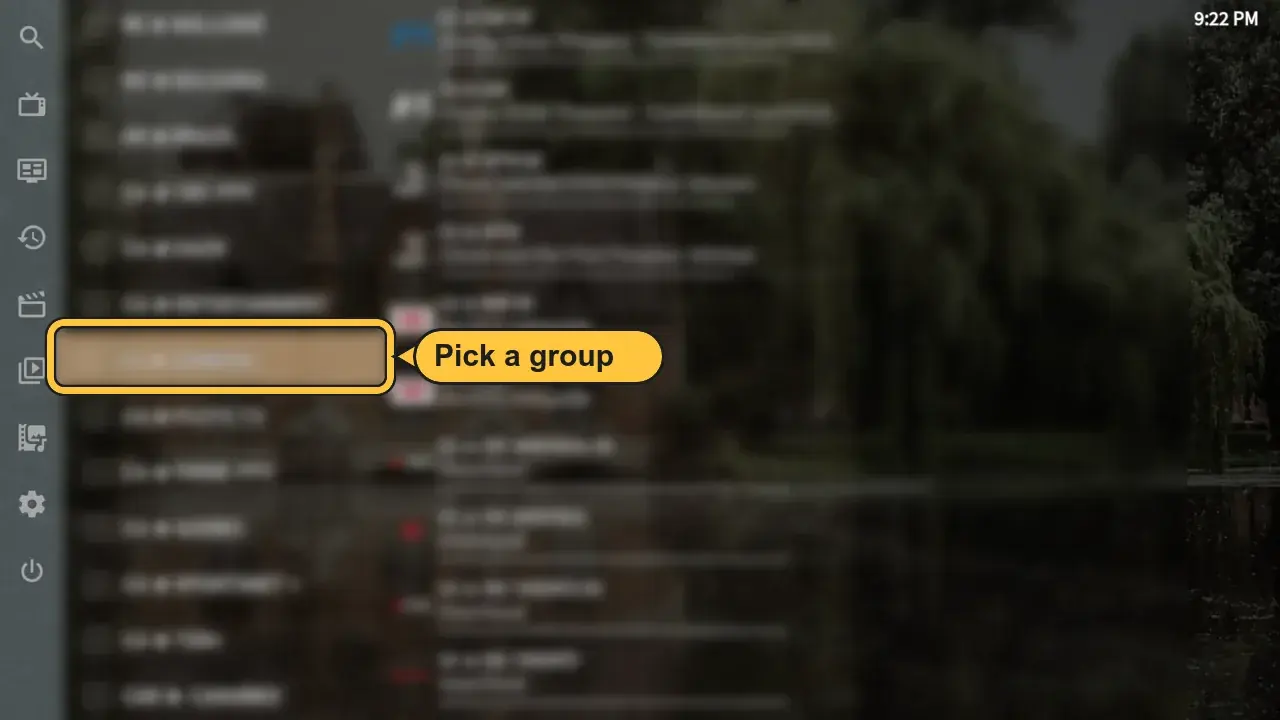
- Open Live stream. Pick a group on the left, then a channel
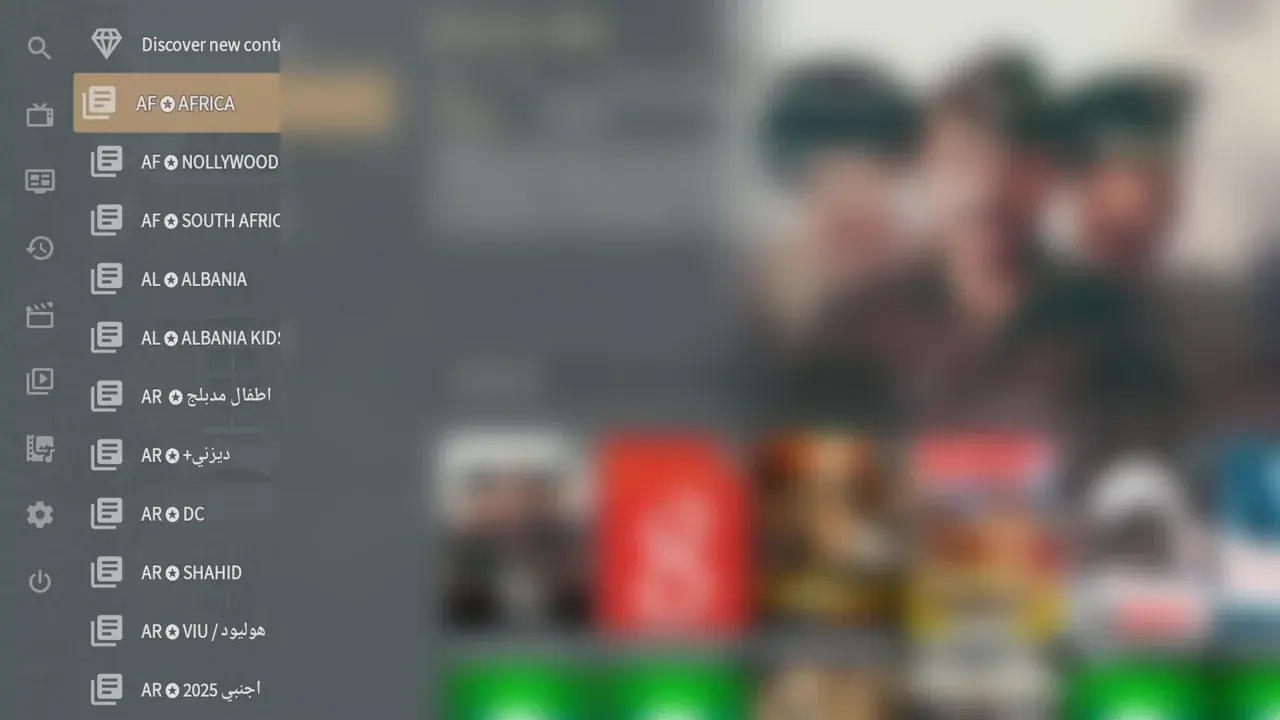
- Movies and series are unlocked in OTT Navigator
Install TiviMate
- Open the Downloader app
- Click the box at the top. Type:
272483
Then press Load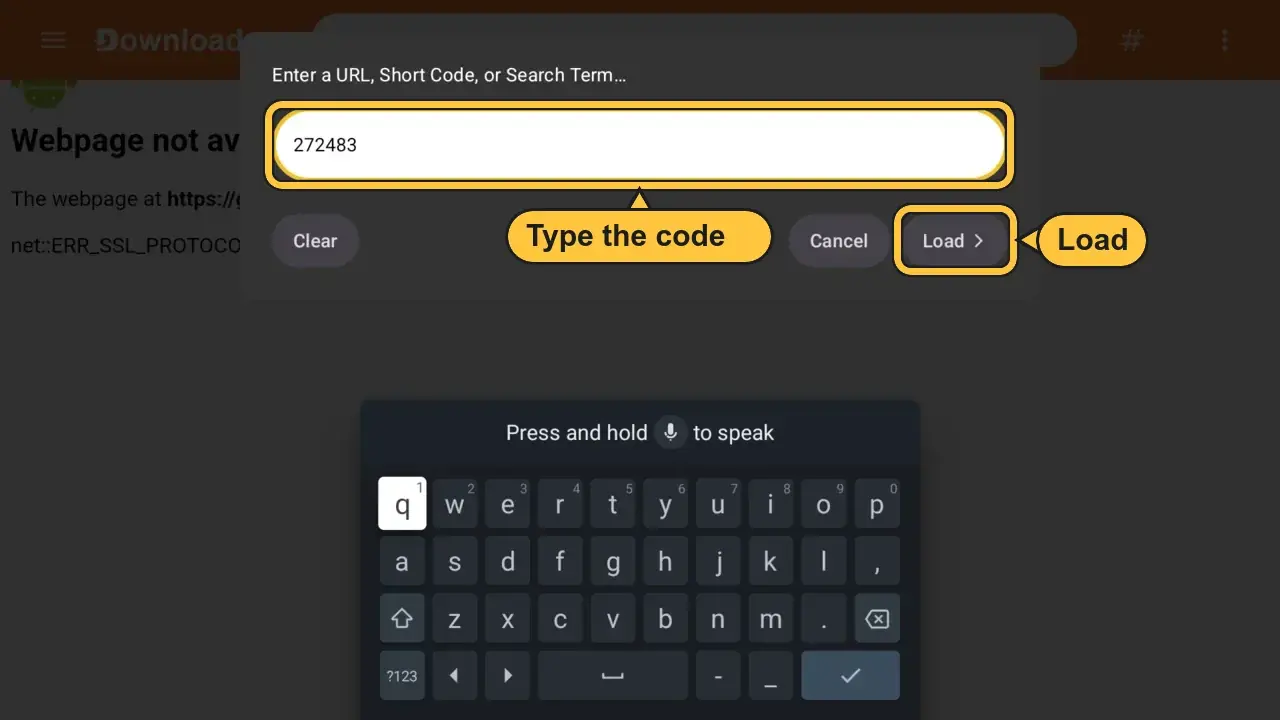
- Wait for the download
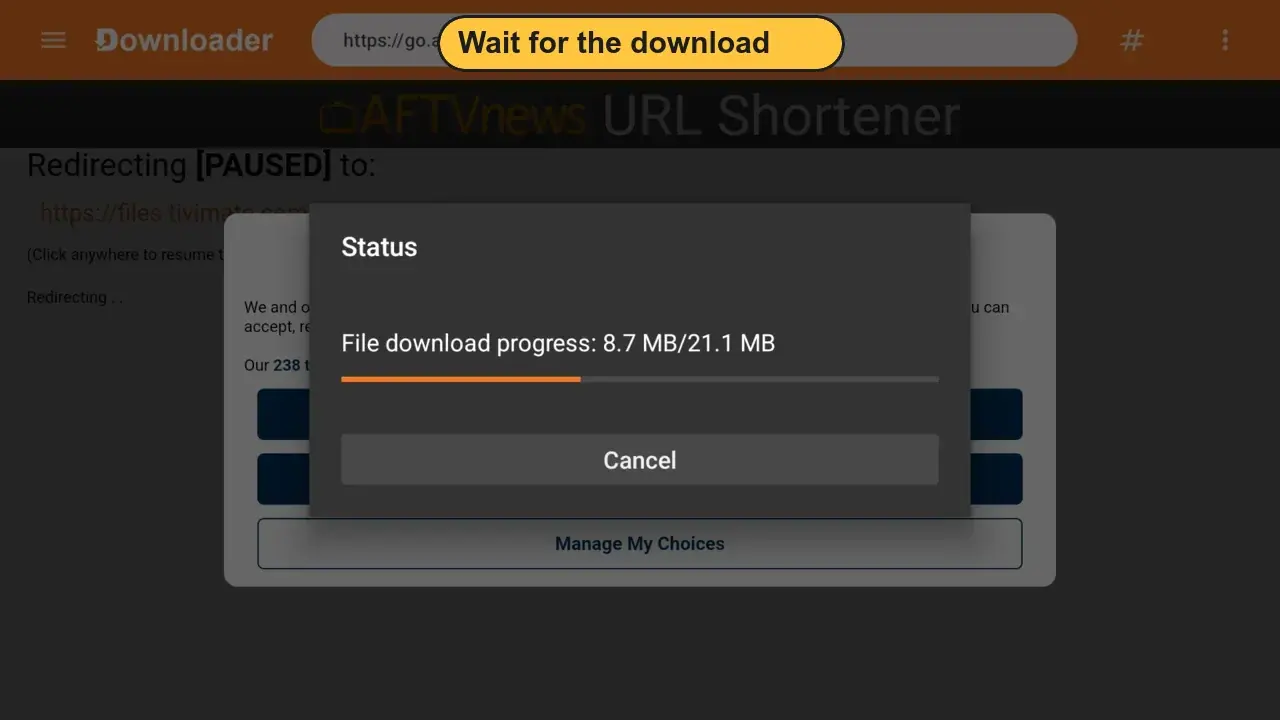
- Press Install
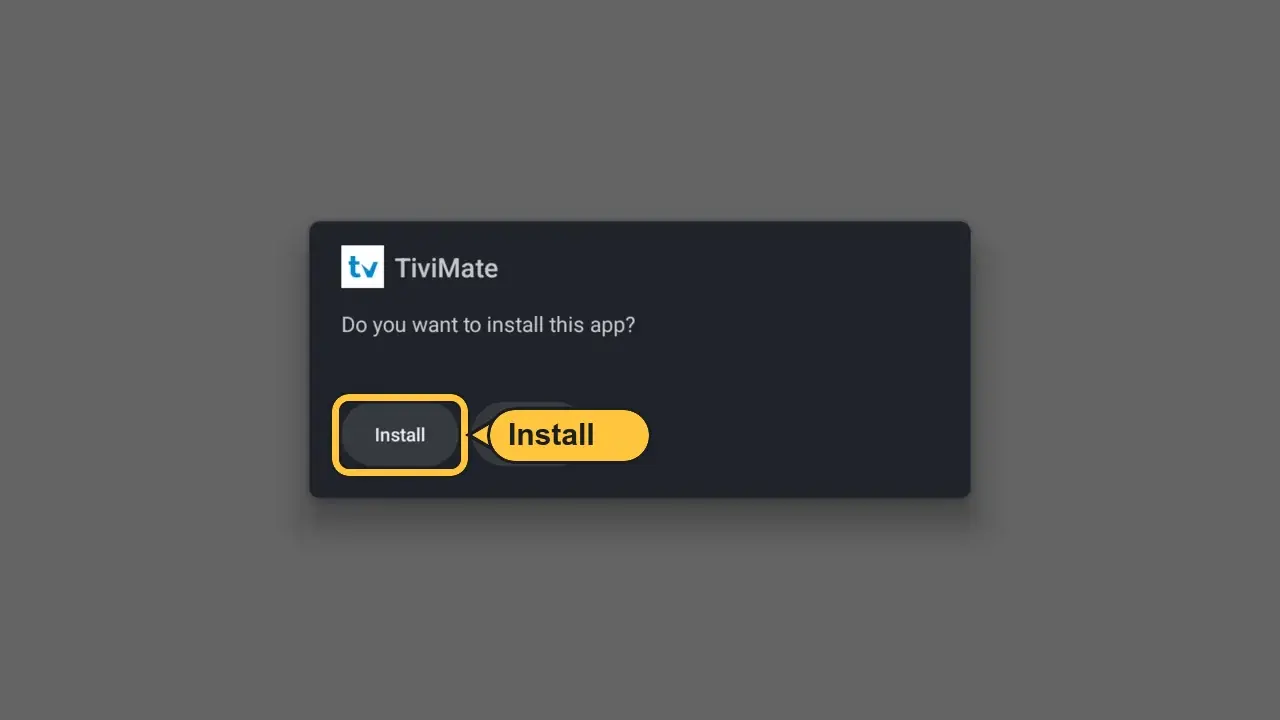
- Press Open
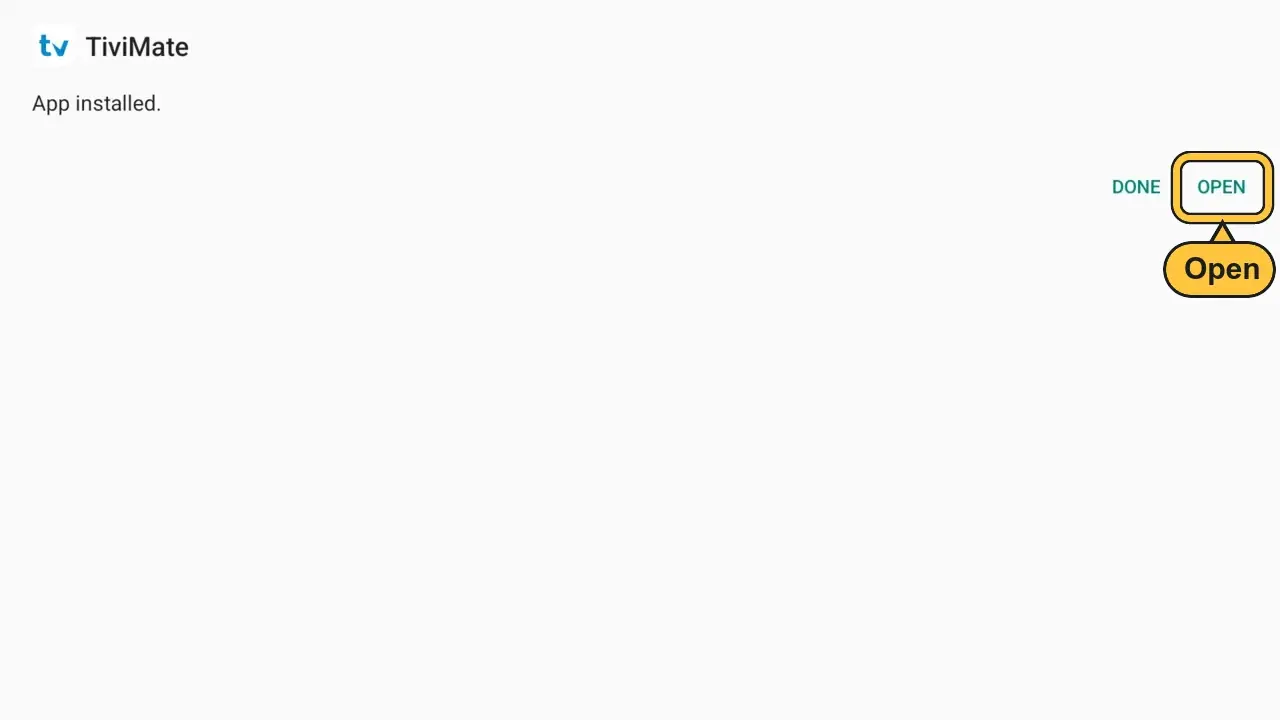
Log in to TiviMate
- Open TiviMate. Press Accept
- Press Add playlist
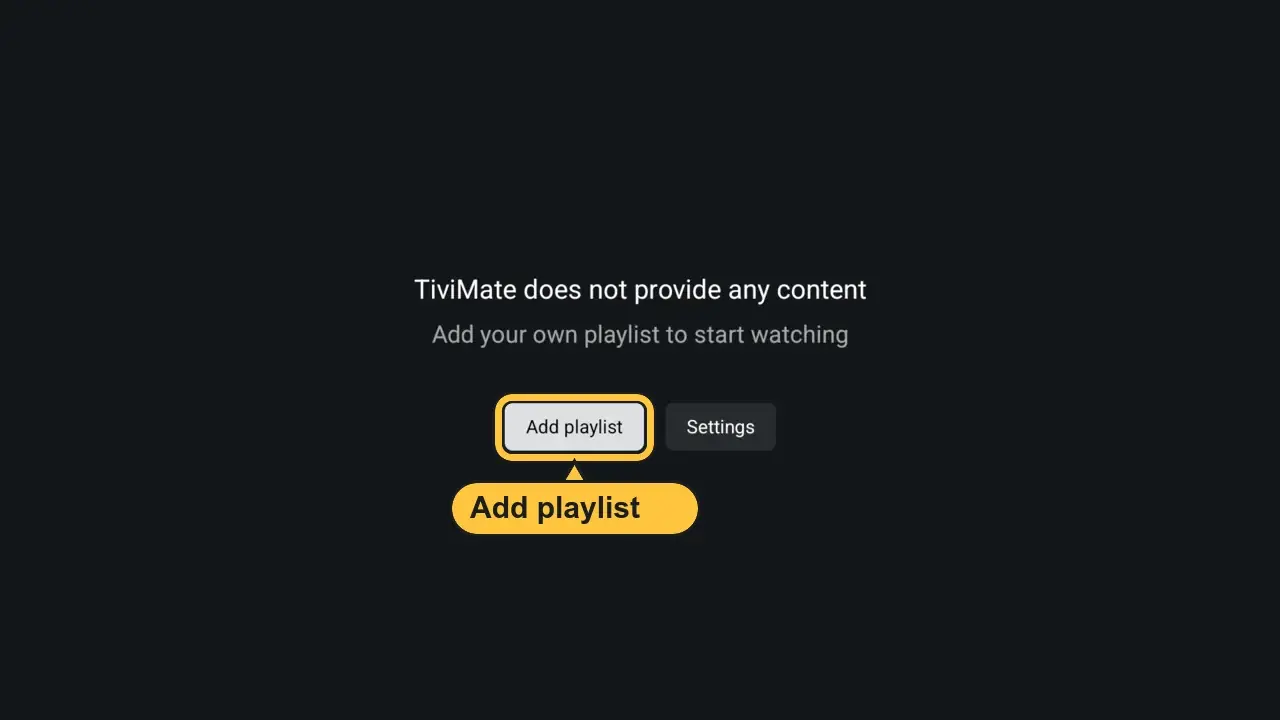
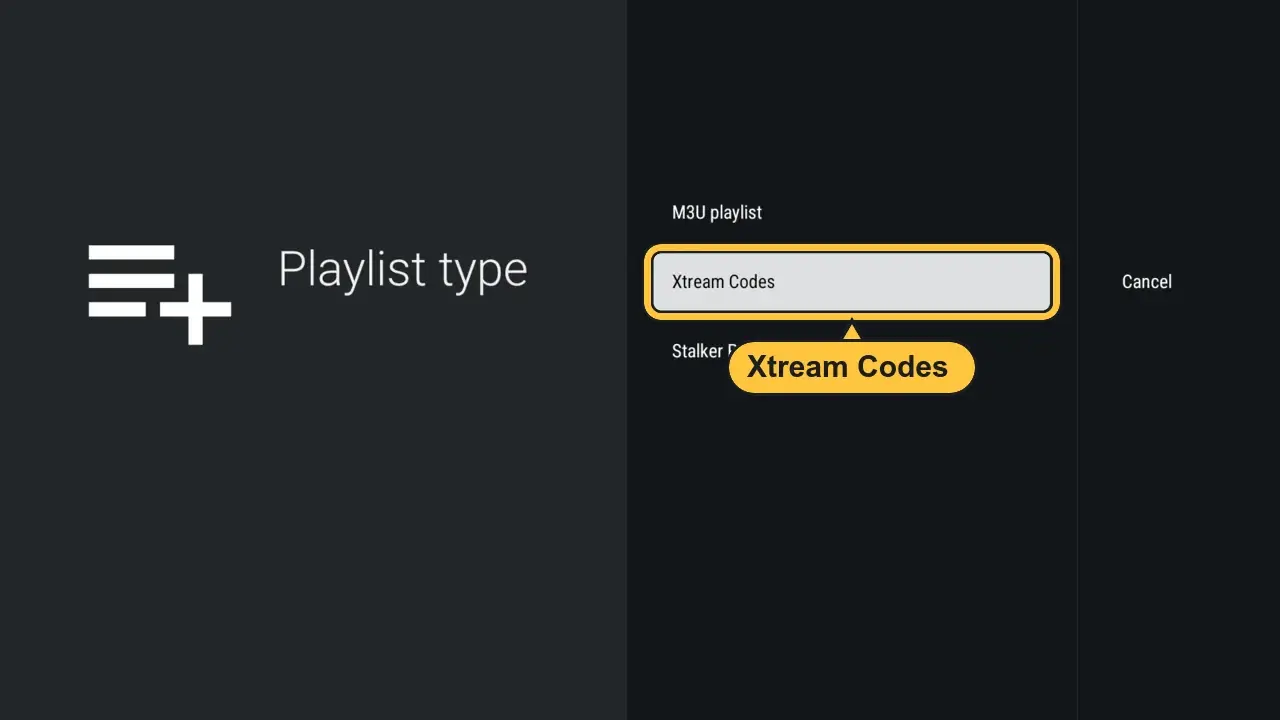
- Choose Xtream Codes
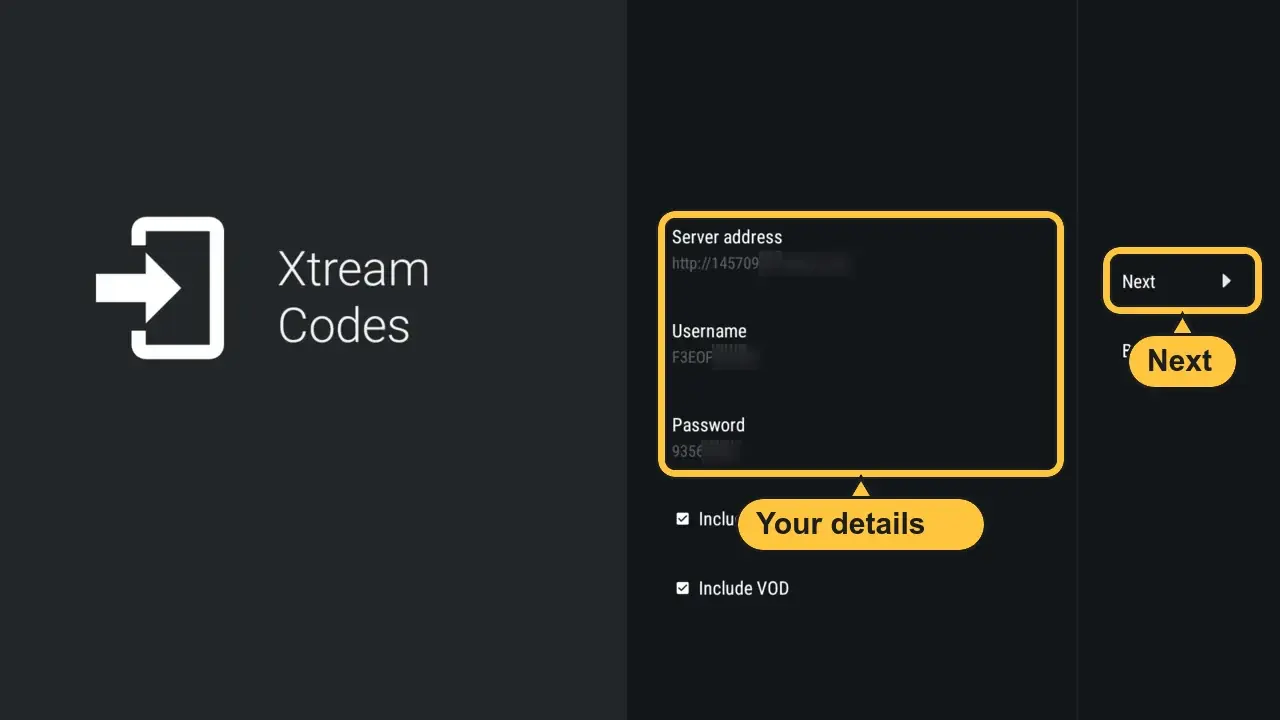
- Type your details from your email or your account at help.iptvv.ca/account:
- Server addressServer URL (starts with http://)
- UsernameCapitals count
- PasswordFrom your email
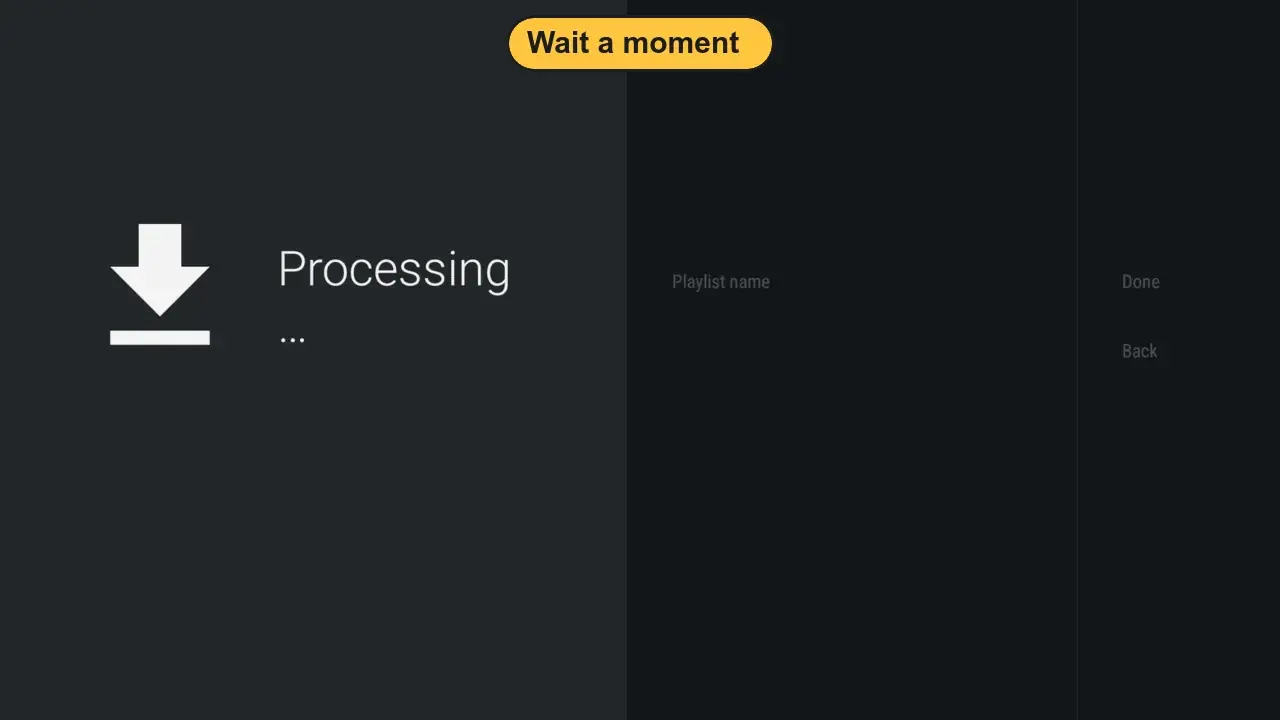
- Wait a moment
- Press Next, then Done
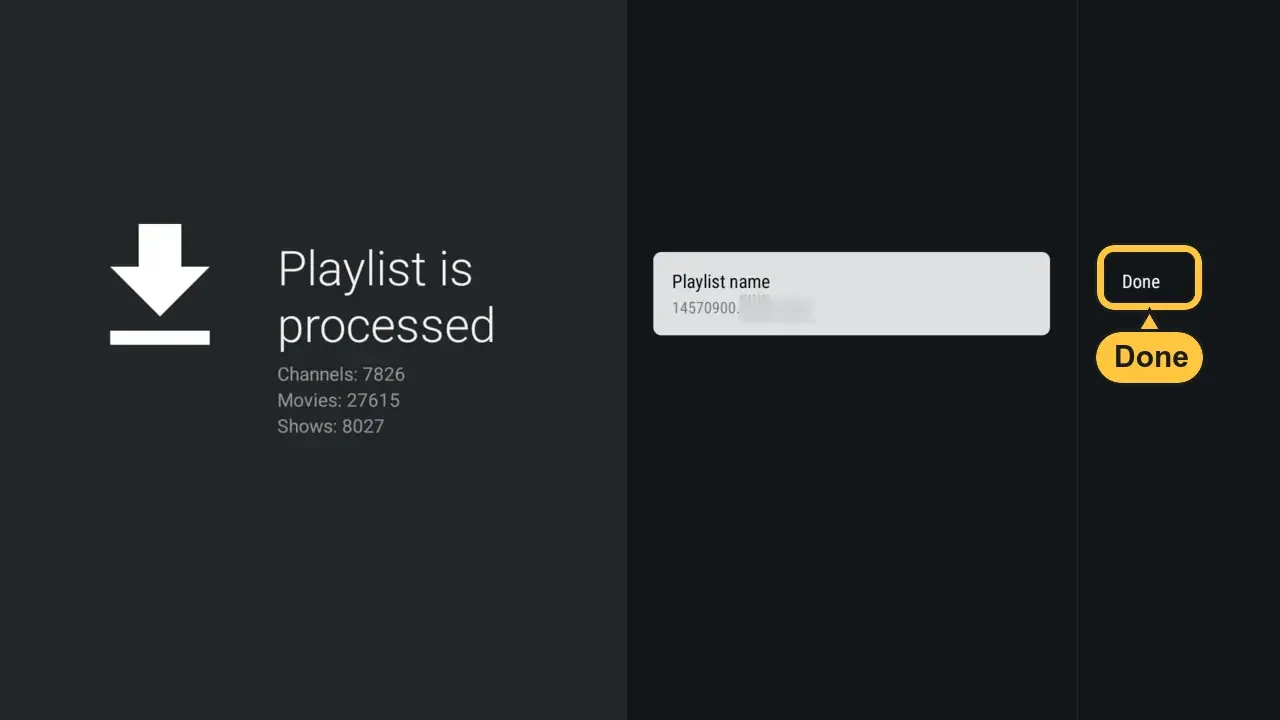
- Your channels are ready
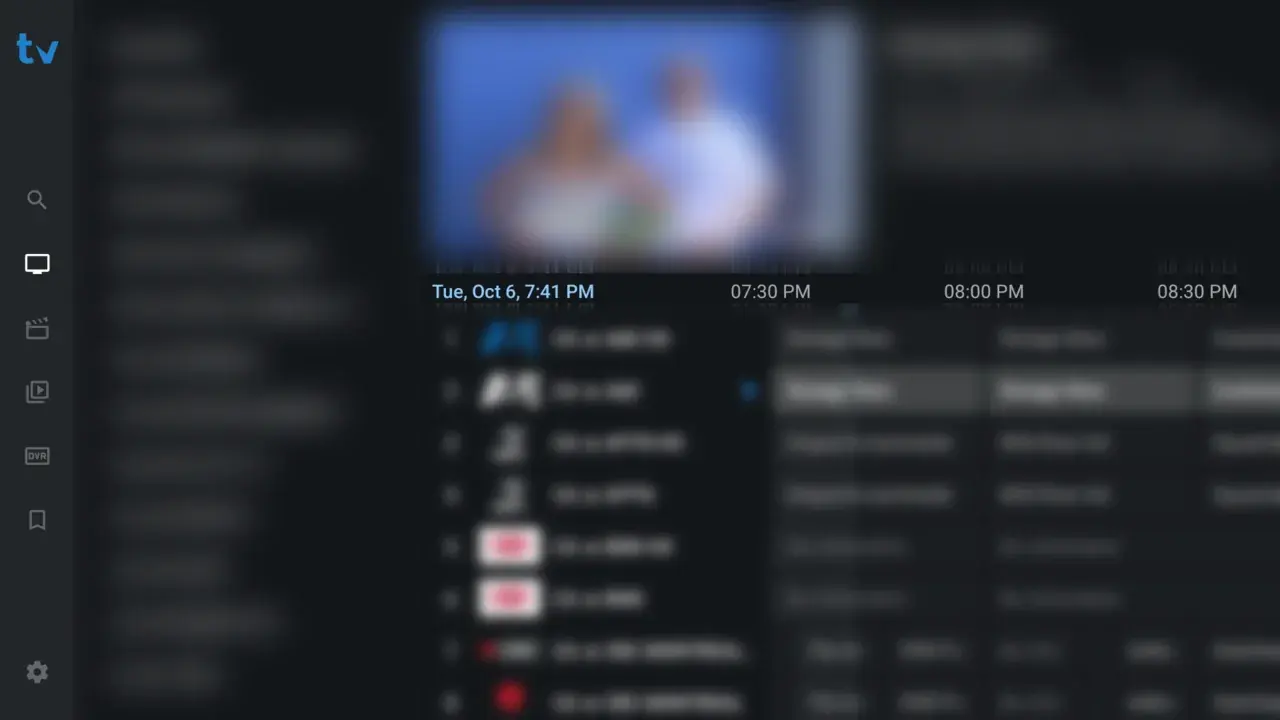
Free or Premium?
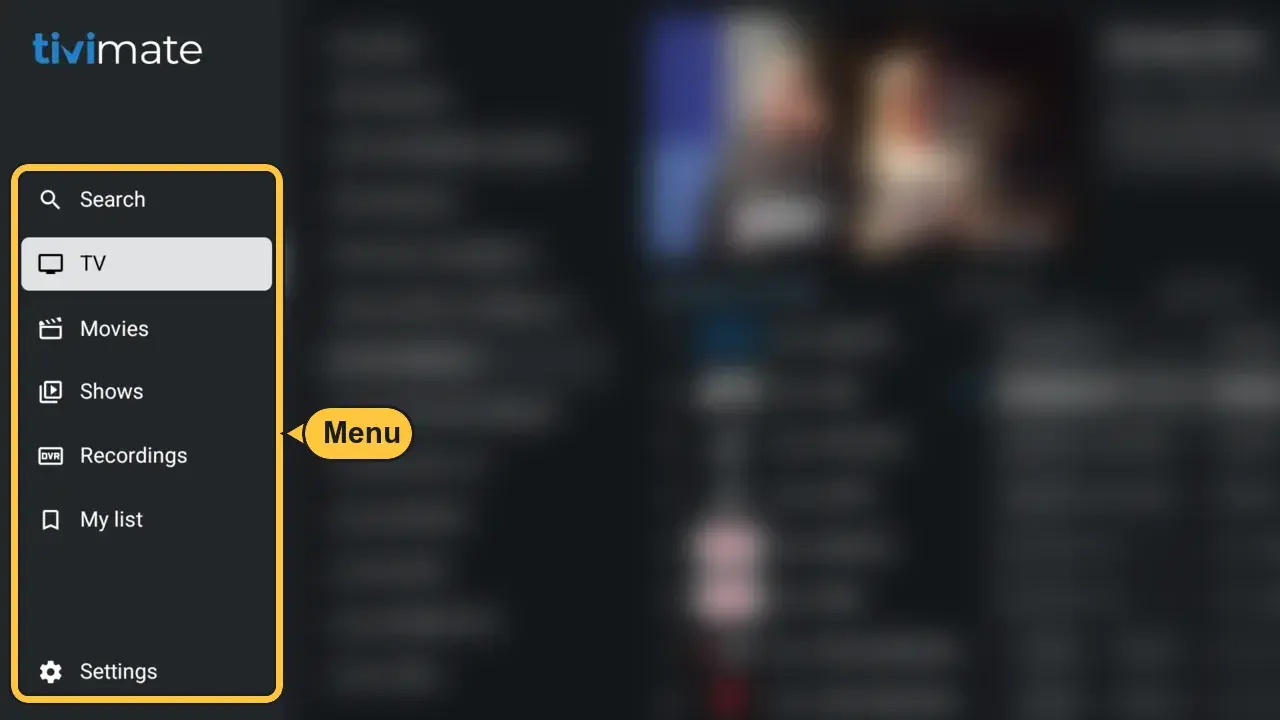
- Press Left for the menu
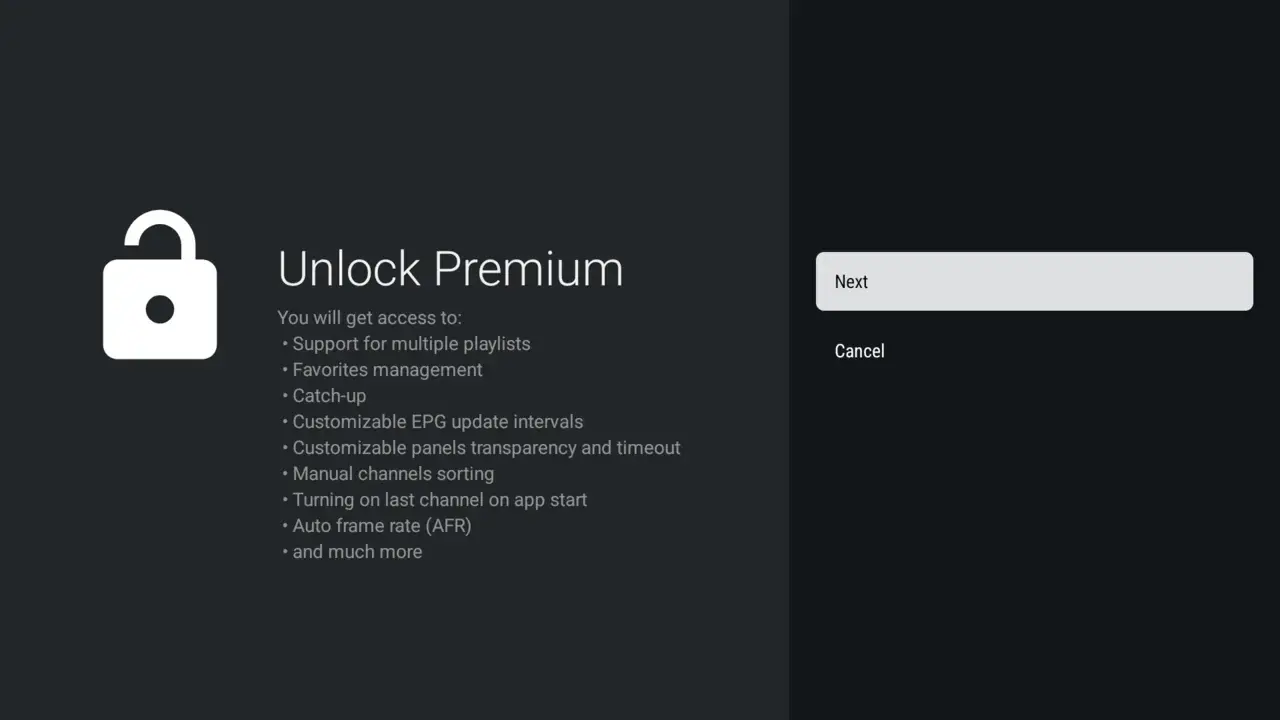
- Movies and Shows stay locked until you buy TiviMate Premium. Pressing Play shows this
Install iMPlayer
- Open the Downloader app
- Click the box at the top. Type:
82375
Then press Load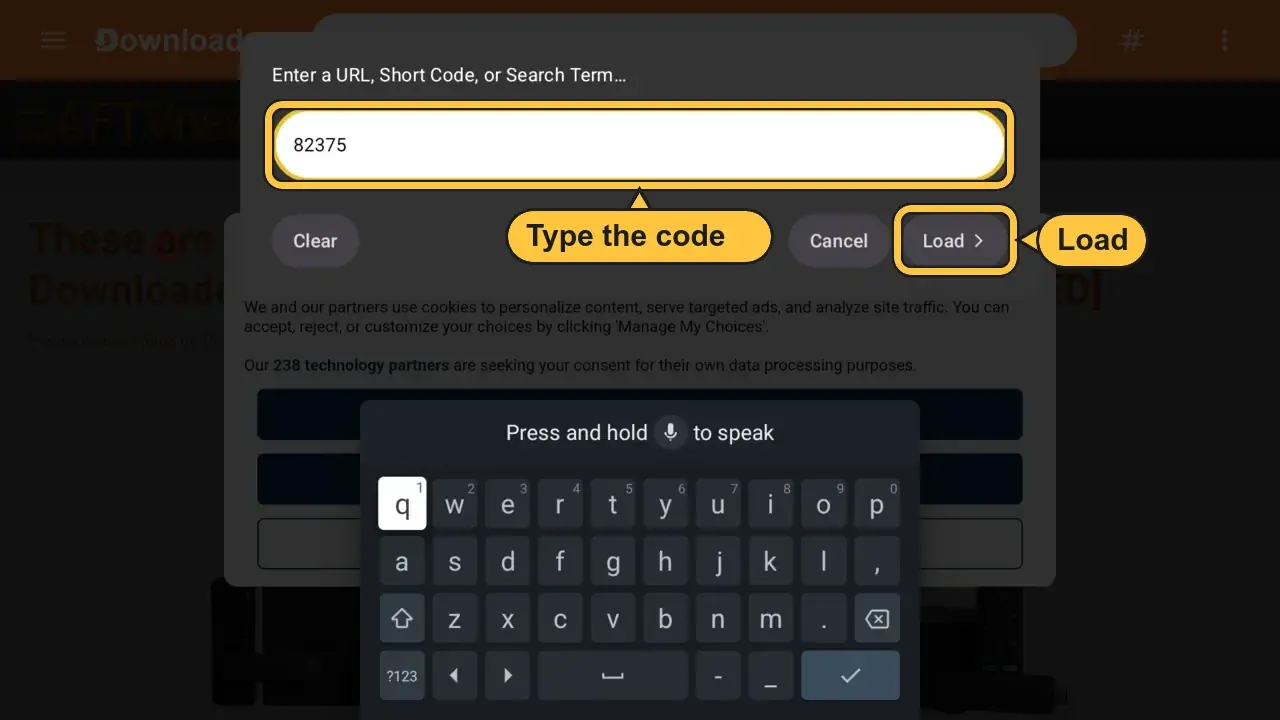
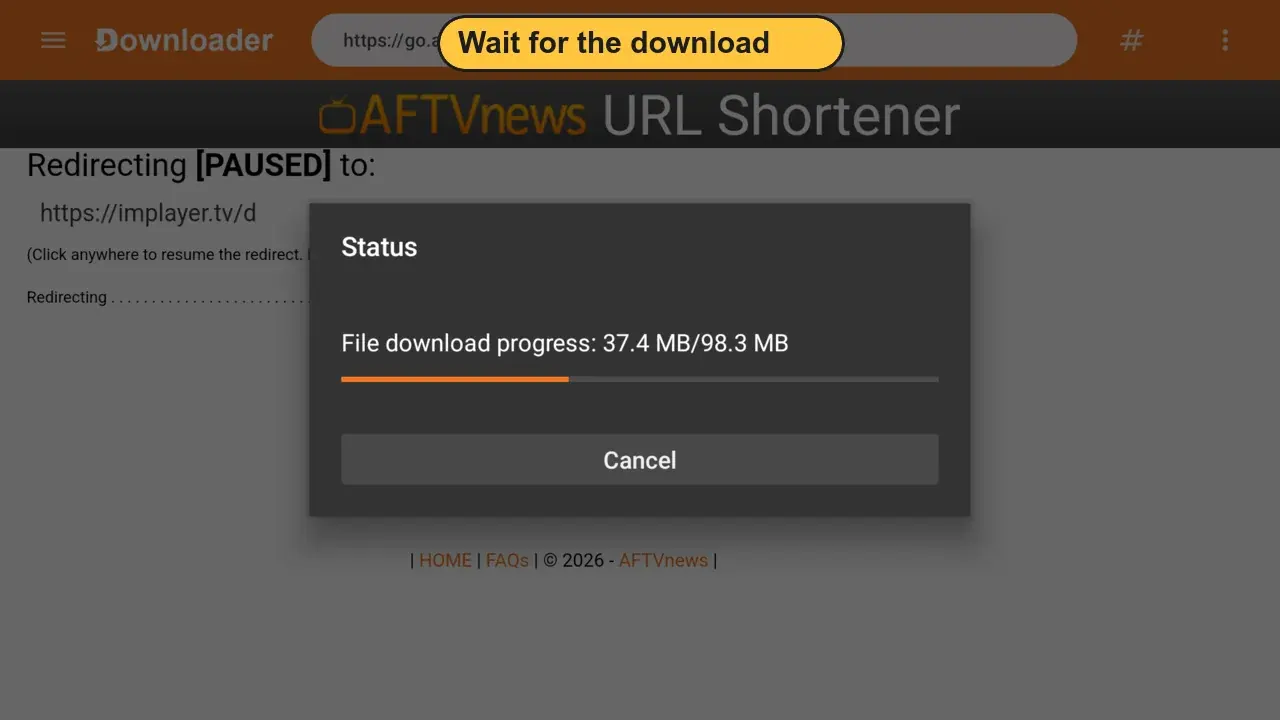
- Wait for the download
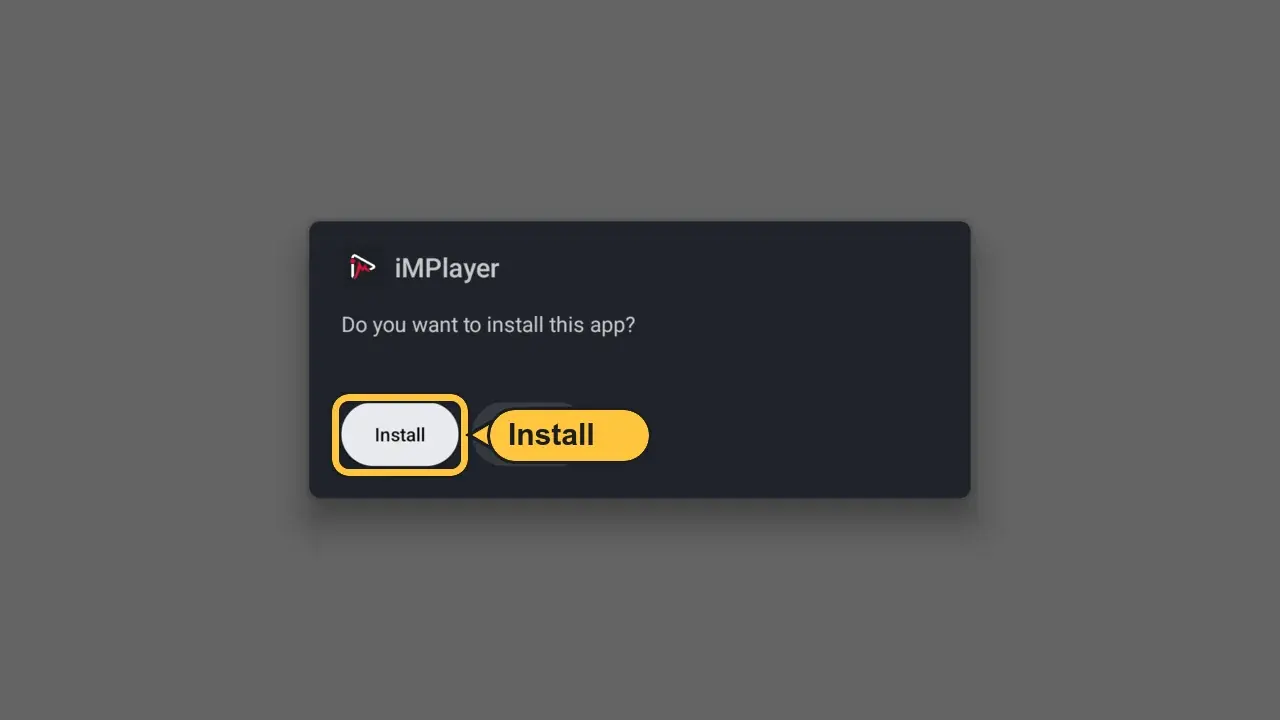
- Press Install
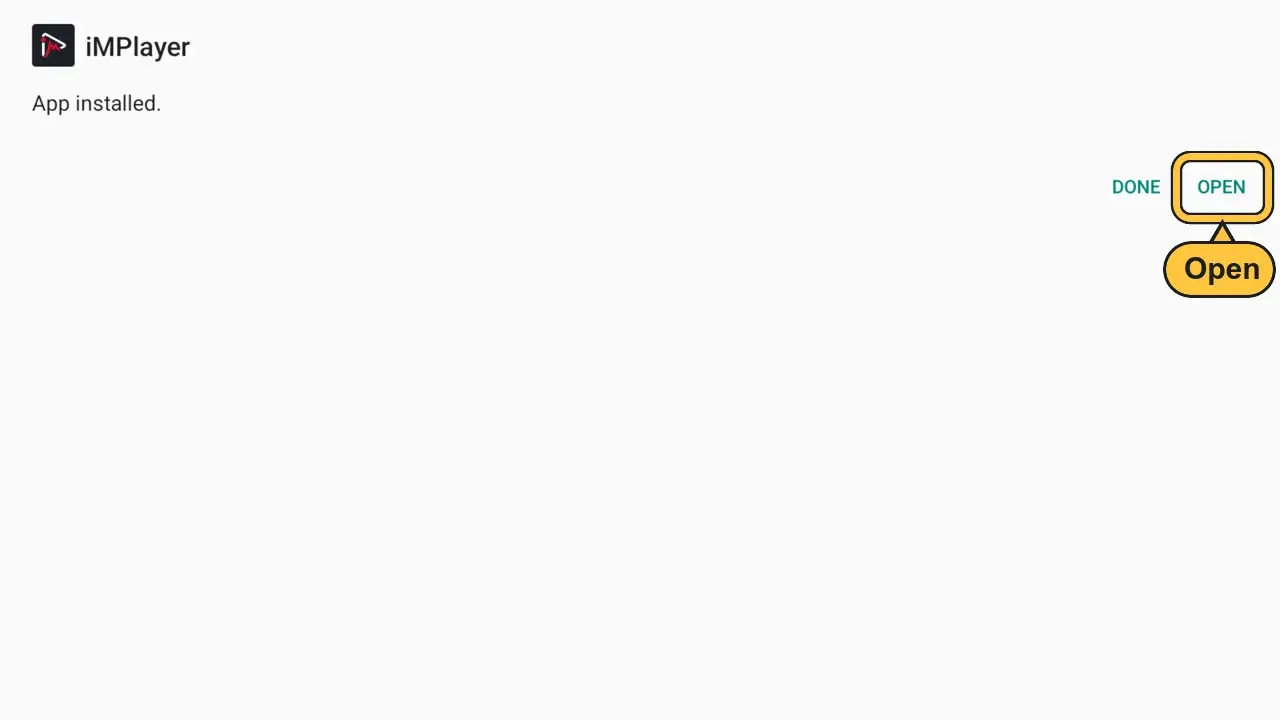
- Press Open
Log in to iMPlayer
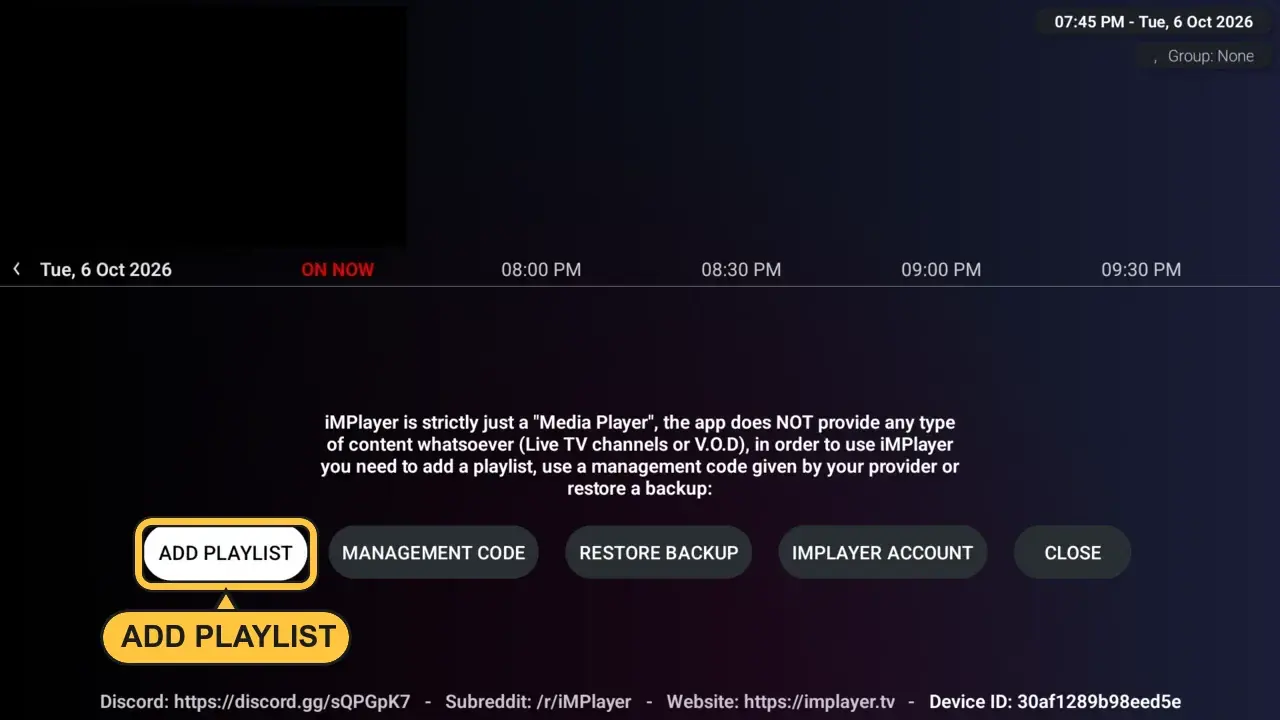
- Open iMPlayer. Press ADD PLAYLIST
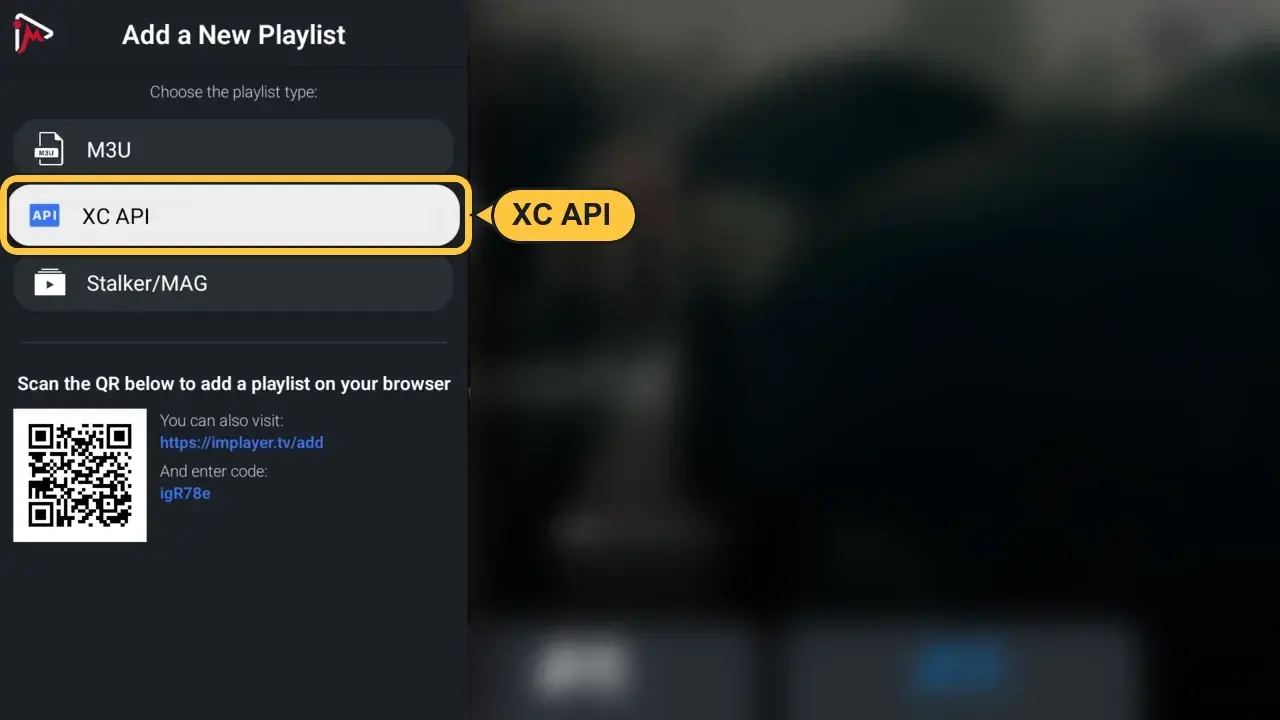
- Choose XC API
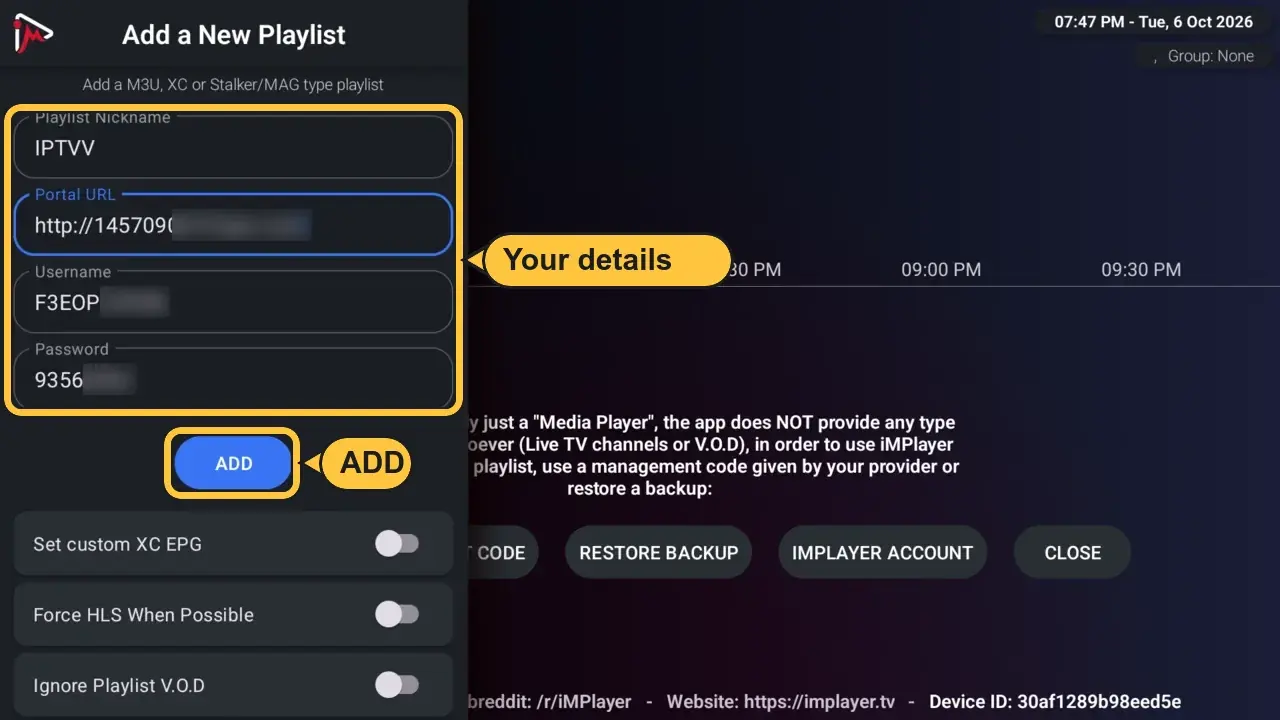
- Type your details from your email or your account at help.iptvv.ca/account:
- Portal URLServer URL (starts with http://)
- UsernameCapitals count
- PasswordFrom your email
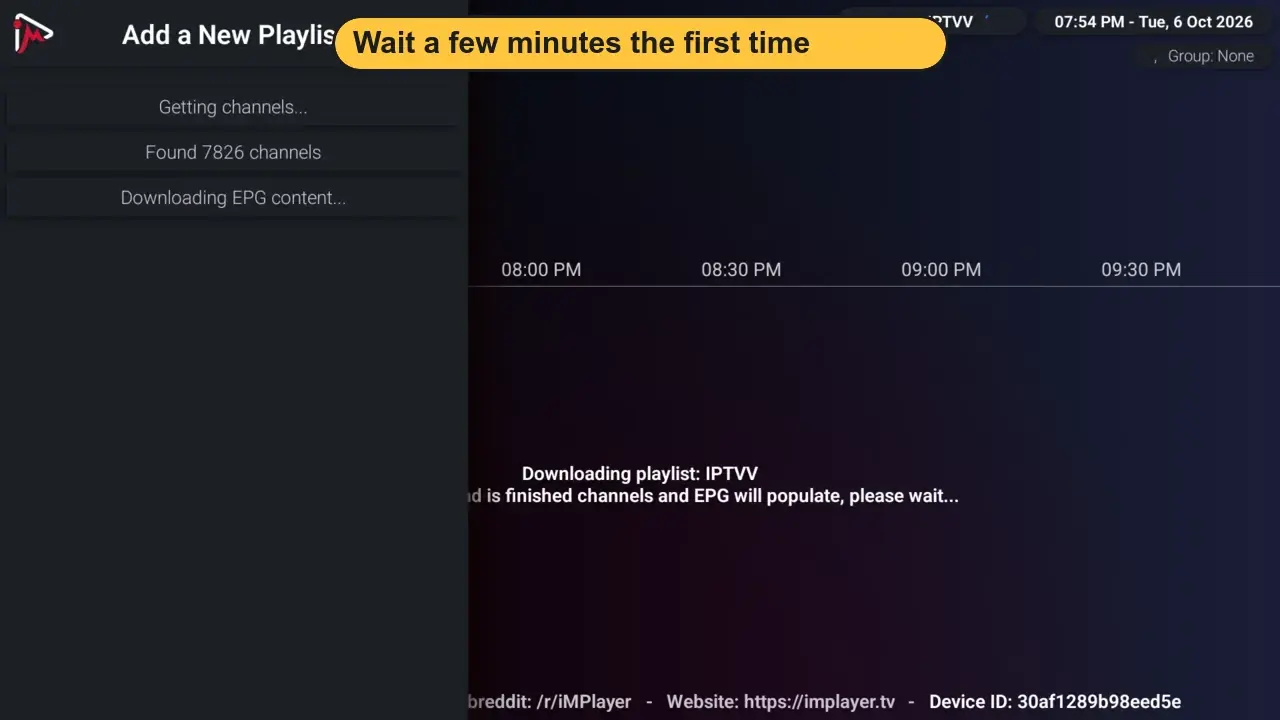
- Wait a few minutes the first time
- Press OK through the tips. Then CLOSE
Easier with your phone: on the Add a New Playlist screen, scan the QR code with your phone (or open implayer.tv/add and enter the code shown on your TV). Then type your login on your phone instead of with the remote.
Start watching
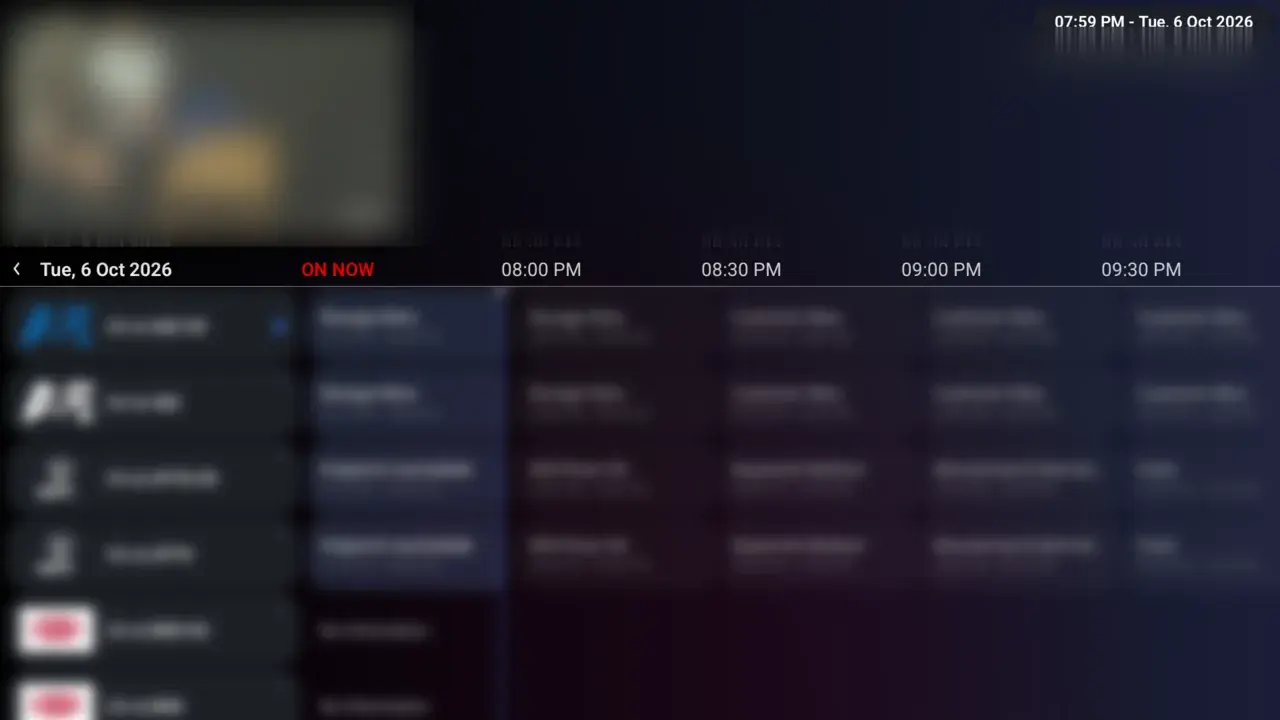
- Press Left for categories and channels
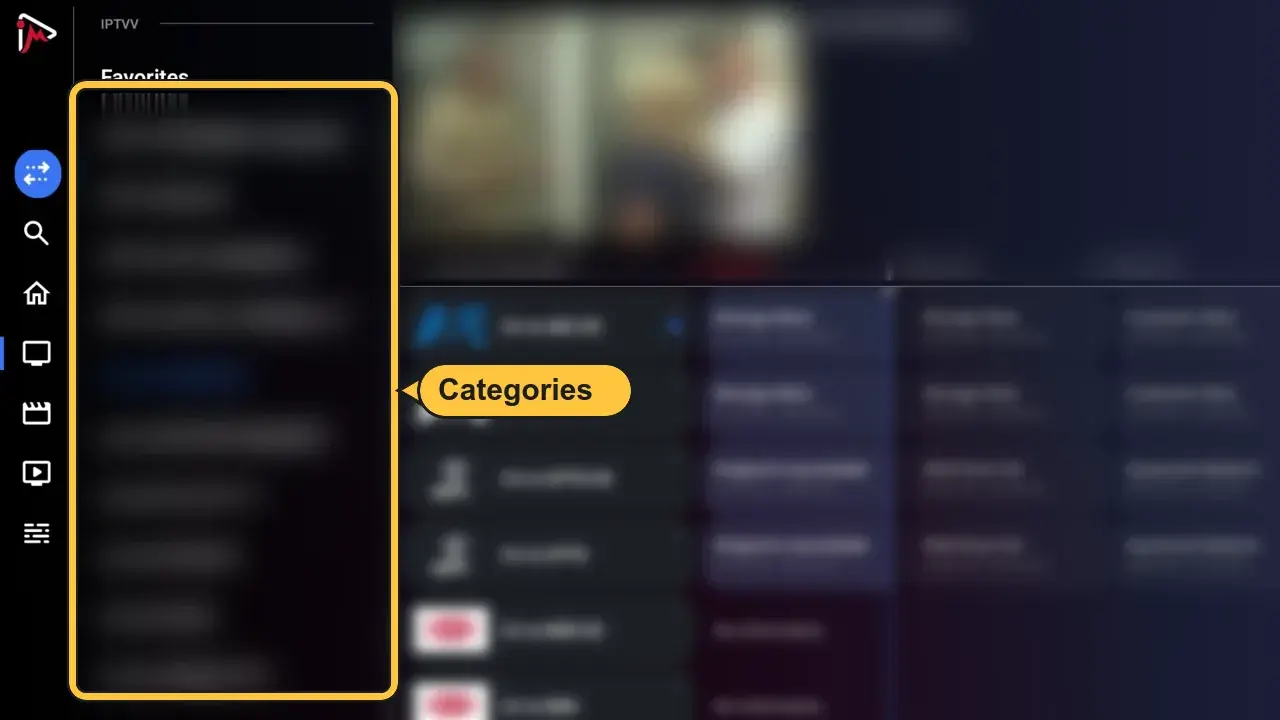
- Press the Menu button for Live TV, Movies and TV Shows
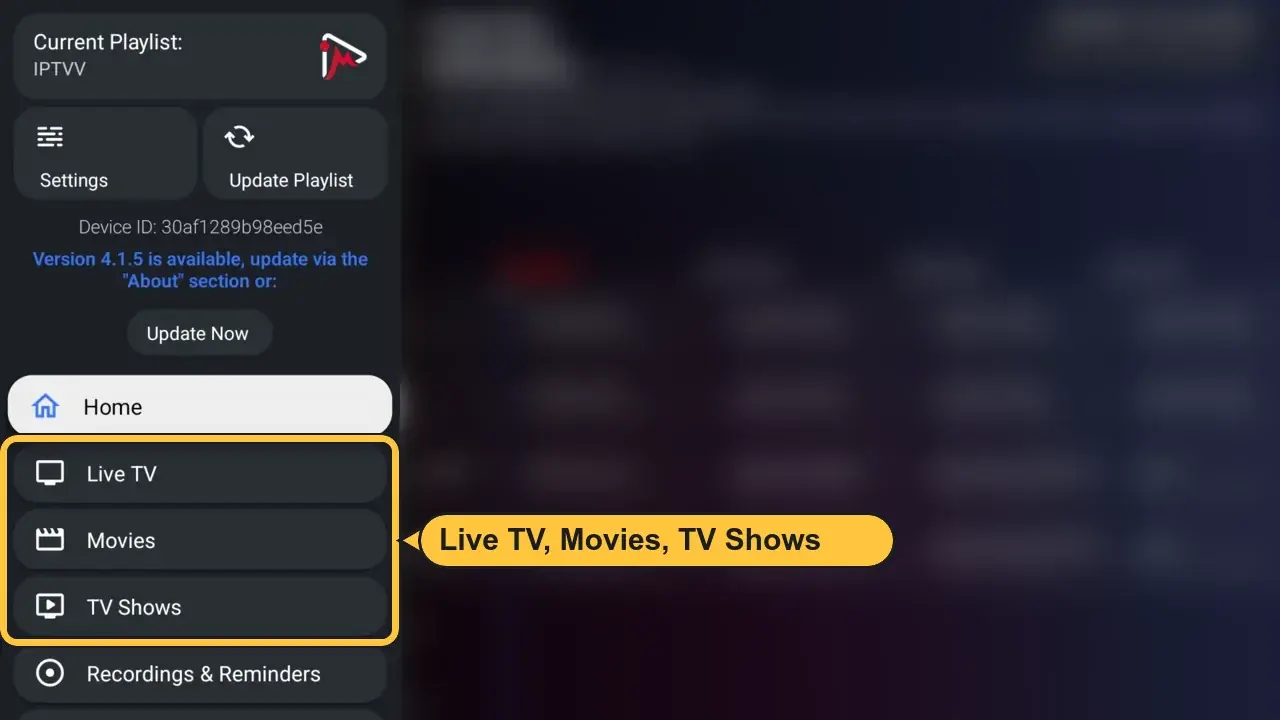
- Movies and TV Shows are unlocked in iMPlayer
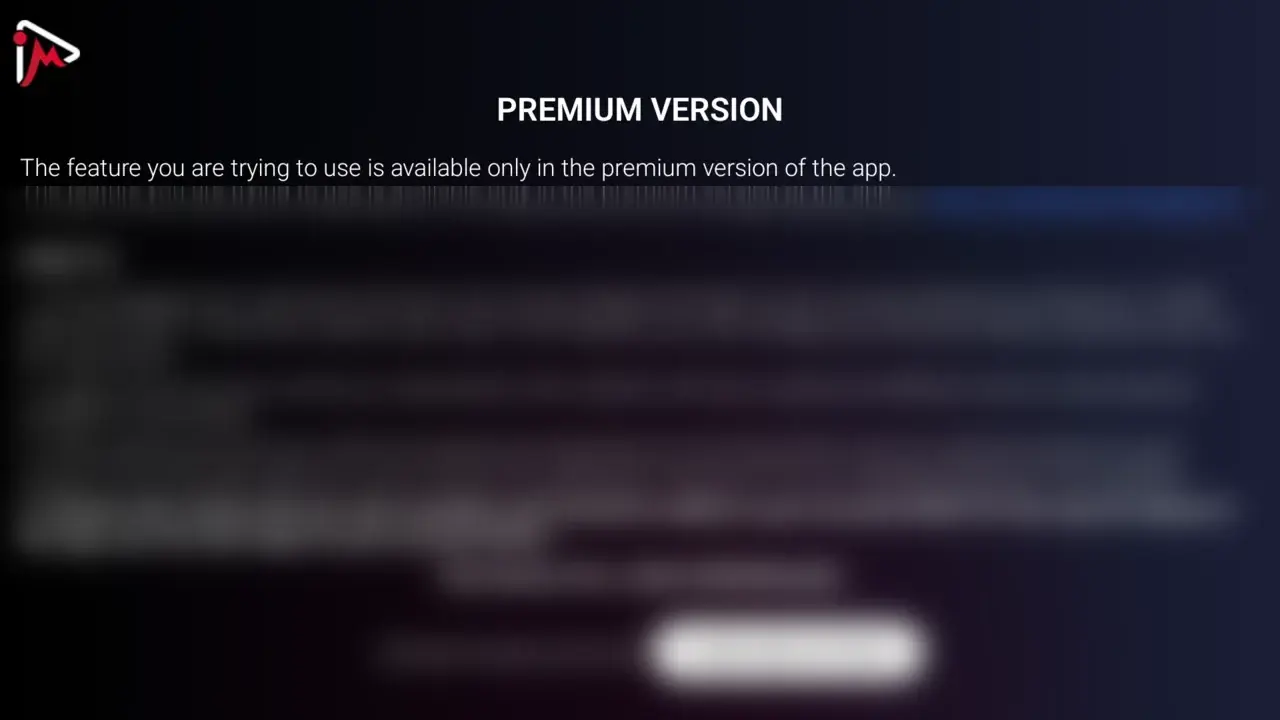
- Extras like Multiview show PREMIUM VERSION
You're all set
Enjoy watching. Stuck on a step? Contact our support team and we'll help.
Frequently Asked Questions
Which player should I choose?▸
Is TiviMate or iMPlayer Premium part of my subscription?▸
Can I use a different player?▸
Can I switch players later?▸
Where are my Server URL, username and password?▸
Nothing loads after I log in▸
Android TV Setup Guide
Choose your player
The player is the app you watch with. Your IPTVV subscription works in any player that supports Xtream Codes. These 3 are the ones we recommend, with full steps below.
For Chromecast with Google TV, onn, TCL, Sony, Hisense, Philips, Nvidia Shield and most Android boxes.
Not sure? Choose XCIPTV. It's free, and you can switch later in 2 minutes.
What's the difference between XCIPTV, TiviMate and iMPlayer?
| XCIPTV | TiviMate | iMPlayer | |
|---|---|---|---|
| Price | Free + Ads | Free + paid Premium | Free + optional Premium |
| Live TV and TV guide | Yes | Yes | Yes |
| Movies and series (in your subscription) | Unlocked | Locked until you buy Premium | Unlocked |
| Catch-up | Yes, free | Premium only | Premium only |
| Several channels at once | Yes, free | Premium only | Premium only |
| Ads | Small ads | No ads | No ads |
| How to install | Play Store | Downloader code 272483 | Play Store |
 XCIPTV
- Price
- Free + Ads
- Live TV and TV guide
- Yes
- Movies and series (in your subscription)
- Unlocked
- Catch-up
- Yes, free
- Several channels at once
- Yes, free
- Ads
- Small ads
- How to install
- Play Store
TiviMate- Price
- Free + paid Premium
- Live TV and TV guide
- Yes
- Movies and series (in your subscription)
- Locked until you buy Premium
- Catch-up
- Premium only
- Several channels at once
- Premium only
- Ads
- No ads
- How to install
- Downloader code 272483
iMPlayer- Price
- Free + optional Premium
- Live TV and TV guide
- Yes
- Movies and series (in your subscription)
- Unlocked
- Catch-up
- Premium only
- Several channels at once
- Premium only
- Ads
- No ads
- How to install
- Play Store
Don't want to pay anything extra? Use the free player instead.
Do you have the Downloader app?
It's the orange app with a white D. We use it to install .
Install the Downloader app
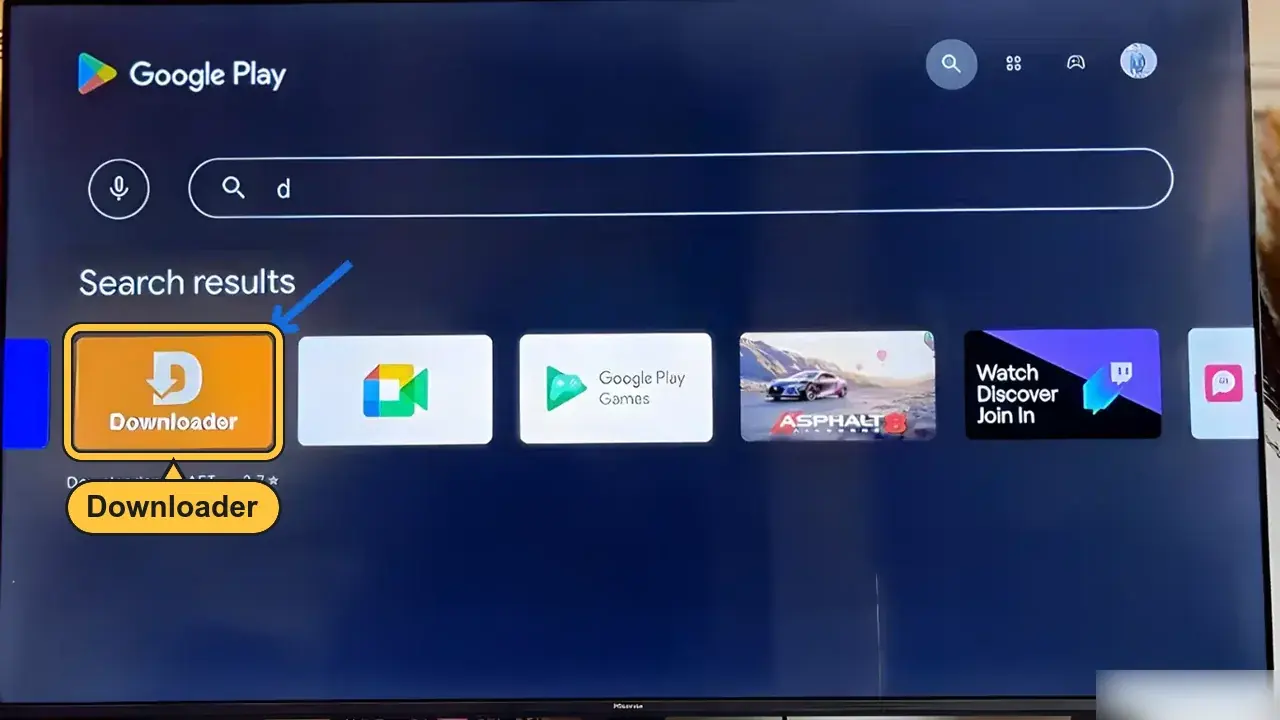
- Open the Play Store. Search Downloader. Press Install
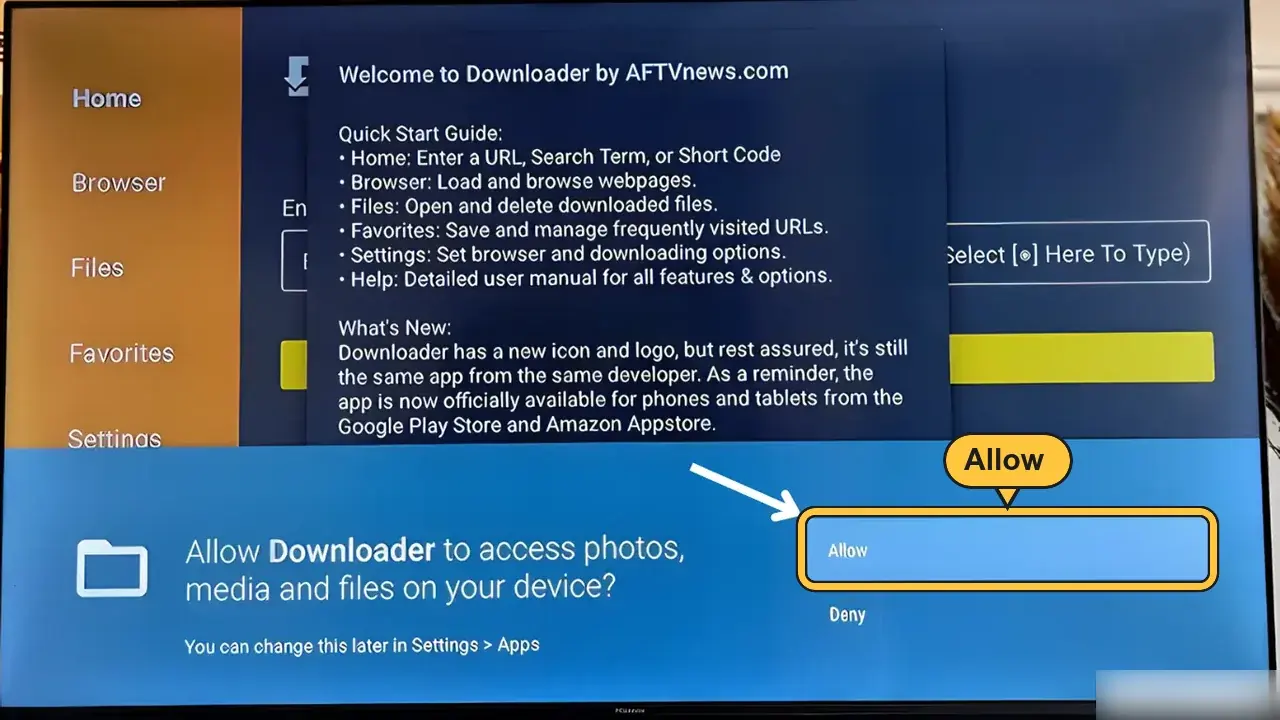
- Open Downloader. Press Allow
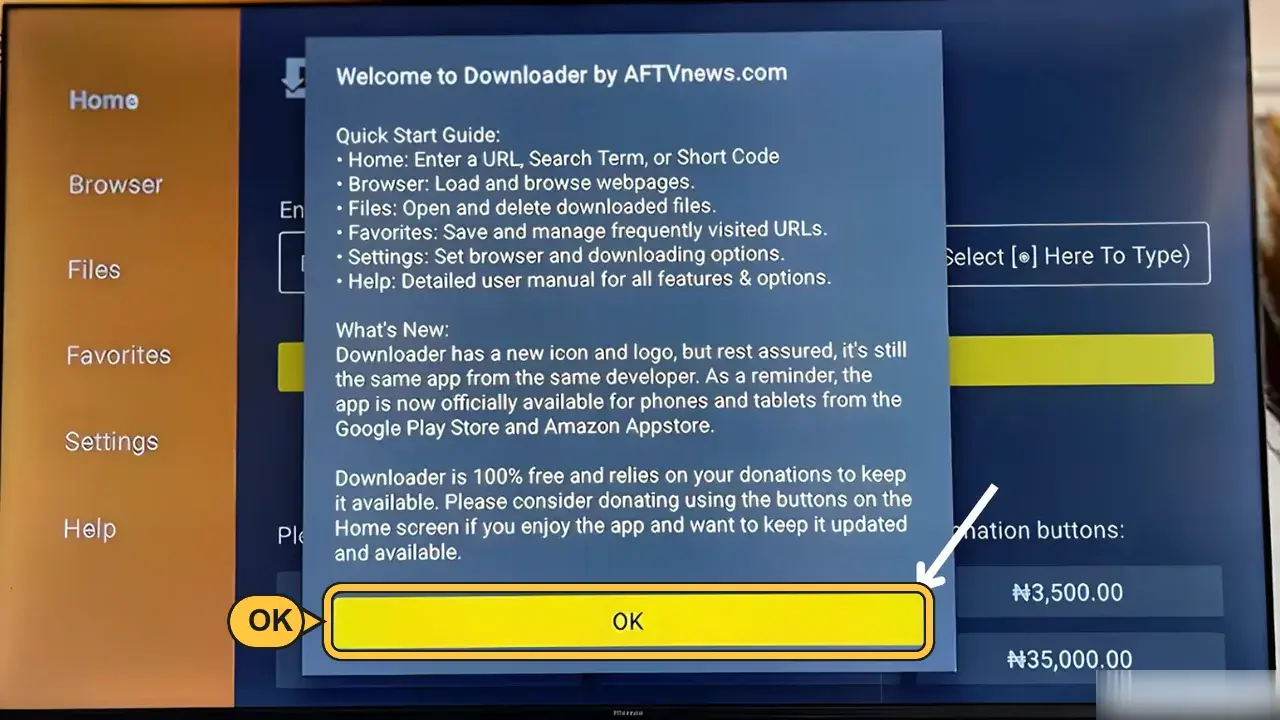
- Press OK
Install XCIPTV
- Open the Play Store (or Apps on Google TV). Search:
XCIPTV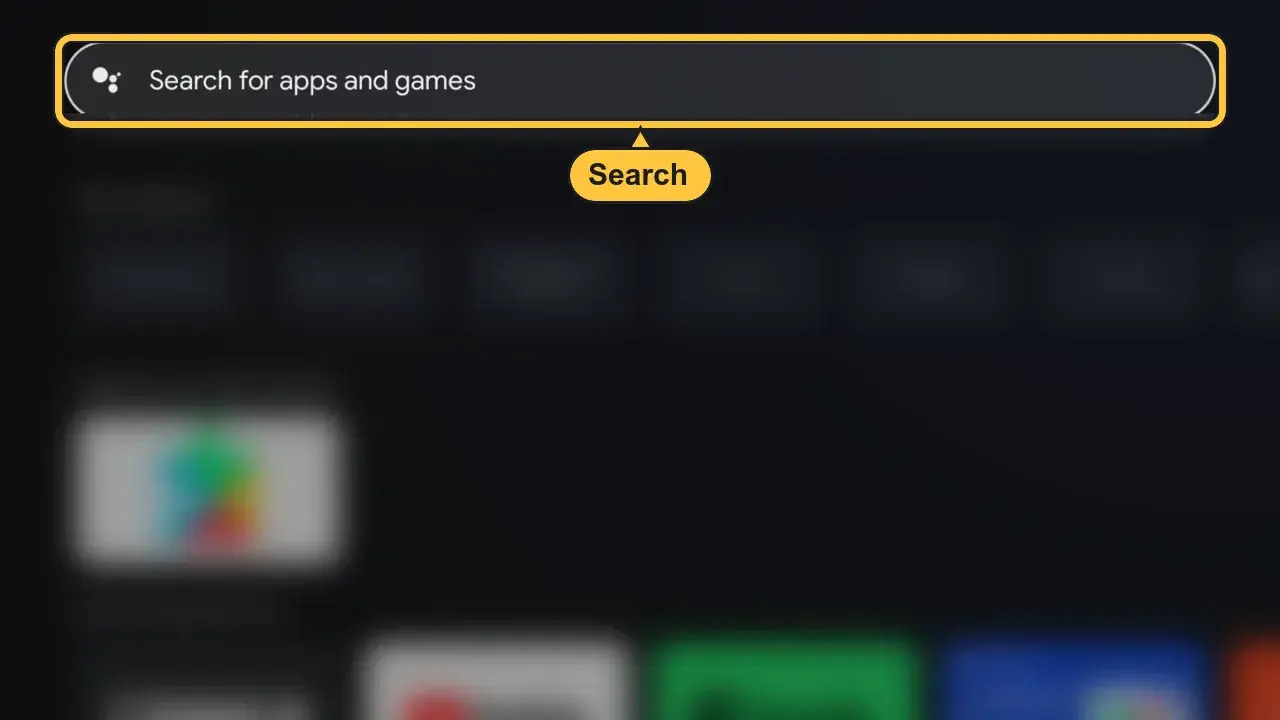
- Press Install. Then press Open
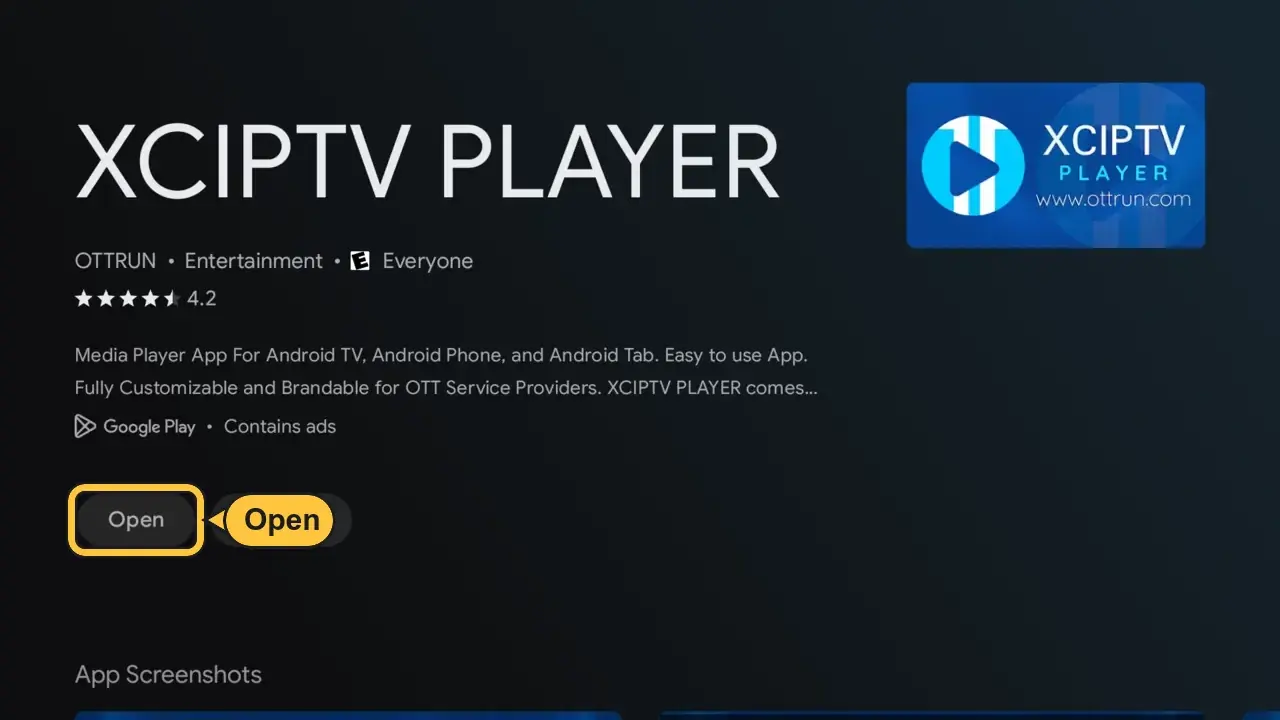
Log in to XCIPTV
- Open XCIPTV
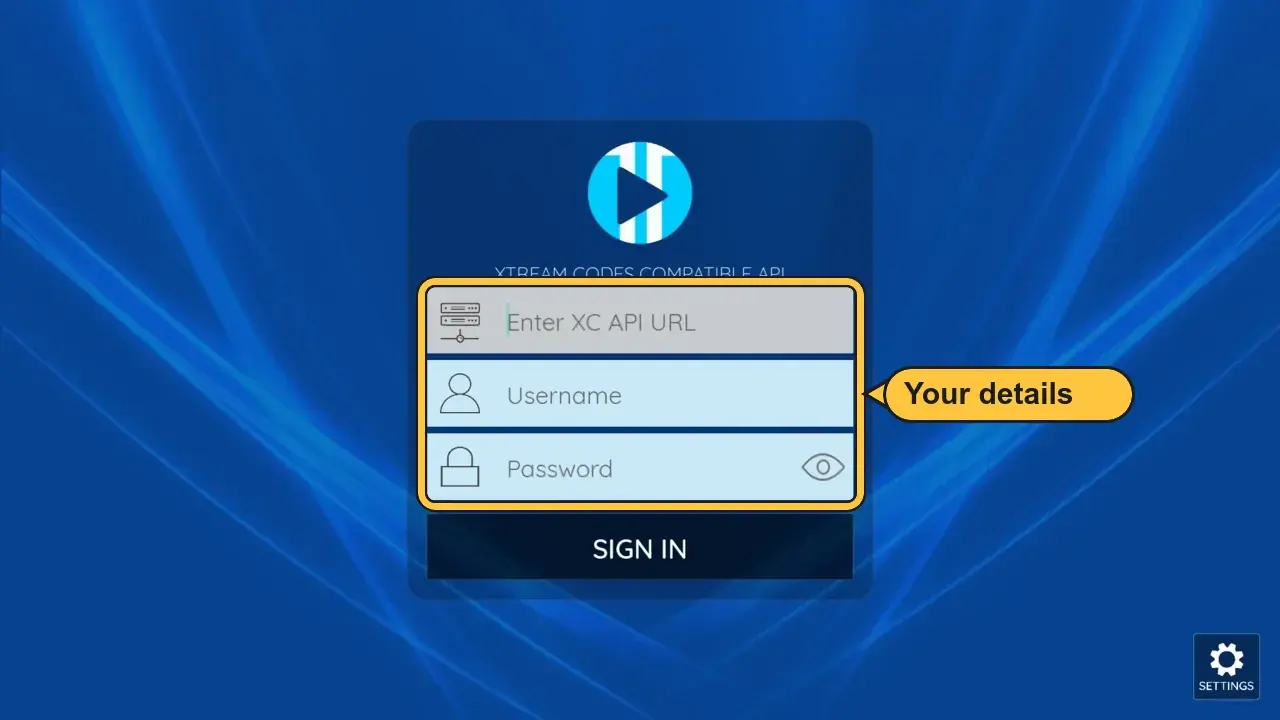
- Type your details from your email or your account at help.iptvv.ca/account:
- Top boxServer URL (starts with http://)
- UsernameCapitals count
- PasswordFrom your email
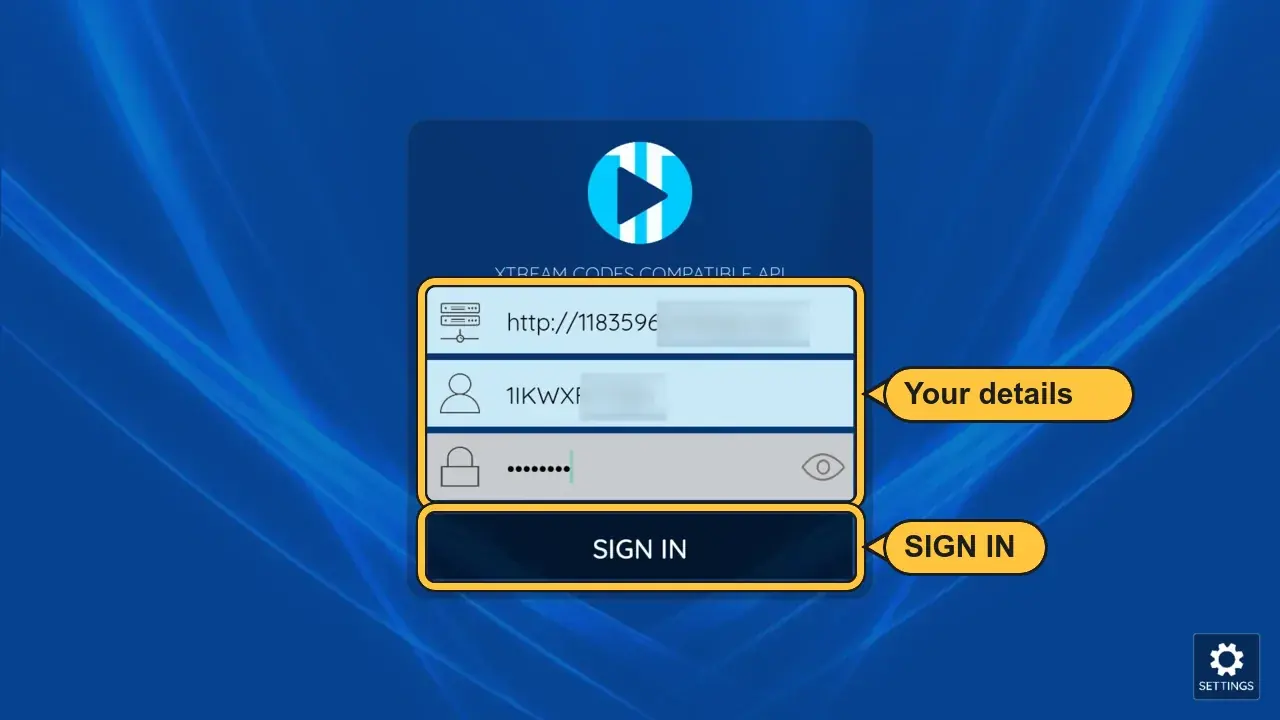
- Wait about 1 minute
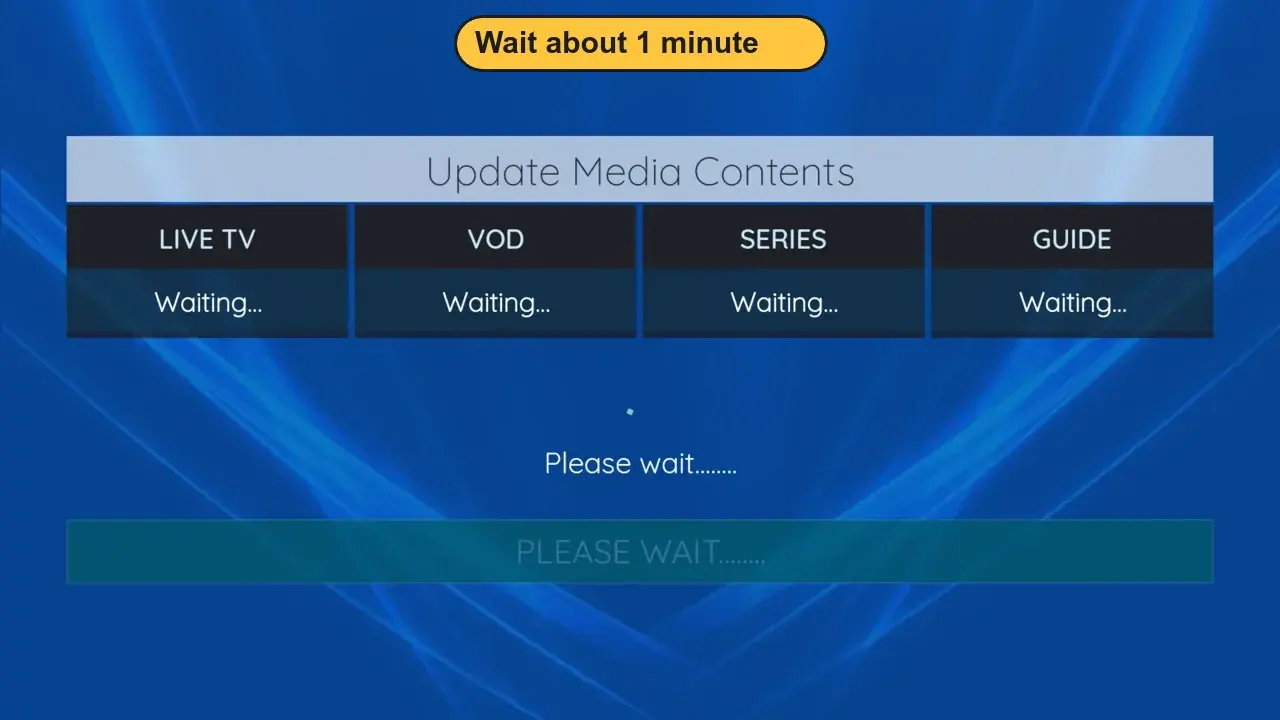
- Press CLOSE
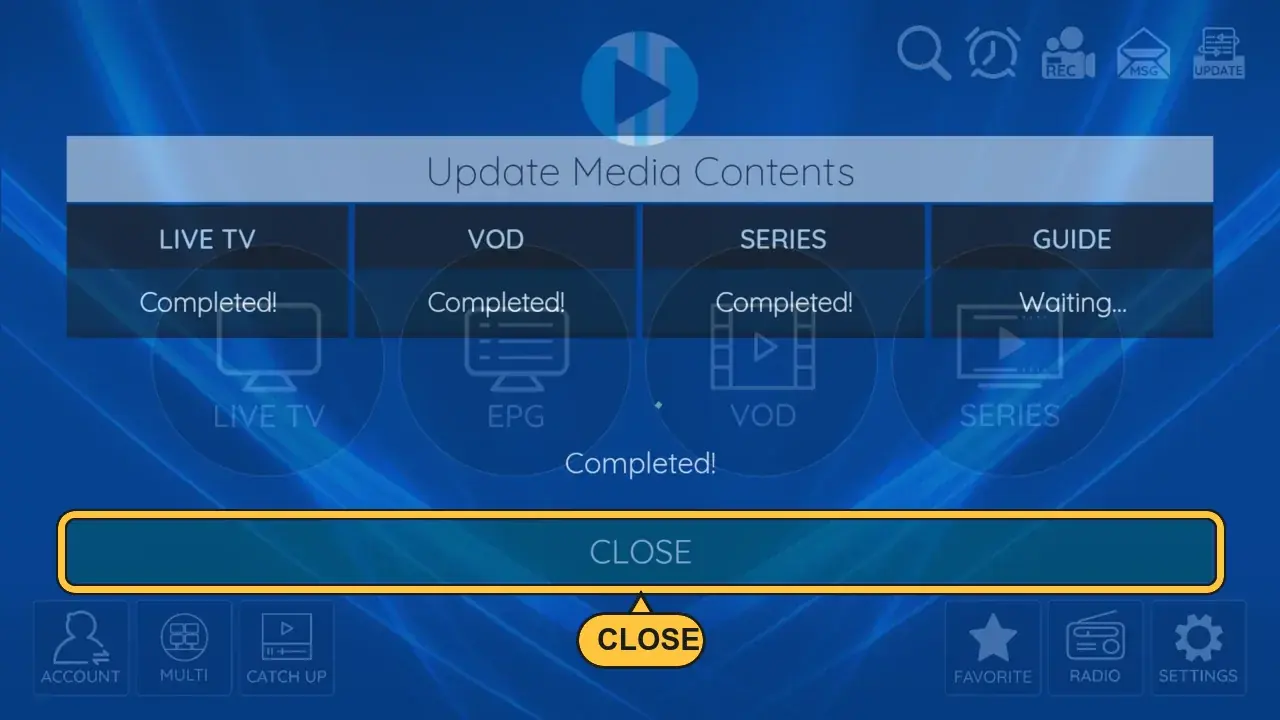
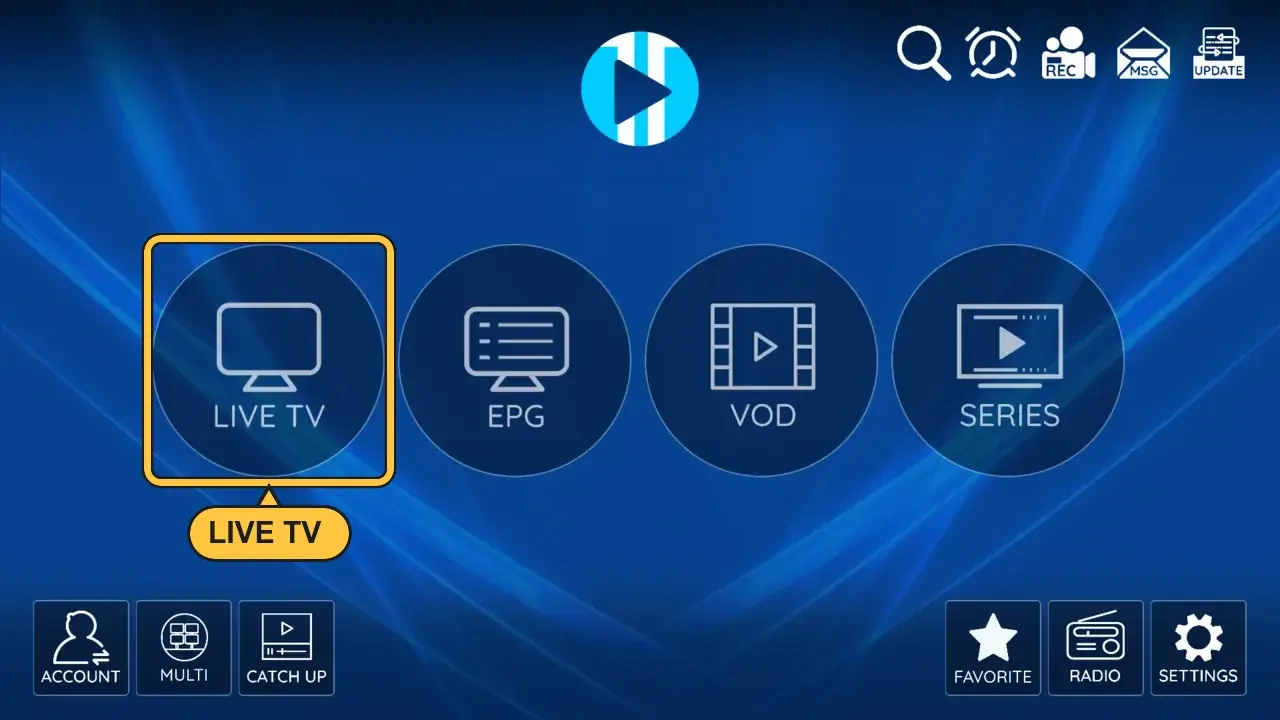
Start watching
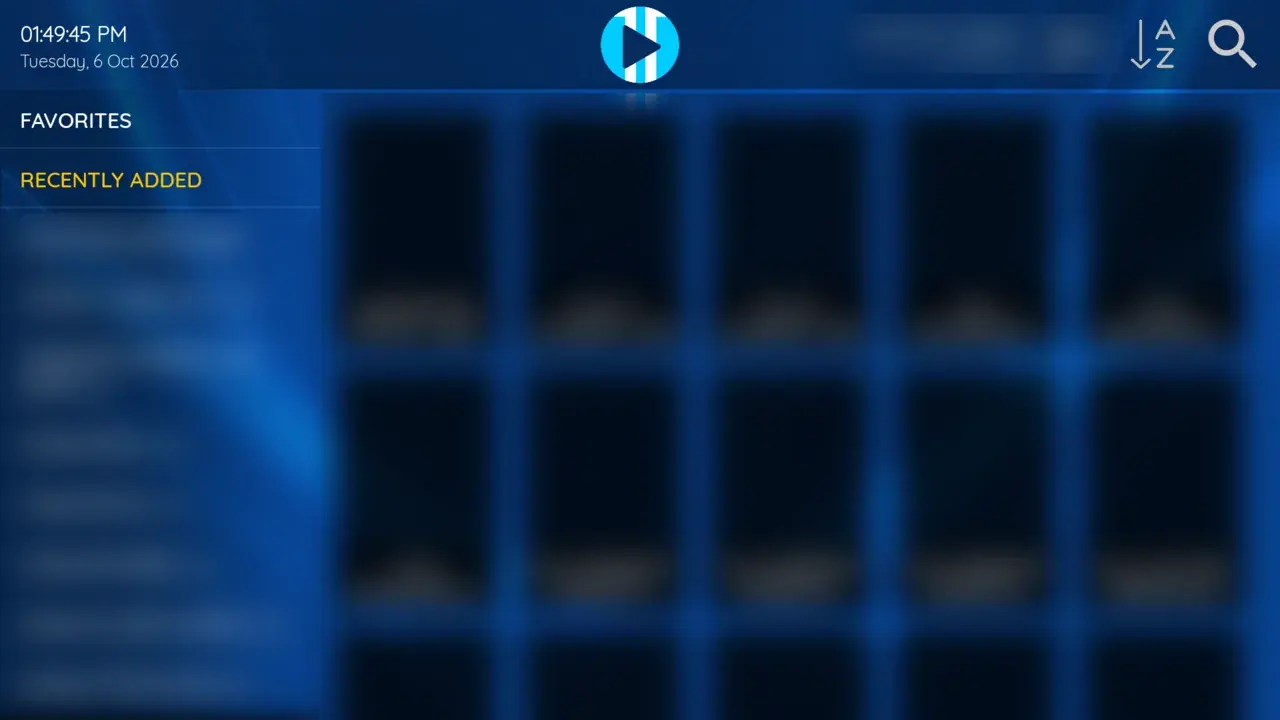
- LIVE TV for channels. EPG for the TV guide. VOD for movies. SERIES for shows
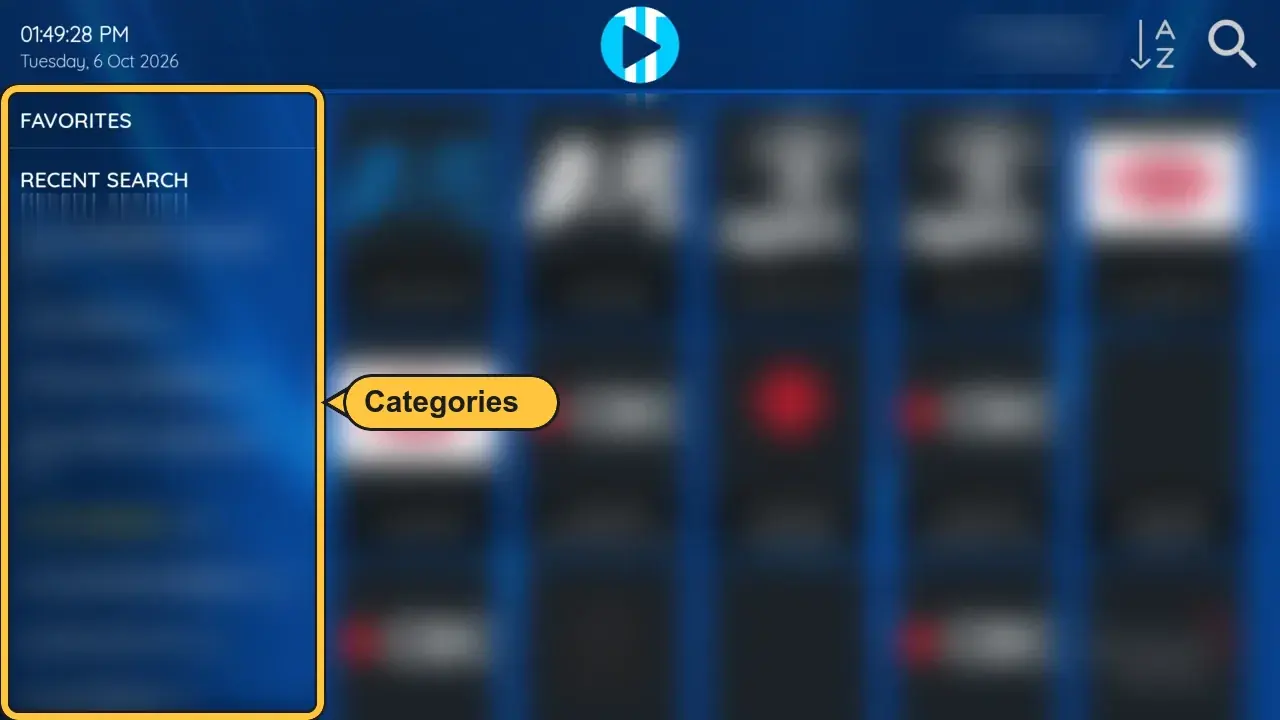
- Pick a category on the left, then a channel
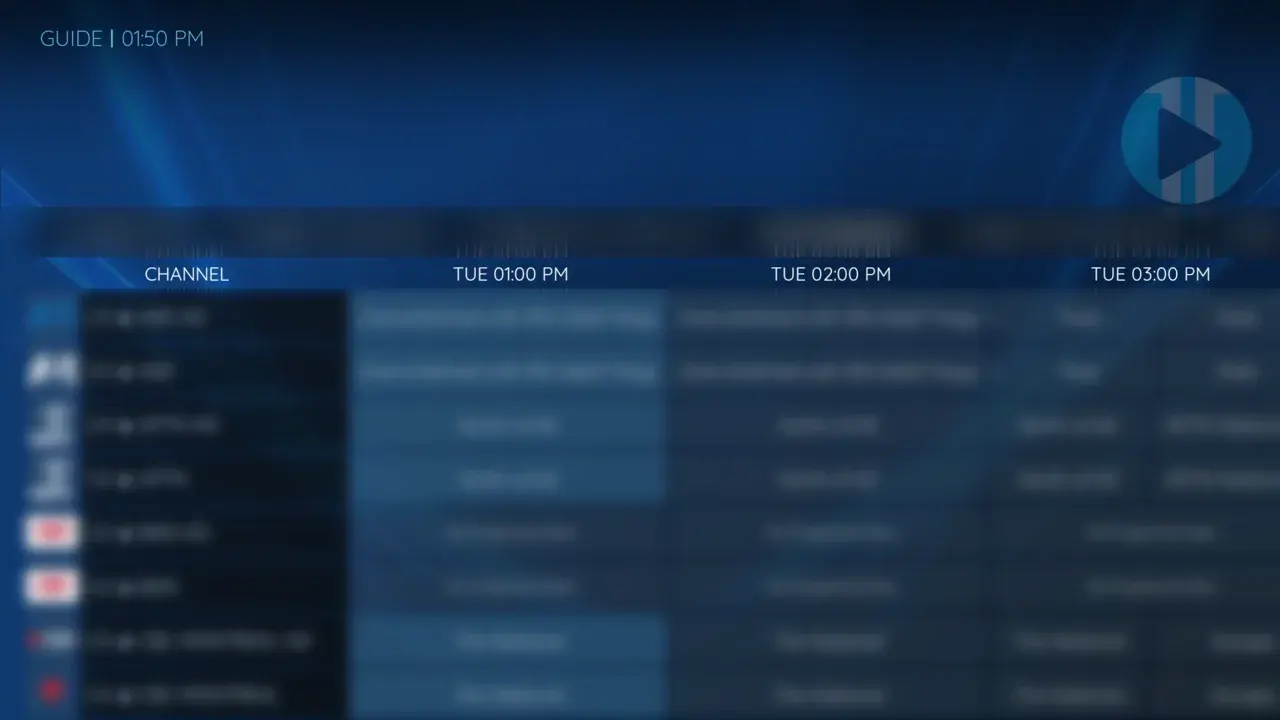
- The TV guide
- Movies and series are unlocked in XCIPTV
Install TiviMate
- Open the Downloader app
- Click the box at the top. Type:
272483
Then press Load - Wait for the download
- Press Install
- Press Open
Log in to TiviMate
- Open TiviMate. Press Accept
- Press Add playlist
- Choose Xtream Codes
- Type your details from your email or your account at help.iptvv.ca/account:
- Server addressServer URL (starts with http://)
- UsernameCapitals count
- PasswordFrom your email
- Wait a moment
- Press Next, then Done
- Your channels are ready
Free or Premium?
- Press Left for the menu
- Movies and Shows stay locked until you buy TiviMate Premium. Pressing Play shows this
Install iMPlayer
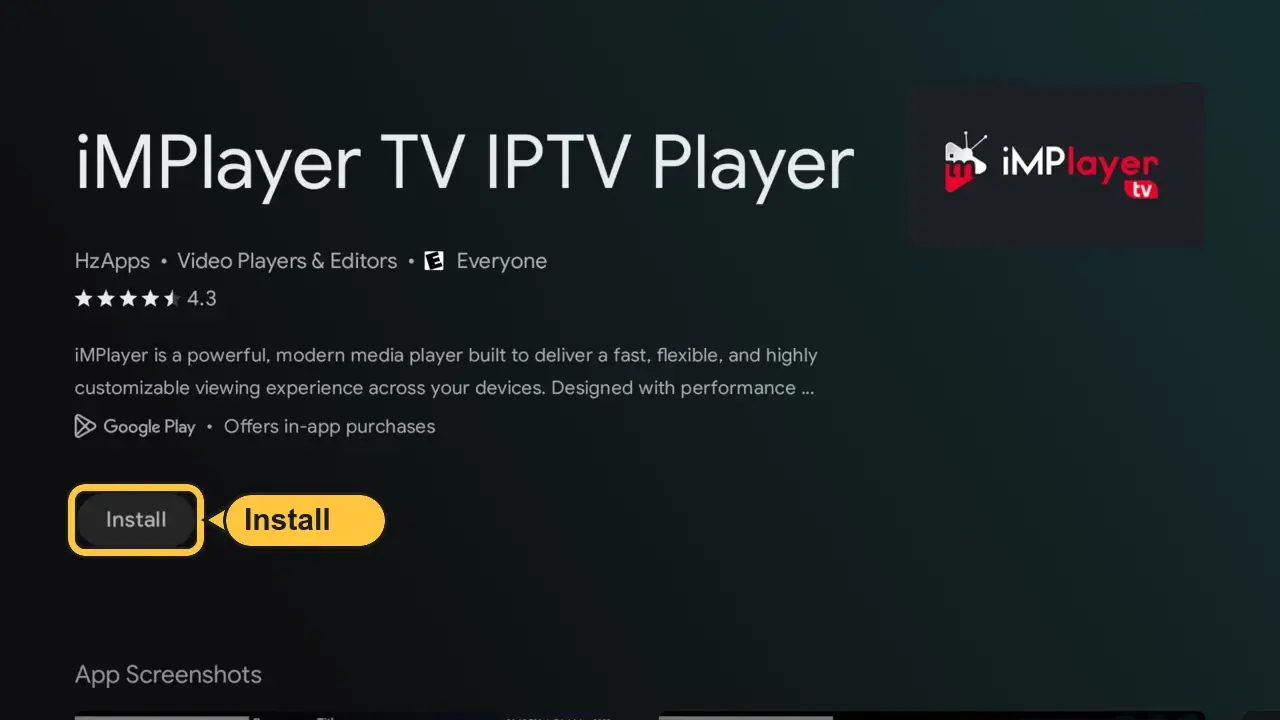
- Open the Play Store (or Apps on Google TV). Search:
iMPlayer - Press Install. Then press Open
Log in to iMPlayer
- Open iMPlayer. Press ADD PLAYLIST
- Choose XC API
- Type your details from your email or your account at help.iptvv.ca/account:
- Portal URLServer URL (starts with http://)
- UsernameCapitals count
- PasswordFrom your email
- Wait a few minutes the first time
- Press OK through the tips. Then CLOSE
Easier with your phone: on the Add a New Playlist screen, scan the QR code with your phone (or open implayer.tv/add and enter the code shown on your TV). Then type your login on your phone instead of with the remote.
Start watching
- Press Left for categories and channels
- Press the Menu button for Live TV, Movies and TV Shows
- Movies and TV Shows are unlocked in iMPlayer
- Extras like Multiview show PREMIUM VERSION
You're all set
Enjoy watching. Stuck on a step? Contact our support team and we'll help.
Frequently Asked Questions
Which player should I choose?▸
Is TiviMate or iMPlayer Premium part of my subscription?▸
Can I use a different player?▸
Can I switch players later?▸
Where are my Server URL, username and password?▸
Nothing loads after I log in▸
XCIPTV or iMPlayer is not in my Play Store▸
iPhone & iPad Setup Guide
Before you continue
This guide uses a third-party app that we don’t own, sell, or manage. Some extra features may need the app's own premium upgrade, which is not part of your IPTVV subscription.
These steps are provided only to help you set it up with your subscription.
Method 1: iMPlayer Setup (Recommended)
-
Download iMPlayer - IPTV Player from App Store:
Download from App Store
-
Open the app and click on "Add a Playlist"
-
Select playlist type "XC API"
-
Fill in your details:
• Playlist Name: Choose any name you want
• Portal URL: Enter the server URL from your email or your account at help.iptvv.ca/account
• Username & Password: Use the username and password from your email or your account -
Click "Add Playlist" wait until contents finish downloading and enjoy streaming!
Method 2: UHF Setup
- Download UHF - Love your IPTV from the App Store:
Download from App Store
iPhone and iPad with iOS 16 or newer. Apple TV with tvOS 17 or newer.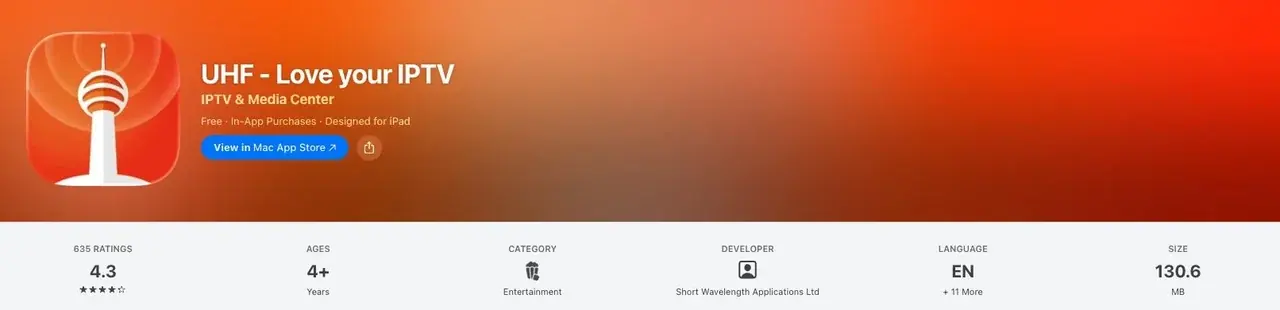
- Open UHF and add a new playlist. Choose Xtream Codes
- Type your Server URL, username and password from your email or your account at help.iptvv.ca/account
- Save. Wait while your channels load
Method 3: Smarters Player Lite Setup
-
Open app and tap Add User, select Login with Xtream Codes API

-
Use the login details from your email or your account at help.iptvv.ca/account. Then click on "ADD USER" to continue
-
Wait a few seconds for the app to process your details
-
Tap the "Live TV" icon to start watching

-
Select the channel category you want to browse and tap a channel name to play it
Frequently Asked Questions
Which app is best for iOS devices? ▸
Do I need to jailbreak my Apple TV? ▸
Can I use these apps on Apple TV? ▸
Why is EPG not loading? ▸
Windows Setup Guide
Step 1: Install MyIPTV Player
- Open the Microsoft Store on your PC and install MyIPTV Player:
Download from Microsoft Store
Windows 10 and Windows 11.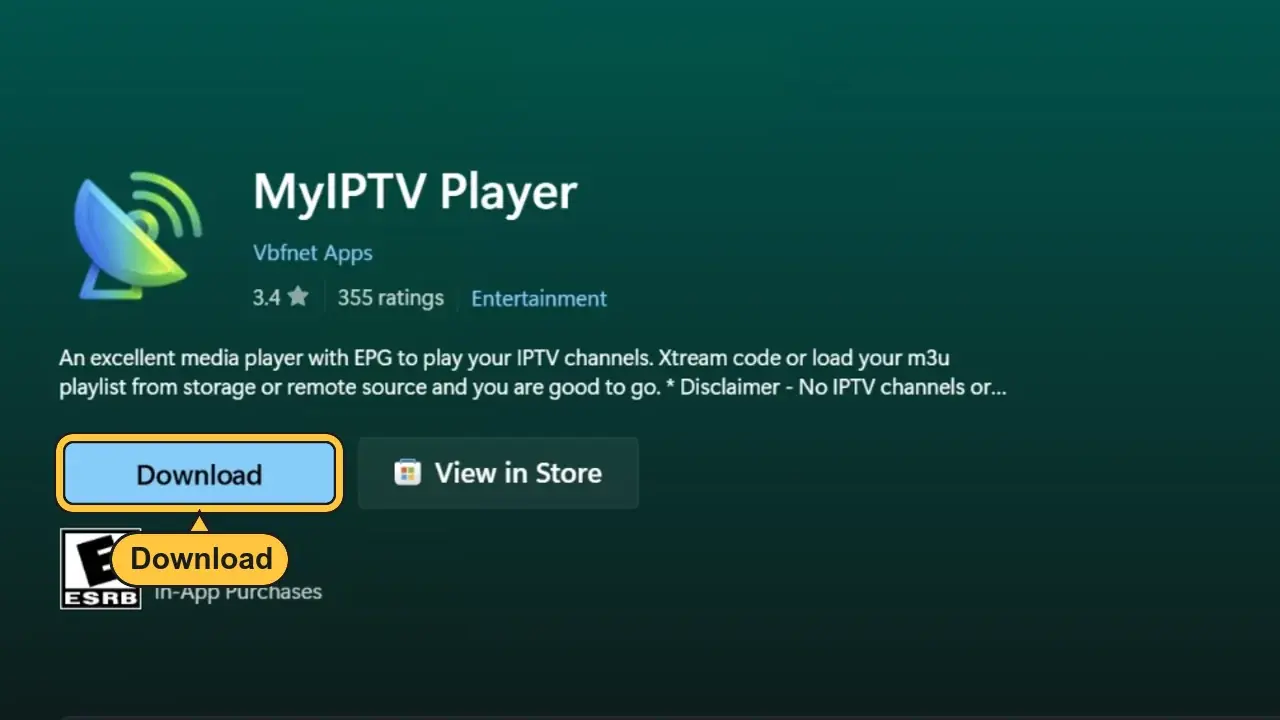
- Open MyIPTV Player
Step 2: Add your login
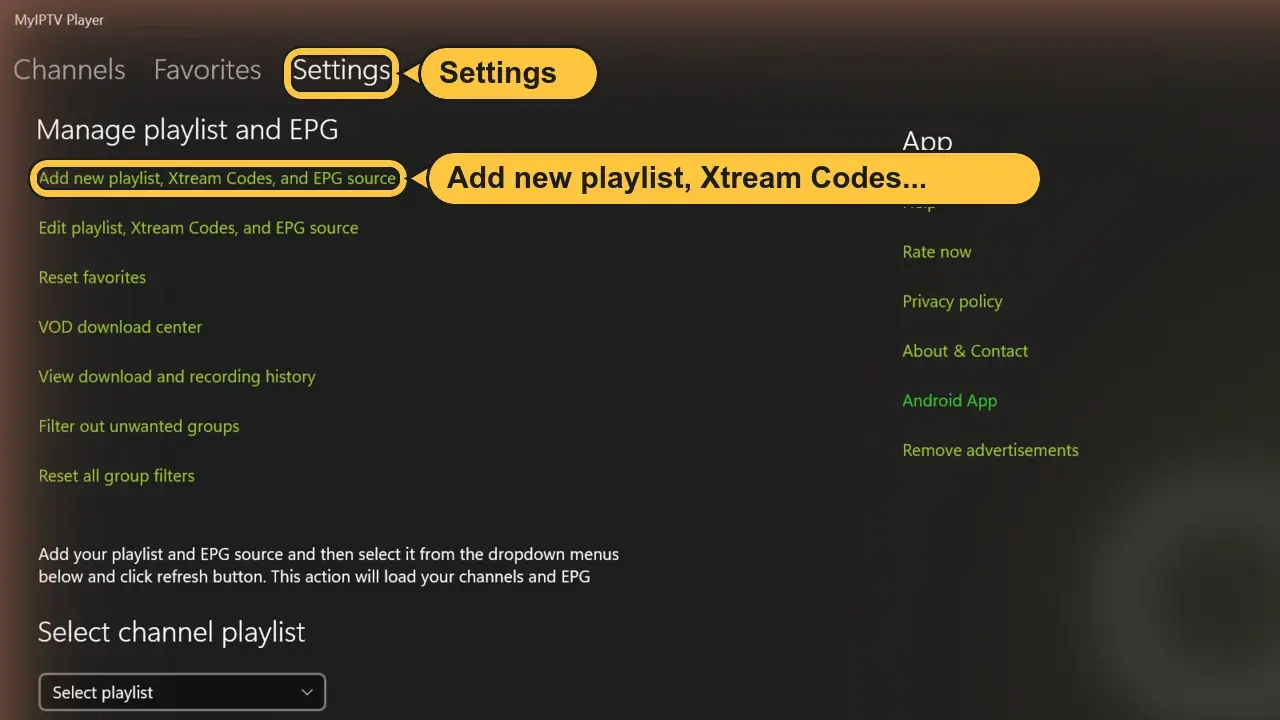
- Click Settings at the top, then Add new playlist, Xtream Codes, and EPG source
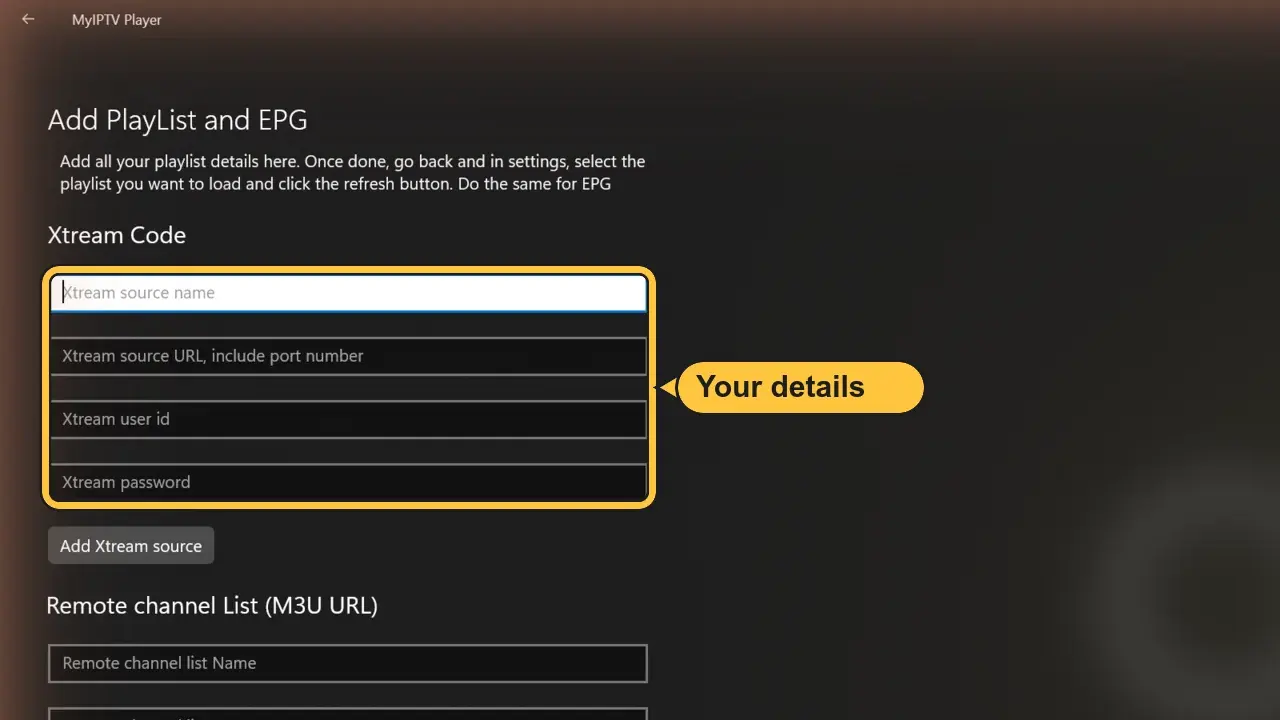
- Under Xtream Code, fill in the 4 boxes:
- Source nameAny name, for example IPTVV
- Source URLYour server URL (starts with http://)
- User idYour username
- PasswordYour password
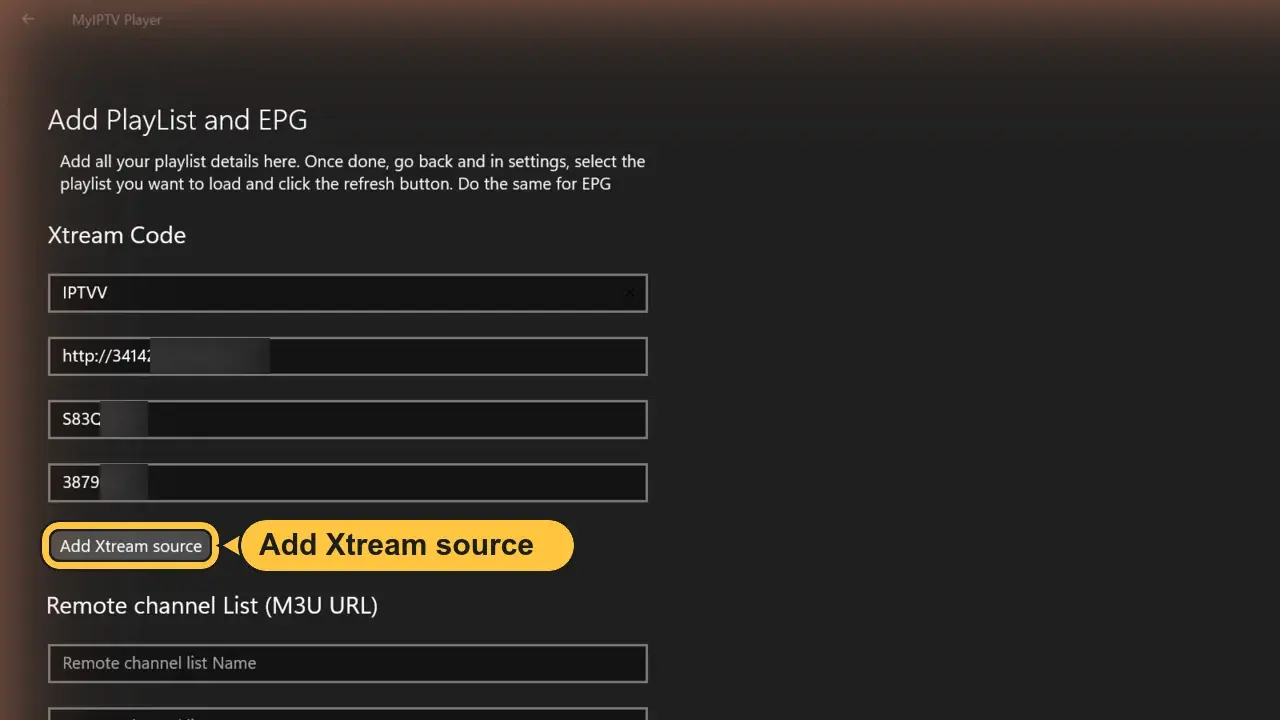
- Click Add Xtream source
Step 3: Load your channels
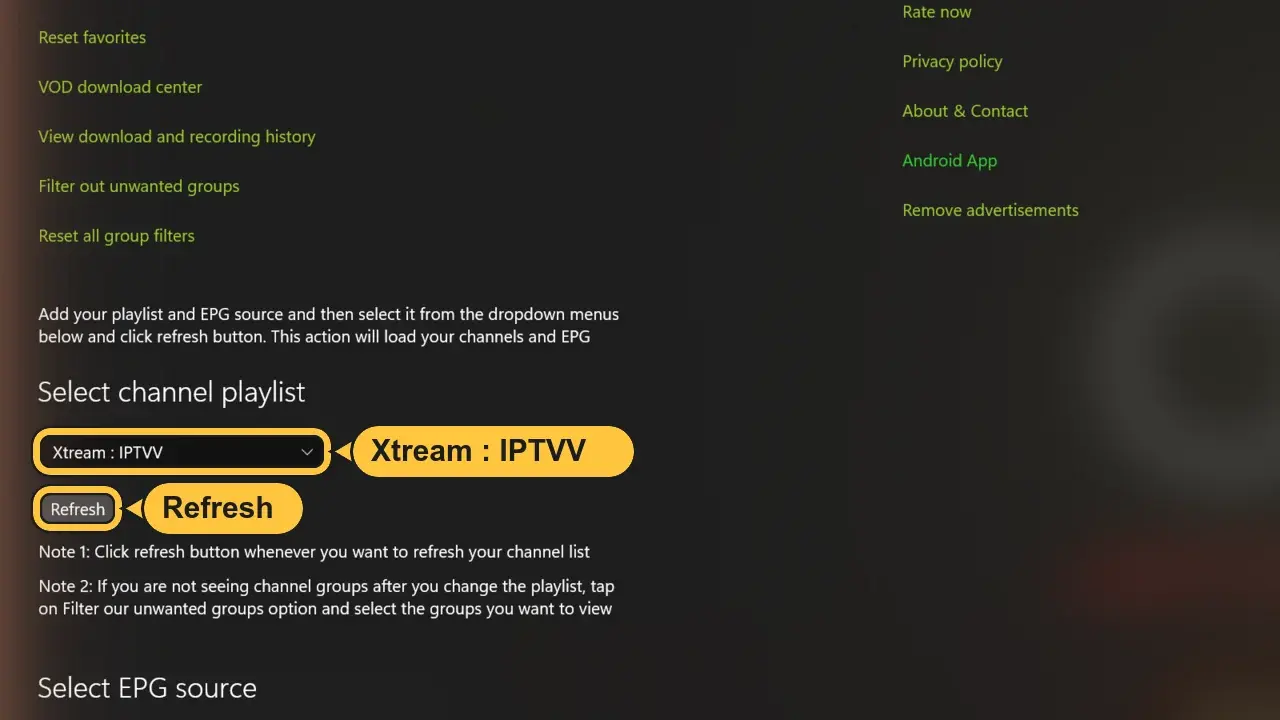
- Click the back arrow (top left). Under Select channel playlist, choose Xtream : IPTVV, then click Refresh
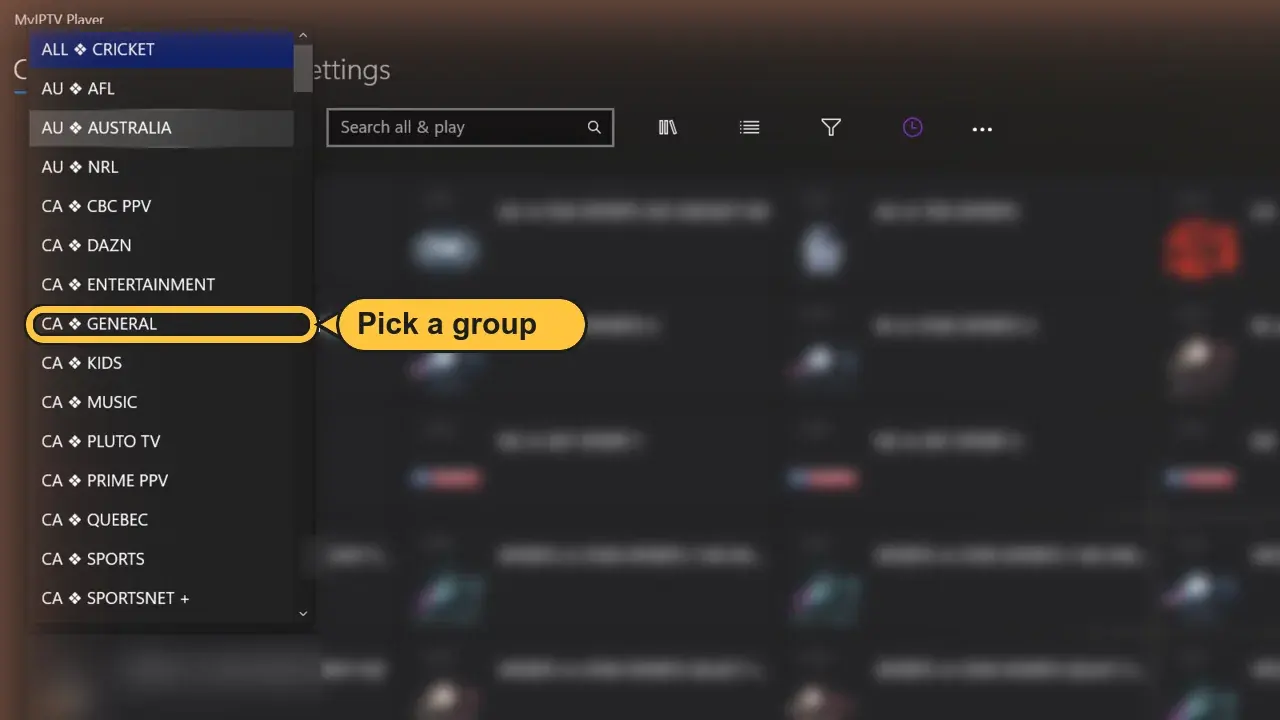
- Click Channels at the top. Use Groups to pick a category
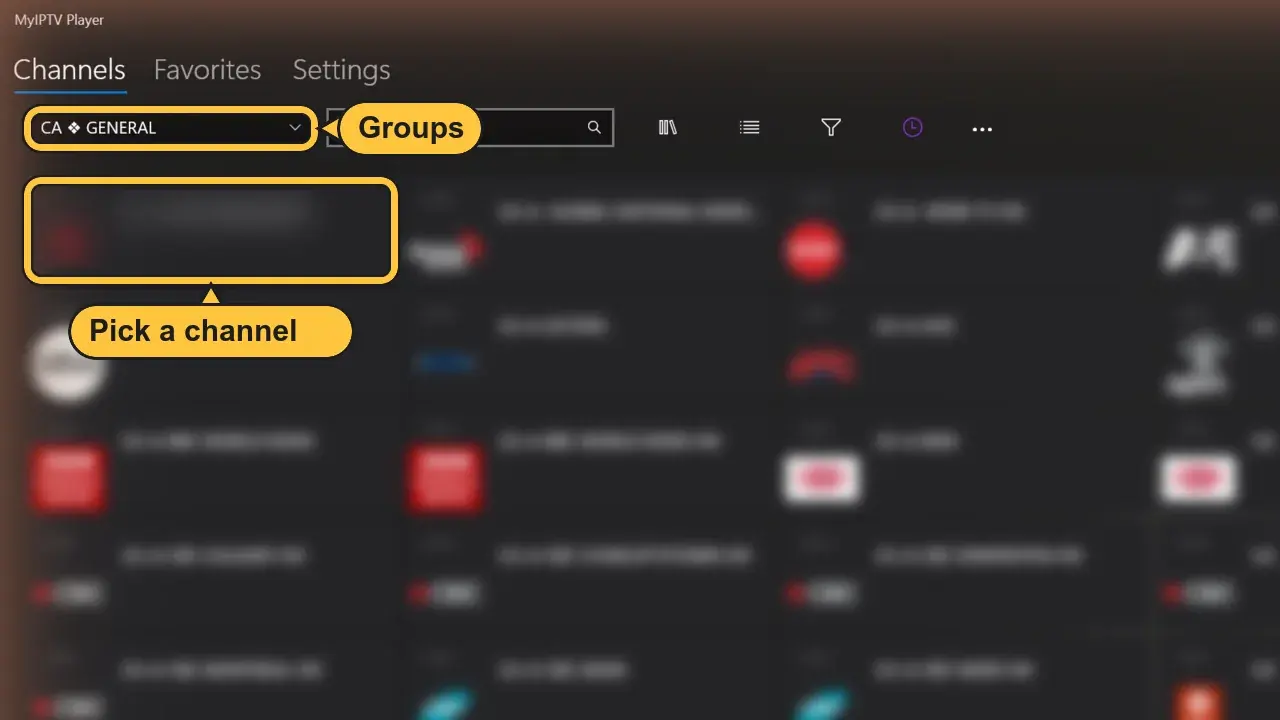
- Click a channel to watch
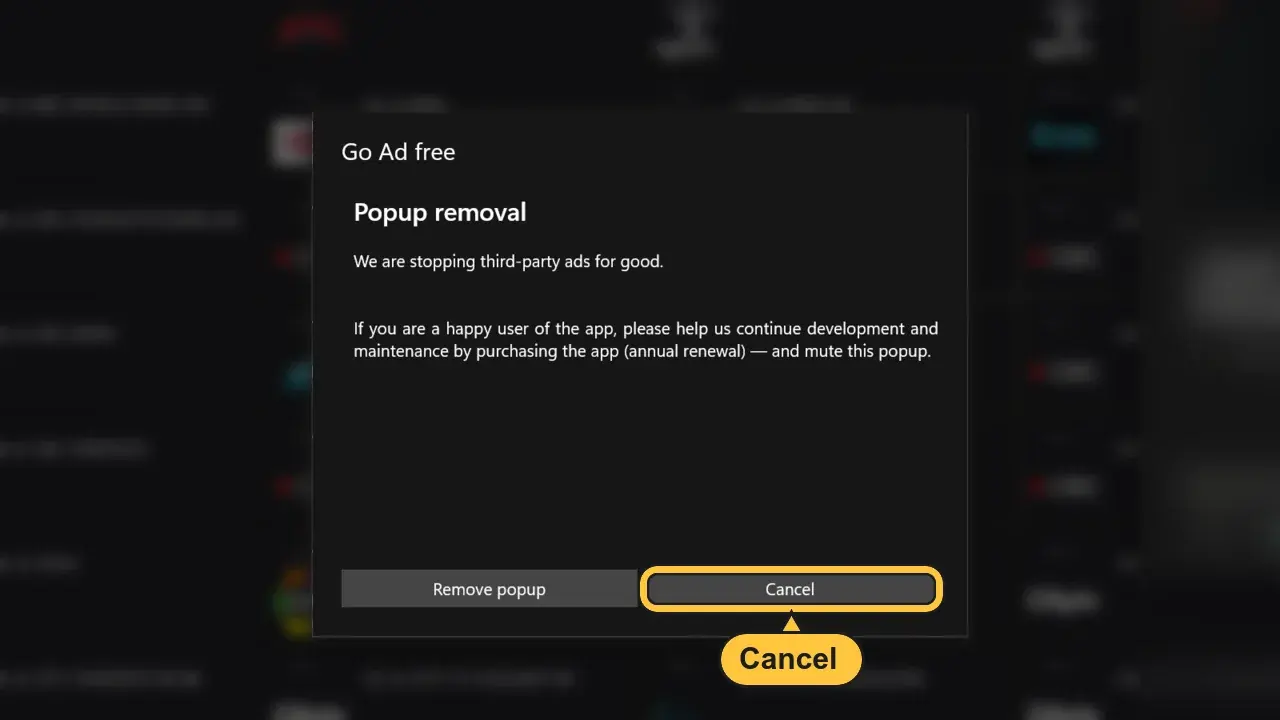
- If a Go Ad free window appears, click Cancel. The app keeps working
Frequently Asked Questions
Is MyIPTV Player free?▸
Nothing loads after I click Refresh▸
Can I use it on a Mac?▸
What internet speed do I need?▸
Android Phone & Tablet Setup Guide
Before you continue
This guide uses a third-party app that we don’t own, sell, or manage. Some extra features may need the app's own premium upgrade, which is not part of your IPTVV subscription.
These steps are provided only to help you set it up with your subscription.
Method 1: iMPlayer Setup (Recommended)
-
Download iMPlayer - IPTV Player from Google Play Store:
Download from Google Play Store
-
Open the app and click on "Add a Playlist"
-
Select playlist type "XC API"
-
Fill in your details:
• Playlist Name: Choose any name you want
• Portal URL: Enter the server URL from your email or your account at help.iptvv.ca/account
• Username & Password: Use the username and password from your email or your account -
Click "Add Playlist" wait until contents finish downloading and enjoy streaming!
Method 2: TiviMate Mobile Setup (Google Play)
-
Open Google Play Store and search for TiviMate IPTV PlayerFreeLive TV and the TV guide.PremiumNeeded for movies and series (VOD) in TiviMate.Not part of your IPTVV subscription. Your subscription already includes movies and series.

-
Tap Install and wait for completion
-
Open TiviMate, tap Add Playlist
-
Select Xtream Codes
-
Enter IPTVV credentials:
• Server: Your server URL from your email or your account at help.iptvv.ca/account
• Username: Your username
• Password: Your password
Then tap Next -
Wait for channels to load, then start watching!
Frequently Asked Questions
Does TiviMate include channels or an IPTV service? ▸
Why do I see "invalid" when logging into TiviMate? ▸
Free vs Premium - do I need TiviMate Premium? ▸
Best practices to reduce buffering on mobile? ▸
Can I cast to TV from my phone? ▸
What internet speed is recommended? ▸
Roku Device Setup Guide
Before you continue
This guide uses Hot Player, a third-party app we don’t own or manage. It’s free for 30 days, then the app needs its own license, which is not part of your IPTVV subscription.
When the trial ends, only the app expires. Your IPTVV subscription stays active.
Step 1: Search for Hot Player
-
On your Roku device, open the Roku Channel Store
-
In the search bar, type "Hot Player"
 FreeHot Player is free for the first 30 days.LicenseAfter 30 days, Hot Player needs its own license.Not part of your IPTVV subscription. Your subscription stays active either way.
 -
Select Hot Player from the search results
-
Click "Add Channel" to install the app on your Roku device
Step 2: Get Your Device Credentials
-
Open the Hot Player app on your Roku device
-
You will see your MAC Address displayed on the screen. Write this down or take a photo - you'll need it for the next step

Step 3: Configure Your Playlist Online
-
On your phone, tablet, or computer, visit: https://hotplayer.app
-
Click on "Upload List" in the menu

-
Enter the MAC Address from your Roku device, then click "Next"

-
Change Source to "Xtream Code"

-
Fill in your IPTV playlist details:
• Playlist Name: Enter any name you want (e.g., "My IPTV")
• Host: Your server URL from your email or your account at help.iptvv.ca/account
• Username: Your IPTV username
• Password: Your IPTV password
Then click "Save" -
Return to your Roku device click Refresh or restart the Hot Player app
-
Your IPTV channels should now load. You're ready to start watching!
Frequently Asked Questions
Where do I find the MAC Address on my Roku? ▸
What if Hot Player isn't available in my region or Roku device? ▸
Is Hot Player free? ▸
Can I use multiple playlists on one Roku device? ▸
Why are my channels not loading? ▸
Which Roku devices support Hot Player? ▸
Smart TV Setup Guide - All Brands
Before you continue
This guide uses Hot Player, a third-party app we don’t own or manage. It’s free for 30 days, then the app needs its own license, which is not part of your IPTVV subscription.
When the trial ends, only the app expires. Your IPTVV subscription stays active.
Step 1: Search for Hot Player
-
On your Smart TV, open your App Store (LG Content Store, Samsung Apps, etc.)
-
In the search bar, type "Hot Player"
 FreeHot Player is free for the first 30 days.LicenseAfter 30 days, Hot Player needs its own license.Not part of your IPTVV subscription. Your subscription stays active either way.
 -
Select Hot Player from the search results
-
Click "Install" or "Download" to install the app on your Smart TV
Step 2: Get Your Device Credentials
-
Open the Hot Player app on your Smart TV
-
You will see your MAC Address displayed on the screen. Write this down or take a photo - you'll need it for the next step

Step 3: Configure Your Playlist Online
-
On your phone, tablet, or computer, visit: https://hotplayer.app
-
Click on "Upload List" in the menu
-
Enter the MAC Address from your Smart TV, then click "Next"
-
Change Source to "Xtream Code"
-
Fill in your IPTV playlist details:
• Playlist Name: Enter any name you want (e.g., "My IPTV")
• Host: Your server URL from your email or your account at help.iptvv.ca/account
• Username: Your IPTV username
• Password: Your IPTV password
Then click "Save" -
Return to your Smart TV click Refresh or restart the Hot Player app
-
Your IPTV channels should now load. You're ready to start watching!
Frequently Asked Questions
Where do I find the MAC Address on my Smart TV? ▸
What if Hot Player isn't available in my region or TV brand? ▸
Is Hot Player free? ▸
Can I use multiple playlists on one Smart TV? ▸
Why are my channels not loading? ▸
Which Smart TV brands support Hot Player? ▸
BuzzTV Setup Guide
Method 1: XC API Login (Recommended)
-
From your BuzzTV home screen, navigate to Server Settings

-
Select XC API Login → Add XC API Login

-
Configure your Xtream Codes connection:
• Portal Name: Enter any name (e.g., "My IPTV")
• Portal URL: Enter your server URL from your email or your account at help.iptvv.ca/account
• User name: Enter your IPTV username
• Password: Enter your IPTV password
-
Press "Connect" or "Save" to establish the connection
-
Return to home screen and select Live TV to start watching!
Frequently Asked Questions
What's the difference between XC API Login and MAC Server? ▸
Which method should I use? ▸
Why won't my channels load? ▸
Can I use multiple IPTV services on BuzzTV? ▸
Formuler/Dreamlink Setup Guide
Formuler Z: MyTVOnline 2 & 3
-
Open MyTVOnline 2 or 3 from your Formuler home screen
-
Navigate to Menu → Connections → Add Portal

-
Configure your Xtream Codes connection:
• Portal Name: Enter any name (e.g., "My IPTV")
• Portal URL: Enter your server URL from your email or your account at help.iptvv.ca/account
• Login Required: Enable this option
• Username: Enter your IPTV username
• Password: Enter your IPTV password -
Press "Connect" to establish the connection
-
Your channels should now load and you're ready to watch!
Dreamlink: DOL2 App
-
Open DOL2 App from your Dreamlink home screen

-
Go to Menu → Portals → Edit Portal

-
Enter your portal configuration:
• Portal Title: Any name you prefer
• Portal URL: Your IPTV server URL
• Login Required: Yes, activate this
• Username: Your credentials
• Password: Your credentials -
Save the configuration and restart the app to connect
Portal: http://iptv-server.com
Username: abcdef
Password: 123456