


Why Is My IPTV Not Working? Causes and Fixes (2026 Guide)
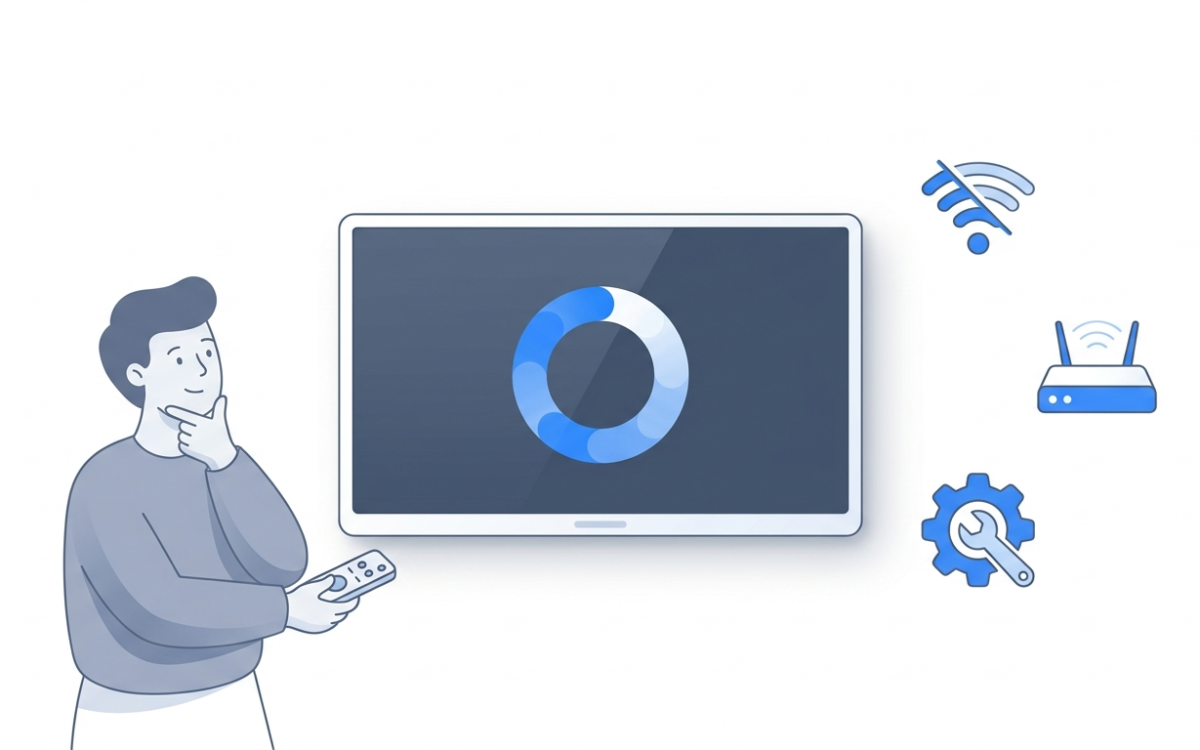
Few things are more frustrating than settling in to watch and seeing the dreaded spinning circle. IPTV is television delivered over your internet connection instead of through cable or satellite, which means most faults trace back to your connection, your device, or your provider. If your IPTV is not working, buffering, or freezing, the good news is that most causes are simple and quick to fix yourself. This guide walks through the most common reasons for IPTV not working and the exact steps to get you back watching, starting with the fastest fixes first.
What should I check first when my IPTV is not working?
Five quick checks solve the majority of IPTV not working problems in about 60 seconds: test your internet speed (at least 25 Mbps for HD), restart your device, reboot your router, reopen your IPTV app, and confirm your subscription is active. Run through them in order before digging any deeper:
- Test your internet. Run a speed test on the same device you watch on. You want a stable connection of at least 25 Mbps for smooth HD.
- Restart your device. Fully power off your TV, box, or stick, wait ten seconds, and turn it back on.
- Reboot your router. Unplug it for thirty seconds, then plug it back in and let it fully reconnect.
- Close and reopen your IPTV app. A fresh start clears most temporary glitches.
- Check your subscription is active. An expired plan is one of the most common reasons streams suddenly stop.
If you are still stuck after those, the sections below explain what is actually going wrong and how to fix it.
Why does IPTV buffer, freeze, or stop working?
IPTV buffers, freezes, or stops working for one of six reasons: a slow or unstable internet connection, weak Wi-Fi, an overloaded or outdated app, peak-hour network congestion, an expired or maxed-out subscription, or a provider-side server issue. Almost every case of IPTV not working comes down to one of these causes:
- A slow or unstable internet connection.
- Weak Wi-Fi signal between your router and your device.
- An overloaded app cache or an outdated app.
- Network congestion during peak evening hours.
- An expired or maxed-out subscription.
- A provider-side server issue.
Work through the fixes below in order and you will resolve the vast majority of problems.
Fix 1: Sort out your internet speed
You need a steady connection of at least 25 Mbps per HD stream, and roughly 50 Mbps for 4K; if your speed test shows less, or the number jumps around, that is why your streams are buffering. Buffering is almost always a bandwidth problem. Streaming needs a steady connection, not just a fast one.
Pause any large downloads, game updates, or other devices streaming at the same time. If buffering only happens with several screens running at once, your plan may not have enough bandwidth for your household. As a rule of thumb, allow around 25 Mbps per HD stream and more for 4K.
Fix 2: Improve your Wi-Fi or go wired
A wired Ethernet connection between your router and your TV or box is the single most effective cure for buffering. A fast plan does not help if the signal to your TV is weak, because Wi-Fi loses strength through walls and distance, which causes streams to stutter.
- Best fix: connect your TV or box to the router with an Ethernet cable. A wired connection is the single most effective cure for buffering.
- If wired is not possible, move the device closer to the router or add a mesh node to strengthen the signal.
- Avoid placing the router inside a cabinet or behind the TV, where the signal gets blocked.
Fix 3: Clear the app cache and update
Clearing your IPTV app’s cache fixes most freezing and crashing caused by built-up data, and it takes under two minutes. Over time your IPTV player builds up cached data that gives the app less room to work, and a clean slate resolves it.
In your device settings, find the app, then choose clear cache (not clear data, which would erase your login). While you are there, make sure both the app and your device software are fully updated, since outdated versions are a frequent cause of playback errors.
Fix 4: Beat peak-time congestion
Peak-time congestion between roughly 7 pm and 11 pm is the reason IPTV works fine during the day but buffers every evening. During those hours, networks are at their busiest and every household on your street is competing for bandwidth.
There is not always a quick fix on your end, but lowering the stream quality during busy hours, using a wired connection, and making sure no other heavy usage is competing for bandwidth all help. A quality provider with well-resourced servers makes a big difference here.
Fix 5: Confirm your subscription and device limits
If your streams stopped all at once, an expired subscription or too many devices signed in at the same time is the most likely cause. Check the basics first. Has your subscription expired? Are you signed in on more devices than your plan allows?
Many plans limit how many screens can play at the same time, and exceeding that limit can stop playback. Signing out of an unused device often fixes it instantly.
Fix 6: Rule out your network setup
Two network-setup issues quietly break IPTV: recent changes to your network configuration, and provider-side faults that only affect certain channel categories. Here is how to tell them apart:
- Some networks or connection tools interfere with streaming. If you recently changed your network configuration and problems started, switch back and test again.
- If a single channel category fails but others work, the issue is usually on the provider side rather than your connection.
How do I know the problem is the provider, not me?
The problem is on the provider’s side when everything fails at once, streams buffer constantly even on a fast wired connection, or outages happen week after week. If you have worked through every fix above and streams still drop, the issue is likely your provider’s servers rather than your setup.
This is exactly why choosing a reliable service matters. A quality provider runs stable, well-distributed servers, keeps streams smooth during peak hours, and offers responsive support when something goes wrong. IPTVV (iptvv.ca) is a Canadian IPTV provider built around exactly that kind of server stability. If your current service buffers no matter what you try, it may simply be time to switch. You can test a free trial on your own connection to compare stability before you commit.
Still setting things up?
If your service is brand new and has never worked, the issue is almost always a missed setup step rather than a fault. Our step-by-step installation guide walks through getting IPTV running correctly on every device. It is also worth reviewing what channels and content you should expect so you know everything is loading as it should.
Frequently asked questions
Why is my IPTV not working today?
If your IPTV is not working today, start with the basics: confirm your internet is up, restart your streaming device and router, and check that your subscription is still active. If only some channels fail while others play normally, the cause is usually a temporary provider-side issue that resolves within hours, not a fault with your setup.
Why does my IPTV keep buffering?
IPTV keeps buffering when the internet connection feeding it is too slow or unstable, or when the Wi-Fi signal between the router and the device is weak. Switch to a wired Ethernet connection, pause other heavy downloads or streams, and make sure you have at least 25 Mbps of stable bandwidth per HD stream.
How do I stop my IPTV from freezing every few seconds?
IPTV that freezes every few seconds usually points to an unstable network or an overloaded app. Reboot your router, clear the IPTV app’s cache in your device settings, and connect the device with an Ethernet cable. A wired connection removes the Wi-Fi dropouts that cause most rhythmic freezing.
Do I need faster internet for IPTV?
For IPTV, around 25 Mbps of stable internet is enough for smooth HD on one or two screens. Plan for roughly 50 Mbps or more if you stream in 4K or run several screens at once. Stability matters as much as raw speed, so a steady 25 Mbps beats a fluctuating 100 Mbps.
My IPTV works then stops after a few minutes. Why?
IPTV that plays and then stops after a few minutes usually means a weak Wi-Fi signal that keeps dropping, a device limit being exceeded on your plan, or peak-time congestion between 7 pm and 11 pm. Try a wired connection, sign out of unused devices, and test again at a quieter time of day.
Is IPTV down for everyone, or just me?
If every IPTV channel fails at once on all your devices, the outage is likely on the provider’s side; if only one device struggles, the fault is local to that device or its connection. Test a second device on the same network, then try a mobile connection. Provider outages typically clear within a few hours, while local issues persist until you fix them.
Get a stream that just works
Most IPTV problems are quick to fix, but you should not have to fight buffering every night. A reliable Canadian provider with stable servers and real support makes the difference, and that is exactly what IPTVV delivers. Start a free trial to see how smooth your streams can be, or view our plans and enjoy buffer-free TV today.
Find IPTV in your city
Looking for local plans or city-specific help? Explore our IPTV guides for major Canadian cities: