


How to Fix the V12Mate Cancel Button Issue on Fire TV Stick and Android
Quick answer: connect a free VPN to Netherlands or Mexico, open V12Mate, add your playlist, then disconnect the VPN. The whole fix takes about 5 minutes.
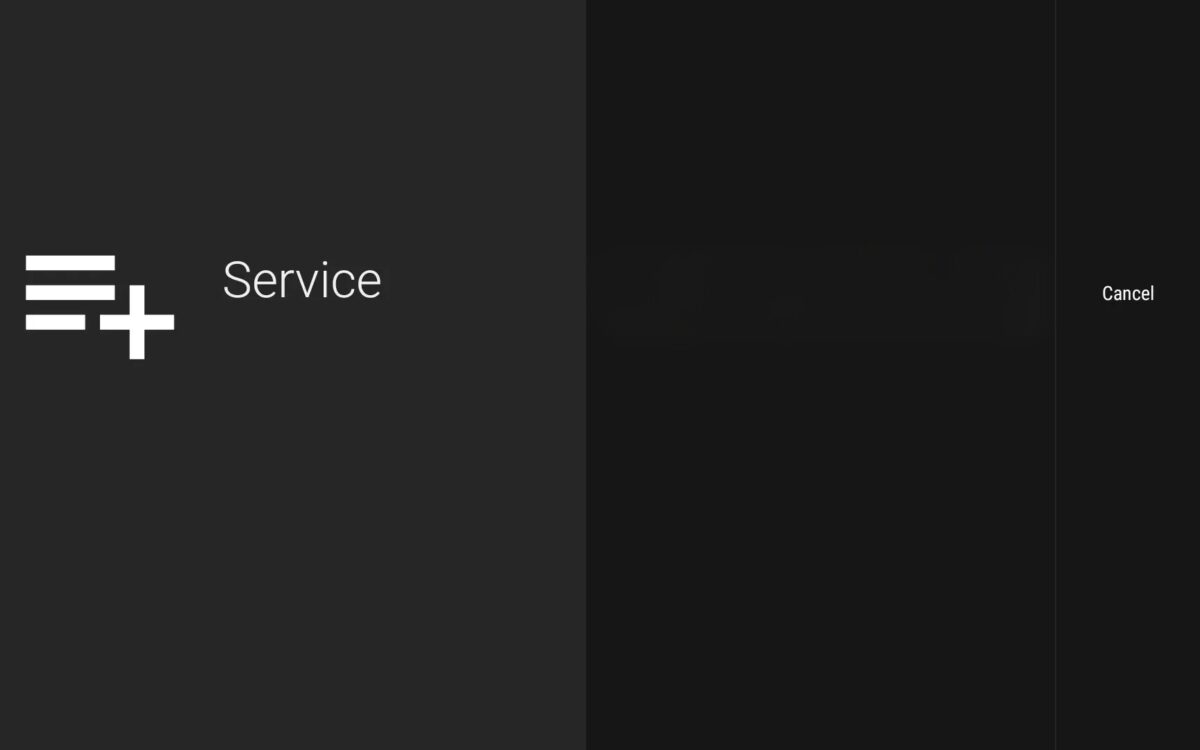
The V12Mate cancel-button issue is a setup screen that shows only a "Cancel" button because the app cannot reach its setup server from your current network. V12Mate is the streaming player app used with IPTVV (iptvv.ca) subscriptions, and this fix works on both Fire TV Stick and Android devices.
The fix has four steps: install ProtonVPN (a free app), connect it to Netherlands or Mexico, complete the V12Mate setup, then disconnect. The VPN is only needed for this one-time setup. Once your playlist loads, you can delete ProtonVPN and V12Mate will keep working normally.
Quick Tip: Already have a VPN installed on your device? Just connect it to Netherlands or Mexico, then open the V12 app. You can skip the download steps below.
Step 1: Download ProtonVPN
ProtonVPN is a free, legitimate privacy app that is safe to use. You only need it for this initial setup, and you can remove it as soon as V12Mate is working.
🔥 For Fire TV Stick
- Press the Search button (magnifying glass icon) on your remote
- Type "ProtonVPN" using the on-screen keyboard
- Select ProtonVPN from the search results
- Click the Download or Get button
- Wait for the installation to complete
📱 For Android Devices
- Open the Google Play Store
- Tap the search bar at the top
- Type "ProtonVPN"
- Select "Proton VPN: Fast & Secure" from the results
- Tap Install
- Wait for the installation to complete
Video Tutorials
These two short videos show the full process: installing ProtonVPN and connecting to a server on Fire TV Stick and Android TV.
🔥 Fire TV Stick Video Guide
📱 Android TV Video Guide
Step 2: Connect to Netherlands or Mexico
Connecting ProtonVPN to a server in Netherlands or Mexico lets V12Mate reach its setup server, which removes the cancel-button screen. Either country works; pick whichever connects first.
🔥 For Fire TV Stick
- Open the ProtonVPN app you just installed
- Create a free account using your email address
- Browse the list of available countries
- Select either Netherlands or Mexico
- Click the Connect button
- Wait for the status to show "Connected" (typically 10-20 seconds)
📱 For Android Devices
- Tap to open the ProtonVPN app
- Create a free account or sign in
- On the main screen, tap "Countries" or scroll through the country list
- Select either Netherlands or Mexico
- Tap the Connect button (usually a large button at the bottom)
- Allow VPN permissions if prompted by Android
- Wait for the status to show "Connected" (typically 10-20 seconds)
Once you see "Connected", you're ready to proceed to the next step.
Step 3: Configure V12Mate
With ProtonVPN still connected, open V12Mate and add your playlist using the username and password from your IPTVV subscription email. Keep the VPN on until your channels load.
🔥 For Fire TV Stick
- Press the Home button on your remote
- Navigate to and open the V12Mate app
- Select "Add Playlist"
- Choose "V12MATE" from the options
- Enter your Username (provided in your subscription email)
- Enter your Password (provided in your subscription email)
- Click "Next"
- Wait approximately one minute for your channels to load
📱 For Android Devices
- Press the Home button or open your app drawer
- Find and tap the V12Mate app
- Tap "Add Playlist"
- Select "V12MATE" from the options
- Enter your Username (provided in your subscription email)
- Enter your Password (provided in your subscription email)
- Tap "Next" or "OK"
- Wait approximately one minute for your channels to load
✓ Success! You should now see your available channels and content.
Step 4: Disconnect or Remove ProtonVPN
Once V12Mate is working, you no longer need the VPN. You have two options:
Option 1: Open ProtonVPN and click/tap "Disconnect"
Option 2: Uninstall ProtonVPN completely from your device
V12Mate keeps working normally without the VPN after the initial setup is complete. The cancel-button issue only affects the first-time setup screen, not day-to-day streaming.
Troubleshooting the V12Mate Cancel Button Issue
Still seeing the "Cancel" button?
- Verify ProtonVPN displays "Connected" status, the fix only works while the VPN is active
- Force close V12Mate and reopen it while the VPN is connected
- Fire TV: Settings → Applications → Manage Installed Applications → V12Mate → Clear cache
- Android: Settings → Apps → V12Mate → Storage → Clear cache
- Restart your device and try again
No channels appearing?
Incorrect credentials are the most common cause. Navigate to Settings → Playlists → V12Mate → Xtream Codes Parameters and verify:
- Username is entered correctly (check for capital letters)
- Password is entered correctly (check for capital letters)
- No extra spaces before or after credentials
ProtonVPN connection issues?
- Try selecting a different server in Netherlands or Mexico
- Wait 30 seconds and attempt to connect again
- Ensure your internet connection is stable
- Android: Check that battery optimization isn't blocking the VPN (Settings → Battery → Battery optimization)
Need Additional Support?
The IPTVV support team is available to help with V12Mate setup on Fire TV Stick, Android, or any other device
Contact Support